

Shared Library
The Shared Library holds organization-wide schemas and responses that every project can reuse. Define common building blocks such as an ErrorResponse schema or a standard NotFound response once at the organization level, then link them into any API specification. Linked components stay connected to the library, so updates flow to consumers on their own schedule.
Where to find it
Open Settings → Shared Library. Managing the library requires the org:manage-governance permission, which Admins and Owners hold. Members see the library in read-only mode. The page is available on all plans.
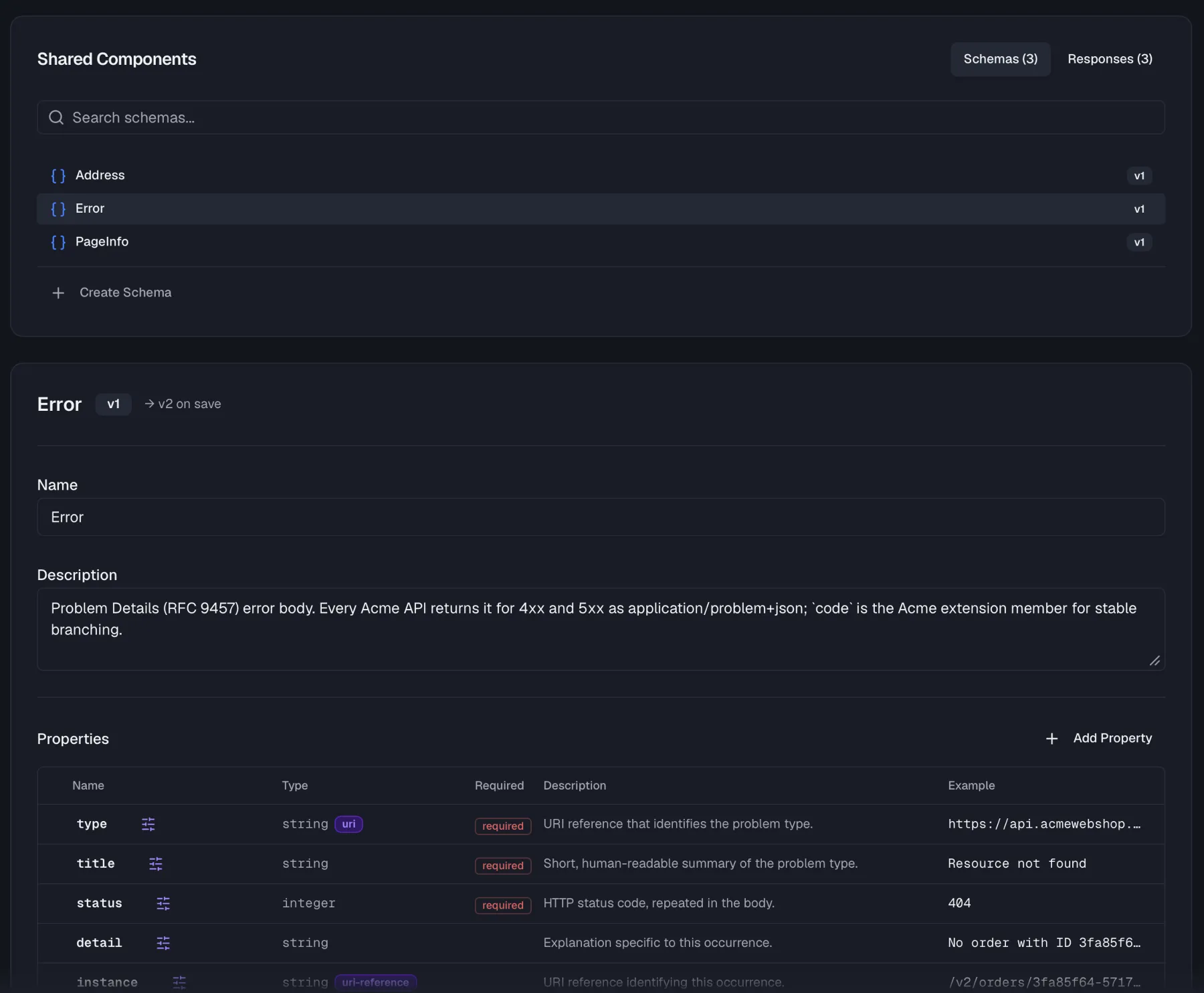
The page has two tabs, Schemas and Responses, and each one shows a searchable Shared Components list with the component name and its current version badge such as v3.
Creating a shared schema
- On the Schemas tab, click Create Schema.
- In the Create Shared Schema dialog, enter a Name (e.g.
ErrorResponse,PaginatedResult), an optional Description, and the JSON Schema definition. - Click Create Schema. Invalid JSON is rejected before saving.
Once created, the schema opens in an editor where you can maintain its Properties in a table (Add Property) and check the collapsible JSON Schema Preview.
Creating a shared response
- On the Responses tab, click Create Response.
- In the Create Shared Response dialog, enter a Name (e.g.
NotFound,Unauthorized,ValidationError), an optional Description, and pick a Content Type (application/json,application/xml,text/plain,text/html,multipart/form-data, orapplication/octet-stream). - Optionally define a Response Schema and an Example as JSON.
- Click Create Response.
The response editor additionally lets you edit the Response Body Schema for JSON content types, the response Headers as JSON such as {"X-Request-Id": "string"}, and the Example.
Versioning
Every shared component carries a version number. Saving a change increments it, and while you edit, the header shows the pending bump such as → v4 on save. Specs that link the component keep the version they linked, so a library update never silently changes a consuming spec (see Staying up to date below).
Deleting a component
Delete a component from its editor or via the trash icon in the list. The confirmation warns "Are you sure you want to delete "{name}"? This action cannot be undone. Any specs referencing this schema will lose the link." Deletion is not blocked while the component is in use, so the linked copies in specs remain, but they lose their connection to the library.
Using shared components in the API Designer
In the designer sidebar, the Shared section lists the components linked to the current specification, grouped into Schemas and Responses.
- Click the + button in the Shared section header.
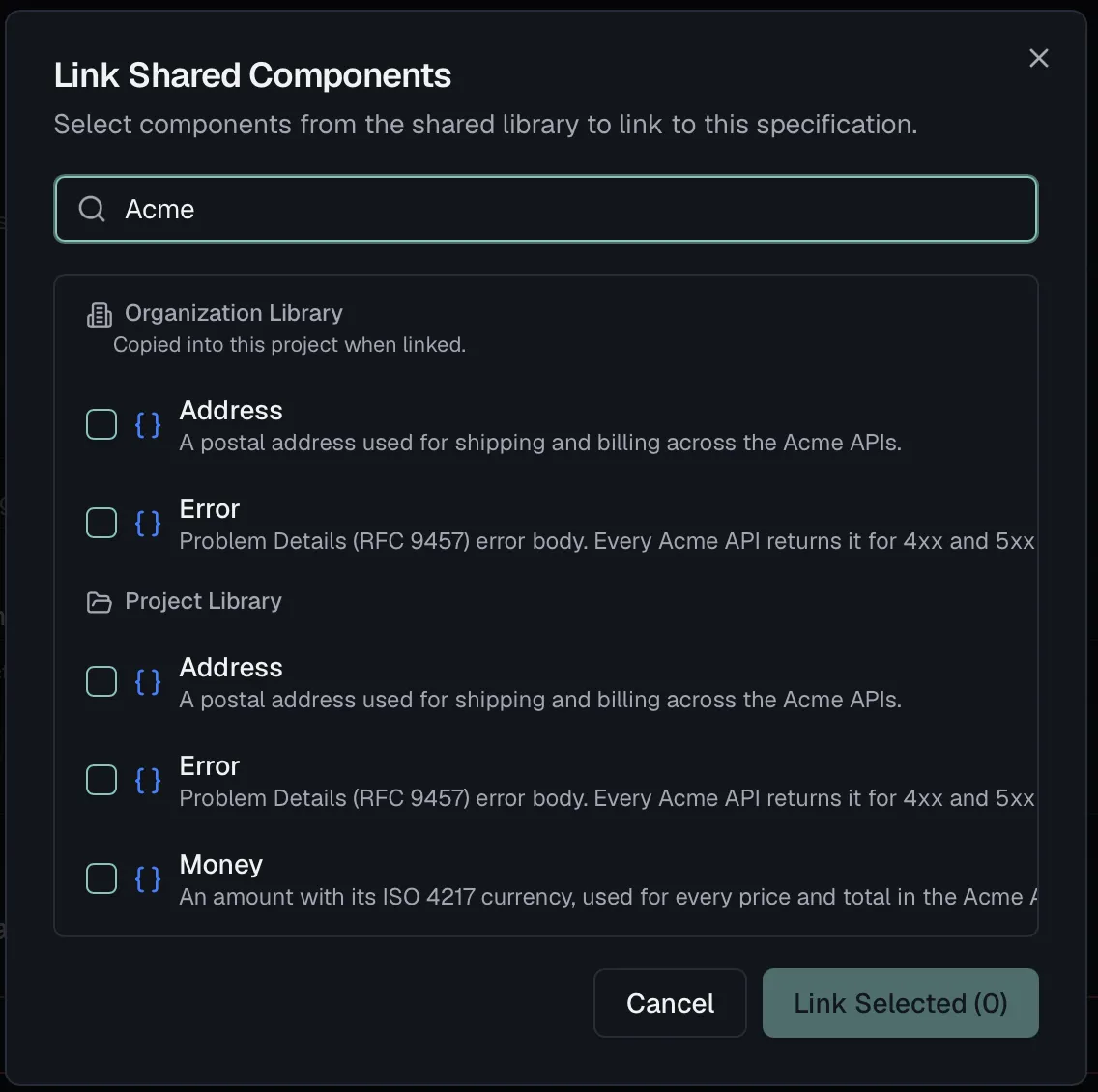
- The Link Shared Components dialog opens, described as "Select components from the shared library to link to this specification." Components are grouped into the Organization Library, whose components are copied into this project when linked, and the Project Library. Search, select one or more, and click Link Selected.
Each linked component shows a scope badge reading Org or Project, with a tooltip indicating which library it came from. Linking follows your spec editing rights through specs:write, while creating or changing library components themselves still requires org:manage-governance.
You can also go the other way. Promote a schema or response you built in a spec to the library via its Promote to Library action, which makes it reusable elsewhere.
Staying up to date
Links are pinned to the version you linked, so library updates are opt-in per spec:
- When a newer library version exists, the component shows a pulsing update indicator with the tooltip "Update available: v{linked} → v{current}".
- Hover the component and click Accept update to move the link to the latest version.
- To disconnect a component from the library entirely, use the Unlink from library hover action. The component's content stays in your spec, and only the link is removed.
Related
- Schemas — building data structures inside a spec
- Responses — defining what endpoints return
- Components — spec-level reusable components
- Style Guide — organization-wide design rules