

Global Search
Global search finds anything in your workspace from a single command palette, across all projects in your organization at once. It covers projects, endpoints, schemas, test suites, mock rules and documentation.
Opening search
- Press ⌘K (macOS) or Ctrl+K (Windows/Linux) from anywhere in the app. Pressing it again closes the palette.
- Or click the Search... box in the center of the header (on smaller screens, the magnifier icon on the right).
Type at least 2 characters to start searching, and results update as you type.
What you can find
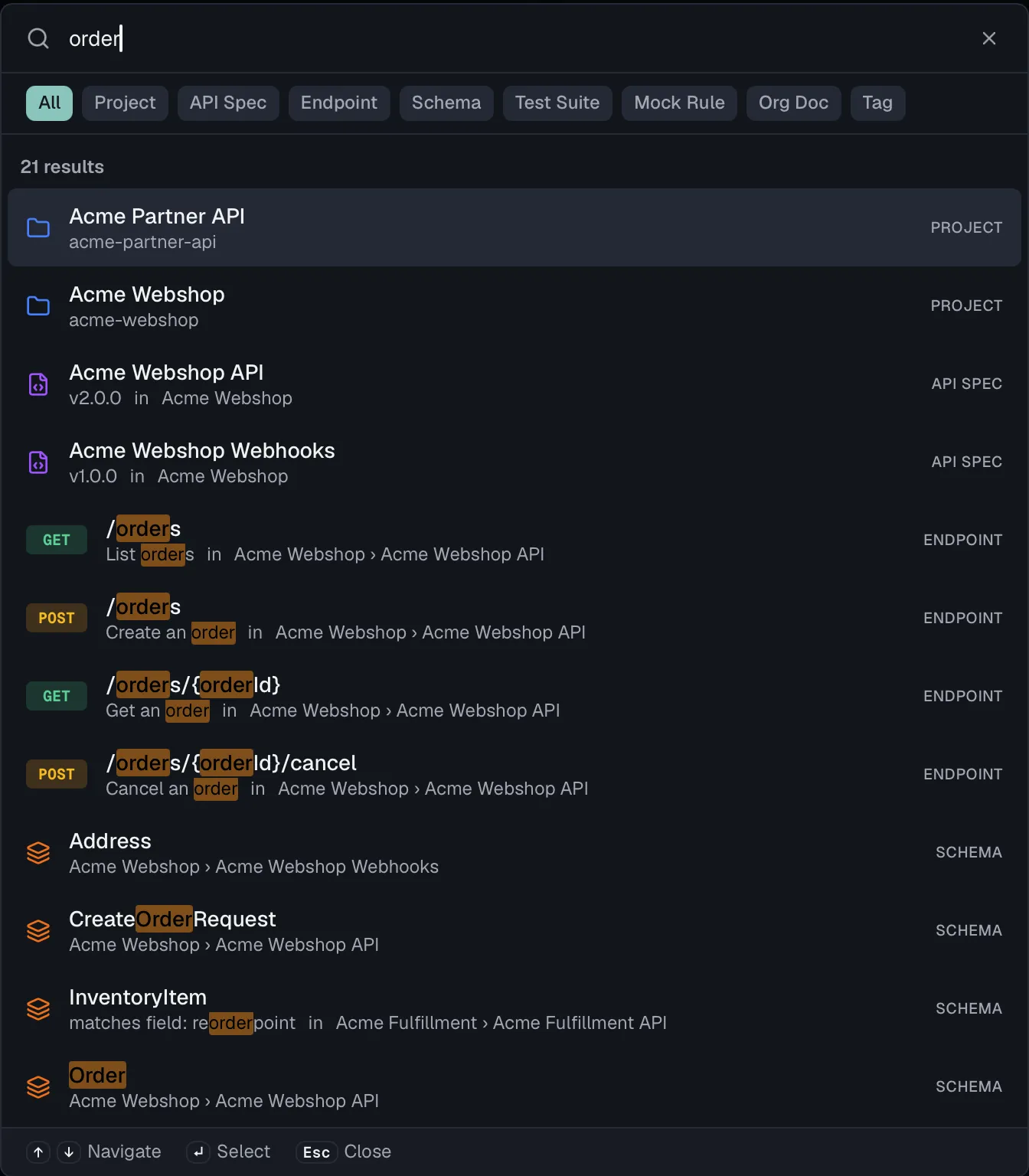
A row of filter chips under the search box narrows results by entity type. All is the default and searches everything. Click one or more chips to restrict the search, because filters are additive, and clicking All clears them again.
| Filter | Finds | Opens |
|---|---|---|
| Project | Projects by name | The project overview |
| API Spec | API specifications | The specification |
| Endpoint | Endpoints — results show the HTTP method as a colored badge | The endpoint in the API Designer |
| Schema | Reusable schemas | The schema in the API Designer |
| Test Suite | Test suites | The suite in the Test Runner |
| Mock Rule | Mock rules | The rule in the Mock Server |
| Org Doc | Organization documentation pages | The page in the reader view |
| Tag | Endpoint tags | The tagged endpoints |
Each result shows its title (with your query highlighted), a subtitle, where it lives, and a type badge. Endpoints, schemas and tags name project › API, because two specifications in one project can carry the same path. The result list should not make you open both to find out which is which. Everything else names its project. When a result lives in a different project than the one you're currently working in, opening it switches your project context automatically. You land in the right place with no extra clicks.
Working the results
The footer of the palette lists the keyboard controls:
| Key | Action |
|---|---|
| ↑ / ↓ | Navigate through results |
| ↵ | Open the selected result |
| Esc | Close the palette |
Results load 5 per entity type at a time, and Load more at the bottom of the list fetches the next batch.
Recent searches
When you open the palette without typing, your five most recent successful searches appear under "Recent Searches", and clicking one runs it again. Recent searches are stored locally in your browser.
Empty states
- Fewer than 2 characters typed: "Type at least 2 characters to search".
- Nothing matches:
No results found for "your query". - First use, nothing typed yet: "Start typing to search across all your projects".
Related
- Dashboard — your workspace home page
- Projects — how projects organize your APIs
- Endpoints — the operations search takes you to
- Doc Overview — the documentation hub behind Org Doc results