

Data-Driven Tests
Data-driven testing runs an entire test suite once per row of a test data set, which is a simple table of columns and rows attached to the suite. Instead of duplicating a login case for ten user accounts, you write the case once, reference columns like {{data.email}}, and let Routebase iterate.
Where data sets live
Data sets belong to a test suite. Open the suite in the Test Runner, click Suite Settings at the bottom of the sidebar, and scroll to the Data Sets section. Before you create one, the section shows No test data sets yet above the line "Create a data set to parameterize your test cases with different input values." and offers the Import CSV/JSON and Create First Data Set buttons.
Each data set card shows its name, its size (2 cols · 10 rows), and an optional description. Managing data sets requires the tests:write permission.
Creating and editing a data set
- In Data Sets, click Add Data Set.
- Enter a Name (e.g.
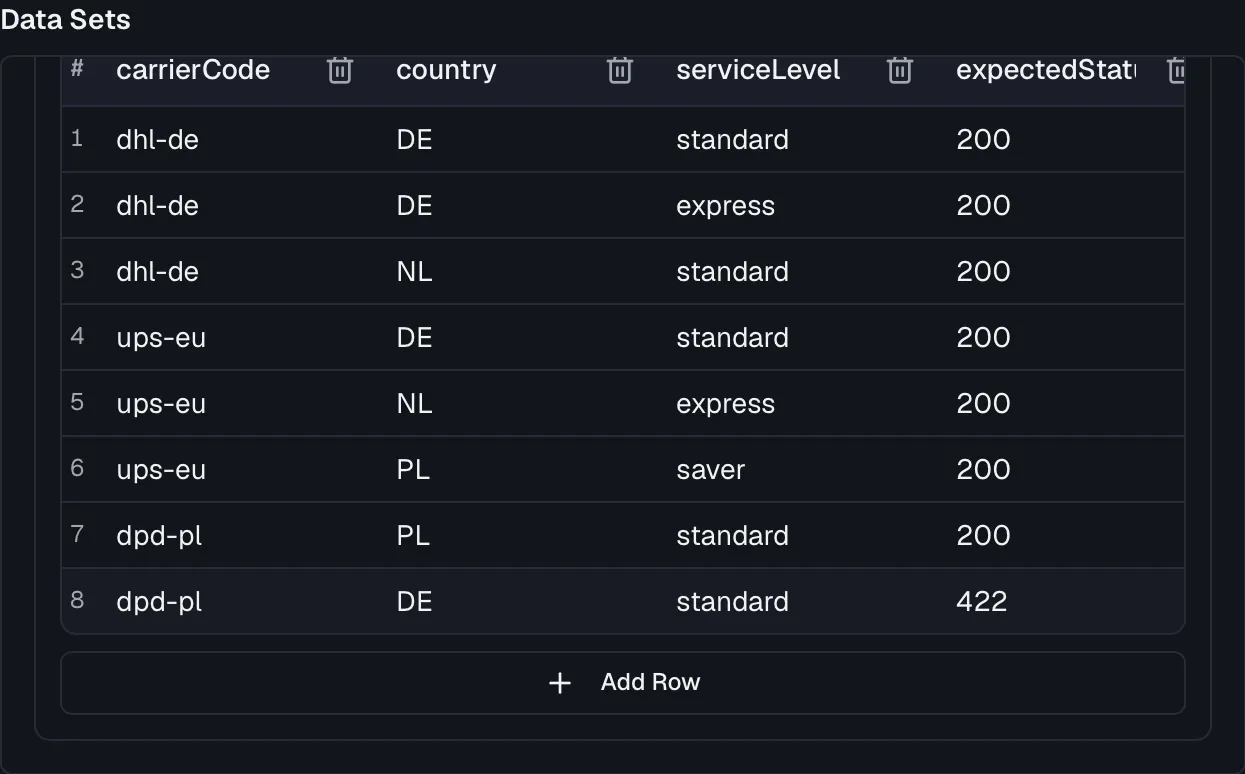
User registration data) and an optional Description, then click Create Data Set. A new set starts with one column and one empty row. - Expand the set and click Edit Data to open the inline table editor:
- Rename columns by typing into the header cells. Every column needs a name, and names must be unique, because the editor blocks saving otherwise.
- Add and remove columns with the column buttons (at least one column must remain).
- Click Add Row for more rows, and edit cells directly in the table.
- Click Save. Use Edit Name to change the name or description later.
All cell values are stored as text, and type conversion happens where the value is used.
Importing data
Click Import to open the Import Test Data dialog, which reads "Upload a CSV or JSON file, or paste data directly to import into a test data set."
- Upload File supports CSV, JSON, and TSV files. The data set name is pre-filled from the filename.
- Or Paste Data accepts raw CSV or JSON, and the format is auto-detected and shown as a badge reading CSV detected or JSON detected.
- For CSV, the first row is treated as headers, and quoted fields and escaped quotes are handled.
- For JSON, the importer takes an array of objects whose keys become columns, an array of arrays, or an array of primitives that lands in a single
Valuecolumn.
A Preview shows the first 10 rows. Then choose the Import Mode:
| Mode | Effect |
|---|---|
| Create new data set | Imports into a fresh data set (name required). |
| Replace existing data set | All existing data will be replaced with the imported data. |
| Append to existing data set | Imported rows will be added to the existing data. |
Click Import Data to finish.
Referencing row values
Reference a column anywhere a request template accepts placeholders, which covers the URL, the headers, the body and assertion expected values:
{{data.<columnName>}}
For example, with columns email and expectedStatus:
- The URL reads
{{BASE_URL}}/users?email={{data.email}}. - The assertion Status Code equals
{{data.expectedStatus}}substitutes its expected value per row, so a single case can assert different outcomes for different rows.
Data placeholders are highlighted in purple in the editor, and typing {{data. opens an autocomplete listing the selected data set's columns. Data variables coexist with environment variables (referenced by their bare name, {{BASE_URL}}), fixtures ({{fixture.*}}), and dynamic values ({{$uuid}}, {{$timestamp}}, ...) in the same template.
Running a data-driven suite
- In the suite toolbar, open the data set selector, which reads No Data Set when nothing is selected, and pick a data set. The option shows its row count, and the tooltip shows its dimensions.
- Click Run All.
Routebase executes the full suite once per data row. Rows are independent, so each iteration starts fresh with its own row values. Extracted runtime variables do not carry over between rows.
Reading the results
After a data-driven run, the results panel shows a per-row breakdown:
- A header with the data set name, a rows passed badge (e.g.
8/10 rows passed), the total duration, the row count, and a progress bar. - One expandable entry per row (Row 1, Row 2, ...) with a pass/fail icon, a preview of the row's first values, and its duration.
- Expanding a row reveals its Data Values, meaning every column and value pair, together with the result of each test case in that iteration, carrying its status code, error message and duration.
The completion toast summarizes the run, e.g. "All 24 test cases passed across 8 data rows".
Data sets vs. fixtures
Both feed data into tests, but they solve different problems:
| Use a data set when... | Use a fixture when... |
|---|---|
| You want to repeat the same suite for each row | You want one structured blob of reference data |
| Values are flat (one row = one iteration) | Values are nested objects/arrays |
| The data varies the inputs of a run | The data is shared across tests, mocks, and docs |
Related
- Test Suites — the cases a data-driven run executes
- Test Data — fixtures, seeds, and snapshots
- Test Scenarios — multi-step workflows with value chaining
- Variables — environment-scoped values for your templates