

Desktop App
Routebase runs in the browser and as a native desktop app for macOS and Windows. Three things work in the desktop build that a browser tab cannot do:
- A finished test run reaches you in another window. When a suite completes while the Routebase window is not in front, the app raises a native notification with the request and failure counts. In-app notifications arrive the same way, so a long run reports back while you work in your editor.
- Exports go where you put them. Saving a spec export or a response body opens your operating system's save dialog. You choose the folder and the filename, instead of hunting for the file in Downloads afterwards.
- Your session lives in the operating system's credential store. That is Keychain on macOS and Credential Manager on Windows, rather than browser storage that a cleared site-data setting can take with it.
On top of that the app carries native menus and a tray icon, keeps running when you close the window, and updates itself.
Everything else is identical, because both clients open the same workspace on the same account and the same data. Signing in on the desktop changes nothing about what the browser shows you, so you can move between them whenever it suits you.
Installing
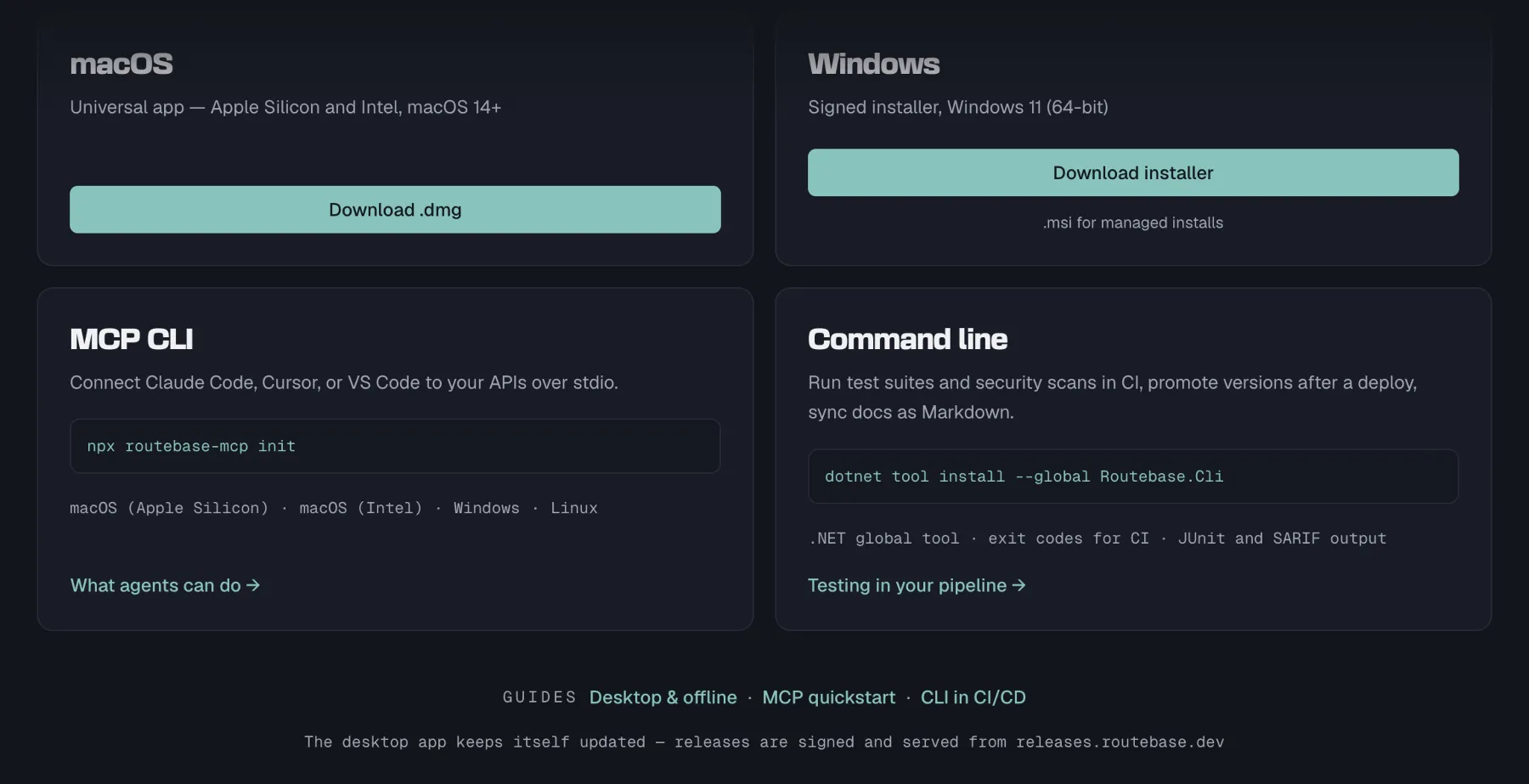
Download from routebase.dev/download:
| Platform | Package | Requirements |
|---|---|---|
| macOS | .dmg, universal, with Apple Silicon and Intel in one build |
macOS 14 (Sonoma) or later |
| Windows | .exe installer, 64-bit |
Windows 11 |
| Windows, managed installs | .msi |
Windows 11 |
Both platforms ship signed. The macOS build is notarized by Apple, and the Windows build is signed through Microsoft Trusted Signing. You should not see an unidentified-developer warning on either, and if you do, you did not get the build from the link above.
The .msi exists for administrators deploying through Group Policy or Intune. For a single machine, take the .exe.
Signing in
The desktop app signs you in through your browser rather than an embedded login form. Choosing Sign In opens your default browser at Routebase. Once you authenticate there, the browser hands the session back to the app through a routebase:// link that the installer registers.
Your session is then stored in the operating system's credential store rather than in a file the app manages itself. That store is Keychain on macOS and Credential Manager on Windows. Signing out clears it there.
If your browser asks whether to allow the site to open Routebase, allow it, because that redirect is the last step of the login.
Native menus and the tray
The menu bar carries what a desktop app is expected to carry, which is File, Edit, View, Window and Help, plus the Routebase application menu on macOS. Two entries are worth pointing out:
- Help → Check for Updates… runs an update check on demand, with a confirmation either way. It is absent in MSIX deployments, where updates come from whoever deployed the app.
- Help → Routebase Docs opens this documentation.
Sign Out sits in the application menu next to Quit on macOS, and in the File menu everywhere else. It is greyed out until you are signed in.
Routebase also puts an icon in the system tray, which is the menu bar extra on macOS, carrying Show Routebase, Check for Updates…, Sign Out and Quit Routebase. Closing the window leaves the app in the tray rather than quitting it.
Spec actions such as new, import and export are deliberately not in the menu bar. They belong to a spec, and a spec is something you have open in the app, so they live in the app's own UI where the context is unambiguous.
Updates
The app checks for updates on its own, once about half a minute after launch and then every six hours. Checks are silent unless there is something to report.
When a new version is available you get a dialog offering Install and restart or Later. Choosing to install downloads the update, applies it and restarts the app, and on Windows the installer runs without further prompts. Choosing Later leaves you alone until the next check.
Updates are verified against a signing key built into the app, so a build that was not published by Routebase is rejected before it is applied.
If your organisation deployed Routebase as an MSIX package, this section does not apply to you. See Deploying to a managed fleet instead.
When an update is not optional
Occasionally a desktop version falls behind what the backend still supports. When that happens the app shows a full-screen notice that cannot be dismissed:
This version of the Routebase desktop app is no longer supported. Please install the latest version.
The notice offers the update directly. This is deliberately a wall rather than a banner, because an outdated build talking to an incompatible API produces confusing failures rather than clean ones, so it is stopped before it starts.
If the update check itself fails at that point, download the current build from routebase.dev/download and install over the top. Your data lives on the server, so nothing is lost.
Deploying to a managed fleet
Alongside the installers above, Routebase ships as an MSIX package for administrators rolling it out to managed Windows devices:
| Package | Architecture |
|---|---|
Routebase-x64.msix |
64-bit Intel and AMD |
Routebase-arm64.msix |
ARM64 |
Those links always point at the current release. Version-pinned copies live at https://releases.routebase.dev/desktop/<version>/.
MSIX is the native format for managed Windows deployment. It leaves no program files, registry entries or start-menu shortcuts behind when removed, and only the per-user application data folder stays, so a reinstall finds its settings again. Intune also treats it as a line-of-business app, which means there are no silent-install switches to work out and no uninstall string to maintain. To deploy it, add the file in Intune as a Line-of-business app, pick the .msix, and assign it. Installation is silent and needs no local administrator rights on the device. Microsoft Store for Business, the old private-store route, was retired in March 2023 and is not an option.
Requirements. The package targets Windows 11. It still installs on Windows 10 from version 1809, because we do not lock those devices out, which matters for fleets on extended security updates, but that combination is no longer tested or supported. WebView2 has to be present. It ships with Windows 11, and an MSIX package cannot install it on its own.
Signing. The packages are signed through Microsoft Trusted Signing, which chains to a certificate authority Windows already trusts. You do not need to push a certificate to your devices first.
Updates work differently for a packaged install. The app does not update itself when it runs from an MSIX, because the check described above is switched off there. The packaging model hands updates to whoever deployed the app, so roll out a new version the way you rolled out the first one.
Working without a connection
The desktop app keeps working when the network does not, because changes are saved locally and sync when you reconnect. That behaviour is not exclusive to the desktop build, so it has its own page under Offline Mode.
Related
- Offline Mode — what happens to your changes when the connection drops
- Getting Started — your first project, in either client
- MCP Quickstart — connecting agents to the same workspace