

Organization Settings
Your organization is the home for everything you build in Routebase, from projects, specs, test suites and mock servers to the people who work on them. This guide covers the organization-wide settings under Settings → General, which are your organization's identity, usage type, versioning defaults and the danger zone.
Managing these settings requires the org:manage-settings permission, which Admins and Owners have. For people, roles and access control, see Members & Invitations, Roles & Permissions and Team Access.
Organization details
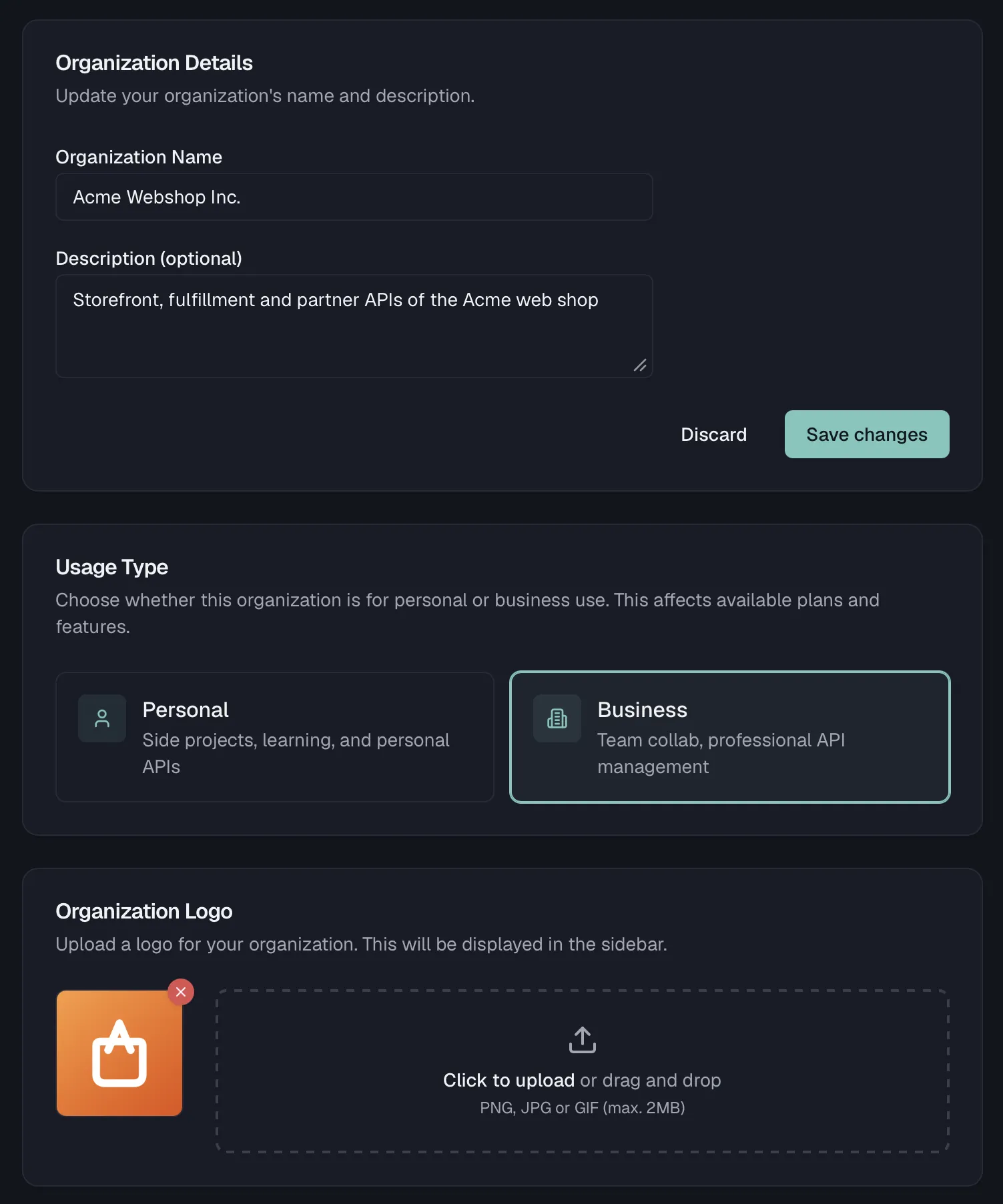
- Organization Name is shown across the app and on your documentation portals.
- Description (optional) holds a brief description of your organization.
Edit either field and click Save Changes. A save indicator confirms when the change persists, and Reset discards unsaved edits.
Usage type
Choose whether this organization is for Personal use or Business use. Personal suits side projects, learning and personal APIs, while Business suits team collaboration and professional API management. The choice affects which plans and features are available:
- Switching to Business unlocks the Enterprise plan and enables team-oriented features.
- Switching to Personal hides the Enterprise plan option, so if you have an Enterprise subscription you need to change your plan first.
See Billing & Plans.
Organization logo
Upload a logo to be displayed in the sidebar and on your documentation. Click the upload area or drag and drop a PNG, JPG or GIF image of at most 2 MB.
Default versioning strategy
Set a recommended versioning strategy for new API specifications. This is a suggestion rather than a rule, because each spec can override it.
| Field | Options |
|---|---|
| Strategy Type | None (no default), URL Path, Header, Query Parameter, or Content Negotiation |
| Parameter Name | The version carrier, such as v for URL path, Api-Version for header, or version for query parameter |
| URL Pattern | The pattern for URL-path versioning, such as /v{major} |
| Default Version Behavior | Latest version, Specific version, or Require explicit version |
| Strict Mode | Reject requests with invalid versions |
Click Save Default to apply, or Clear Default to remove the recommendation. See Versioning for how strategies play out in your specs.
Your organization's data region, either US or EU, is chosen once at signup and cannot be changed here. See Region Selection.
Danger zone
The two account-ending actions live at the bottom of the General page. Neither destroys anything on the spot, because deleting an organization stays reversible for 30 days, and leaving one starts a 30-day clock on your own account.
- Leave Organization removes you as a member, so you lose access to all projects, API specifications, test suites and mock servers of this organization. Admins and Members see this option, while the Owner does not, and an Owner winding the workspace down deletes the organization instead. Leaving has consequences for your personal account too, described under After you leave below.
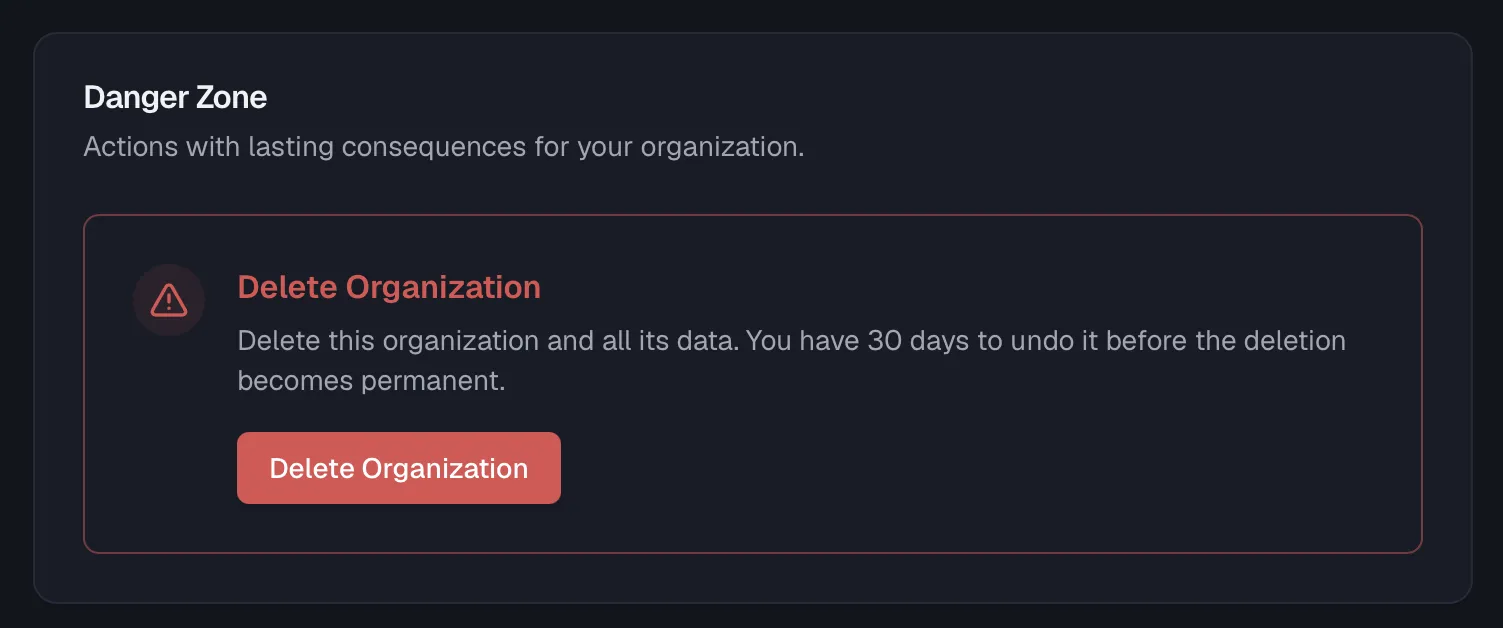
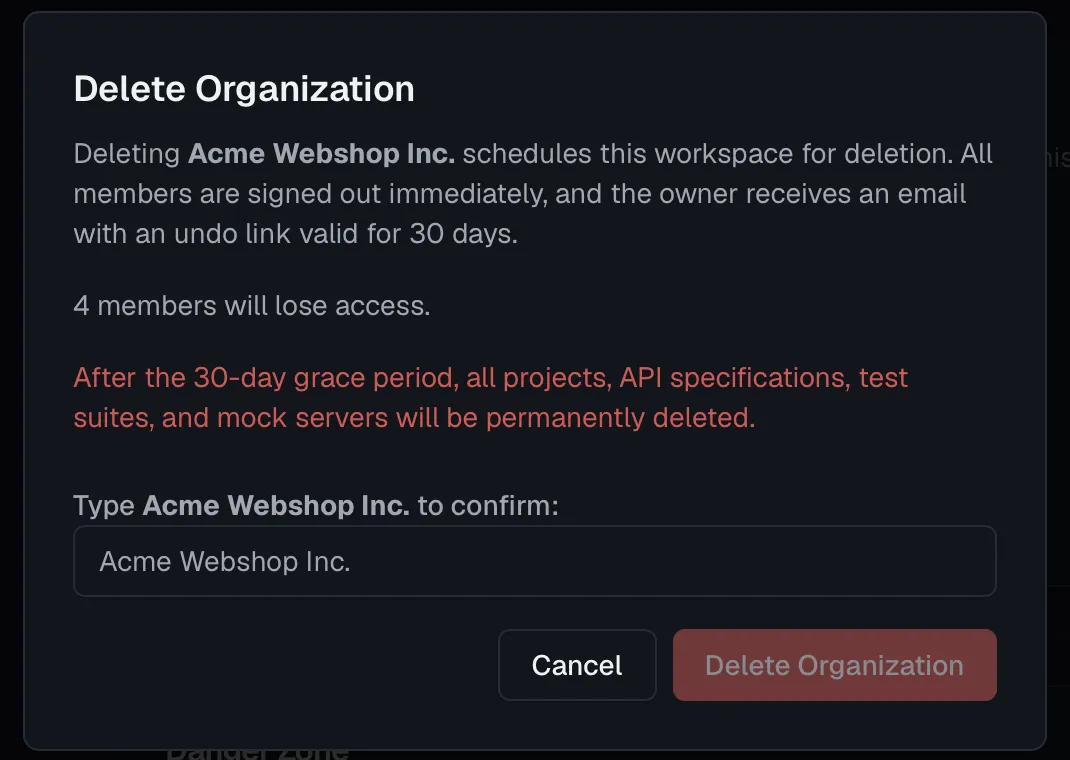
- Delete Organization schedules the organization for deletion. Everyone is signed out immediately and the workspace becomes unreachable, but nothing is erased yet. The Owner receives an email titled "…is scheduled for deletion", carrying a Restore workspace link that works without logging in. Only when the 30 days are up do the projects, API specifications, test suites and mock servers get removed for good. Memberships are deliberately kept during those 30 days, so restoring brings every member back with their role. You must type the organization's name to confirm. Only the organization Owner can delete it, through the org:delete permission, and for everyone else the button is disabled with a tooltip saying so. Your own user account survives either way, so you can sign in and start fresh later.
Before you can delete: cancel the subscription
An organization with a live, uncancelled subscription cannot be deleted. The confirmation dialog checks this when it opens, and if a subscription is running it shows a "Cancel your subscription first" notice with a Go to Billing shortcut instead of letting you proceed. Cancel the subscription first, because you keep access until the end of the current billing period, and a subscription that is already cancelled but still running does not block the deletion. See Billing & Plans.
Before you confirm, the dialog also tells you how many members will lose access. If the organization has ever been invoiced, it adds that invoices and billing records are kept for the statutory retention period while everything else is removed.
After you leave
Ending a membership always sends you a mail and starts a 30-day clock, and the clock only bites if that was your last organization. The mechanic is identical whether you left voluntarily, an Admin removed you, or the organization was deleted around you:
- You get an email confirming that the membership ended. It names the exact date on which your account and personal data would be deleted if you do not join an organization again. It also carries a one-time Download my data link so you can take your data with you. See Profile & Preferences. If you are still a member of another workspace, that date never arrives.
- Joining an organization before the date stops the clock, and so does signing in again. Nothing is deleted while you hold a membership anywhere.
- If your email address is on a verified domain of the organization you left, your sign-in is blocked as well. The address belongs to the company, so it can neither keep the account alive nor found a separate workspace under that domain. Collaborators on their own domains, such as agencies, freelancers and contractors, are never blocked, and for them a single sign-in is enough to keep the account. See Custom Domains for what verifying a domain claims.
Tenant isolation
Every organization is fully isolated. Members, invitations, roles, teams, API keys, variables and audit logs are scoped to a single organization, so there is no way for one organization to see another's data, even if they share a name. When you belong to more than one organization, each keeps its own members and settings entirely separate.
Related
- Members & Invitations — invite teammates and manage their roles
- Roles & Permissions — built-in roles, custom roles, and the full permission matrix
- Team Access — control which teams can reach which projects
- Billing & Plans — plan limits, seats, and what each tier unlocks
- Region Selection — choose where your organization's data lives
- Profile & Preferences — your personal data export and account deletion
- Custom Domains — claim your email domains for this organization