

Changelog Pages
A changelog page keeps your API consumers informed about what changed between releases. Routebase can write much of it for you. Because your documentation embeds pinned snapshots of published API specs, it can compare spec versions and generate categorized changelog entries, including breaking-change flags and migration hints.
Creating a changelog page
- In the content tree, choose New Page → Changelog ("Version history with categorized entries"). A documentation version can have one changelog page.
- Pick a template:
- Standard gives you Added, Changed and Fixed sections.
- Keep a Changelog follows the standard Keep a Changelog format with versioned entries.
- Release Notes is a user-friendly, feature-focused format.
- Click Create Page.
The changelog is a normal page, so you edit it with the full rich text editor. It stays organized by whatever convention your template established, which usually means version headings with Added, Changed, Removed, Fixed, Deprecated and Security sections.
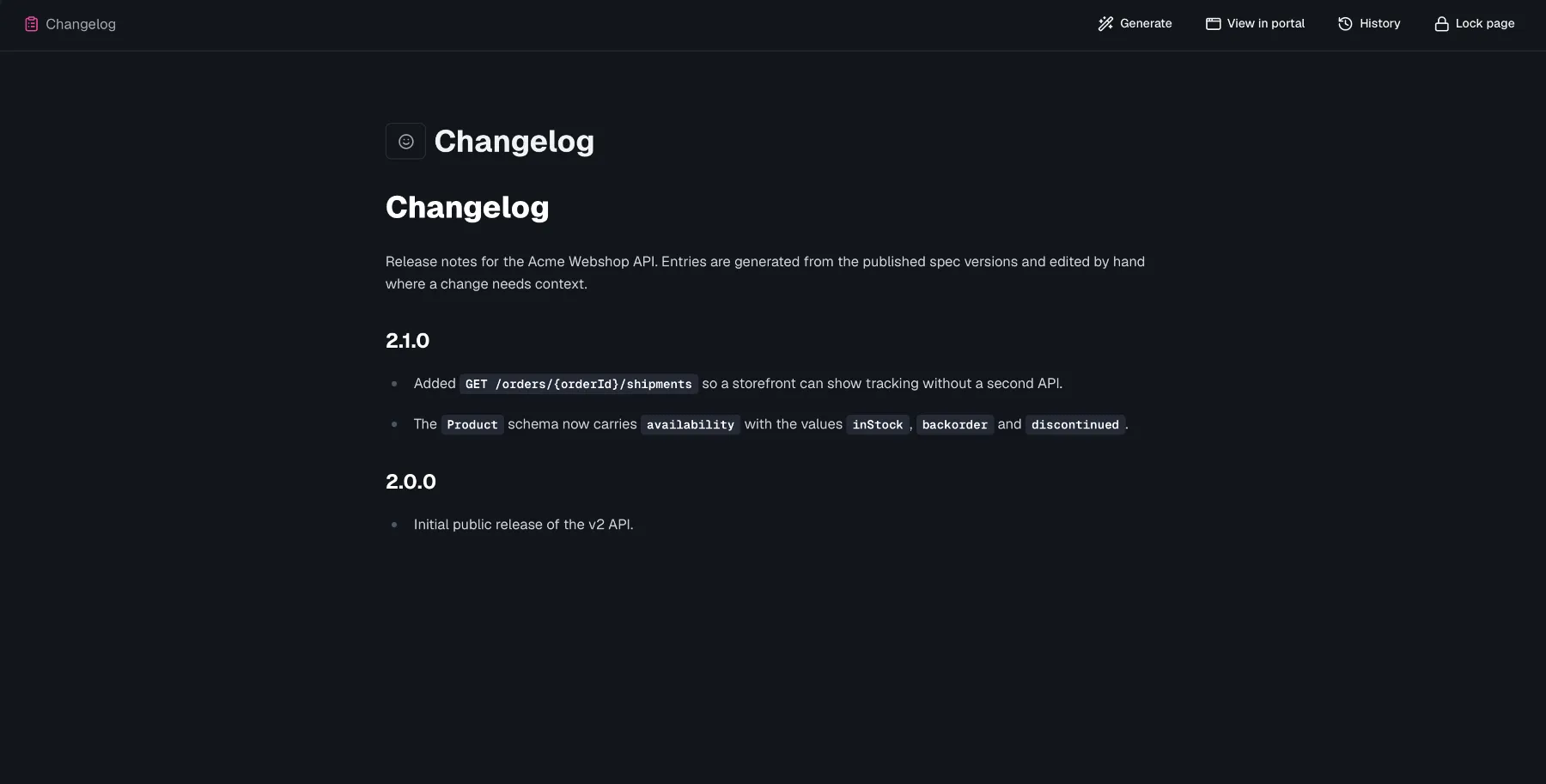
Auto-generating entries from spec changes
Changelog pages have an extra Generate button in the page header (visible in editable versions). It opens Generate Changelog from Spec Changes, described as "Automatically create changelog entries by comparing API specification versions."
- Under Select API Specification, pick the spec to compare. The dialog lists the API specs embedded in this documentation version, each showing which spec version it is pinned to. If none are embedded yet, you'll be prompted to add a spec first, as covered in Documentation Overview.
- Click Generate. Routebase compares the spec versions and produces a preview of entries.
- Review the preview. Each entry shows:
- A category badge naming the category, which is Added, Changed, Removed, Fixed, Deprecated or Security.
- A classification badge for breaking or deprecated changes, with summary counts at the top such as "3 Breaking".
- A migration hint where one applies.
- Use the checkboxes (or Select All / Deselect All) to pick which entries to keep, then click Import N Entries.
The selected entries are inserted into the changelog page as Markdown, where you can reword, reorder or expand them like any other content.
Tips
- Generate against a draft documentation version, polish the wording, then take the version live. Published versions are immutable, as described in Versioning.
- After updating a pinned spec snapshot to a newer release (via the update banner or when cloning a version), run Generate to capture exactly what changed in that release.
- Breaking and deprecated entries deserve extra context, so add migration steps or link to a dedicated migration guide page.
Related
- Documentation Overview — embedding API specs as pinned snapshots
- Versioning — the documentation version lifecycle
- Page Templates — the three changelog templates
- API Spec Versioning — publishing the spec versions the comparison is based on