

Page Templates
Every new documentation page starts from a template. Templates give each page type a proven structure. You pick one in the creation dialog, preview it and adjust the content afterwards like any other page. Organizations can add their own templates on top of the built-in set.
Choosing a template
- In the content tree, choose New Page and pick a page type.
- For custom pages, enter a Title and optional Slug first. Specialized types go straight to the template step.
- In the Choose a Template dialog, select a template on the left and check the live Preview on the right. The Blank option shows "Empty page — start writing from scratch."
- Click Create Page.
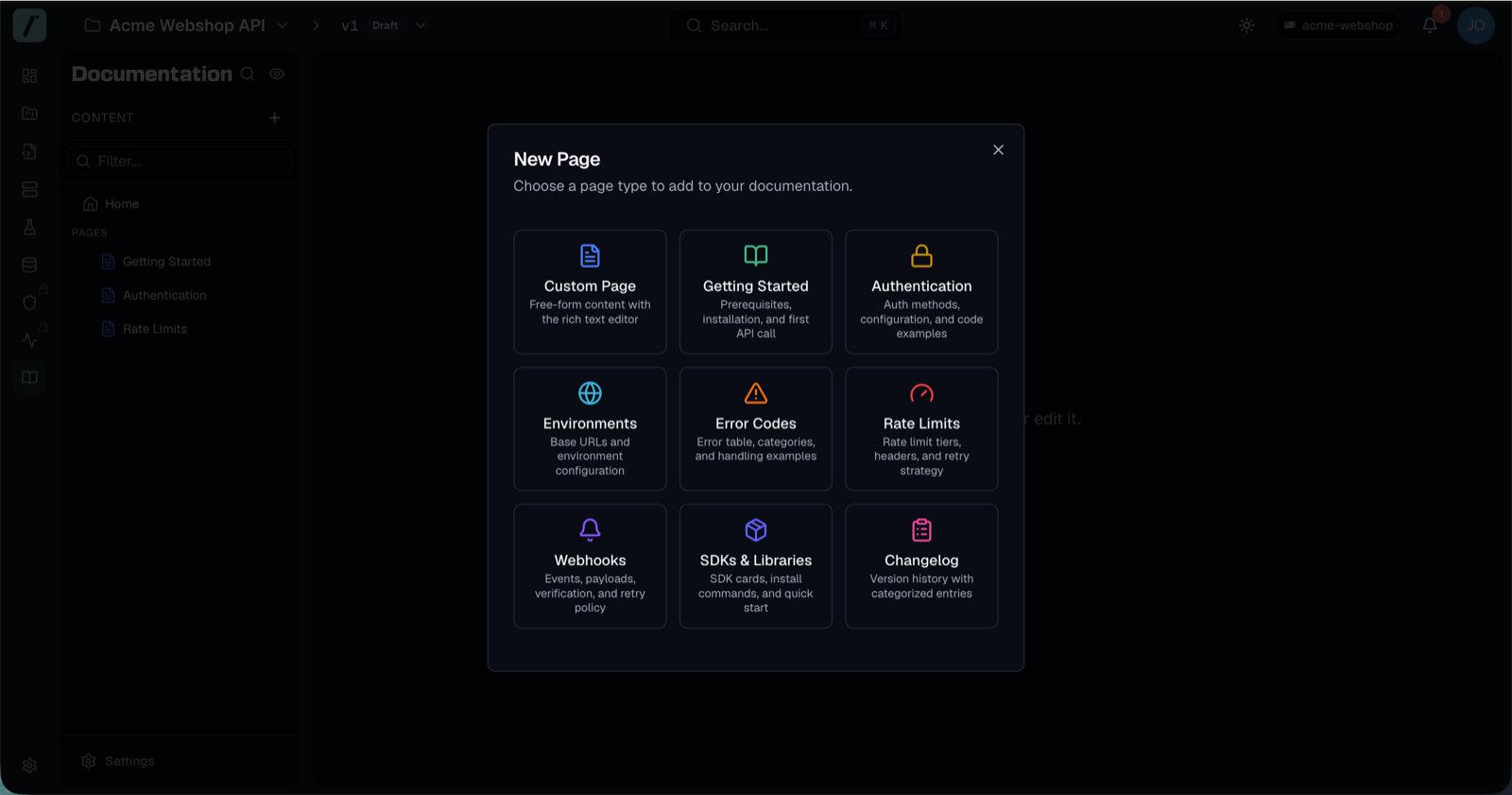
Built-in templates
Custom pages
| Template | Description |
|---|---|
| Blank | Start with an empty page |
| API Guide | Step-by-step API integration guide |
| Migration Guide | Guide for API version migration |
| FAQ | Frequently asked questions |
| Tutorial | Hands-on tutorial with examples |
Specialized page types
Each specialized page type ships with three variants:
| Page type | Templates |
|---|---|
| Getting Started | Standard (full guide with SDK setup and first API call) · Quickstart (minimal, single curl example) · Full Tutorial (multiple languages, SDK setup, error handling) |
| Authentication | Standard (all auth methods with best practices) · API Key Only · OAuth 2.0 Focus (detailed flow with token refresh) |
| Environments | Standard (environment listing with notes) · Minimal (just the table) · With Deployment Guide (plus CI/CD and promotion) |
| Error Codes | Standard (HTTP status codes, error format, application codes) · Simple Table · With Troubleshooting (debugging tips per error) |
| Rate Limits | Standard (tiers, headers, retry strategy) · Overview Only · With Code Examples (retry logic in JavaScript and Python) |
| Webhooks | Standard (events, payloads, signature verification, retries) · Event Catalog · Integration Guide (step-by-step setup and testing) |
| SDKs & Libraries | Standard (official SDKs with install commands) · Quick Reference (install commands and repo links) · With Examples (usage examples per language) |
| Changelog | Standard (Added/Changed/Fixed sections) · Keep a Changelog (versioned entries) · Release Notes (user-friendly, feature-focused) |
Templates only pre-fill content. After creation, the page is fully editable in the rich text editor.
Organization templates
You can define custom templates that appear in the page creation dialog for all projects in your organization, listed under an Organization heading below the built-in templates.
Manage them under Settings → Doc Templates:
- Click Create Template. Managing templates requires the org:manage-settings permission, which Admins and Owners typically hold, while everyone can view the list.
- Fill in the template details:
- A Name and an optional Description.
- The page type the template applies to.
- The template content, written in Markdown.
- Save. The template is immediately available in every project's New Page dialog for that page type.
Existing templates can be filtered by page type, edited in place or deleted from the same page.
Related
- Documentation Overview — page types and the content tree
- Authoring — editing pages created from templates
- Changelog — the changelog templates in action