

Project Auth
Routebase configures API authentication per environment, so each environment of a project carries its own auth scheme and credentials, and test runs inherit it automatically. Configure Basic Auth once on Staging and OAuth 2.0 on Production, and the same test suite authenticates correctly against both.
Where auth is configured
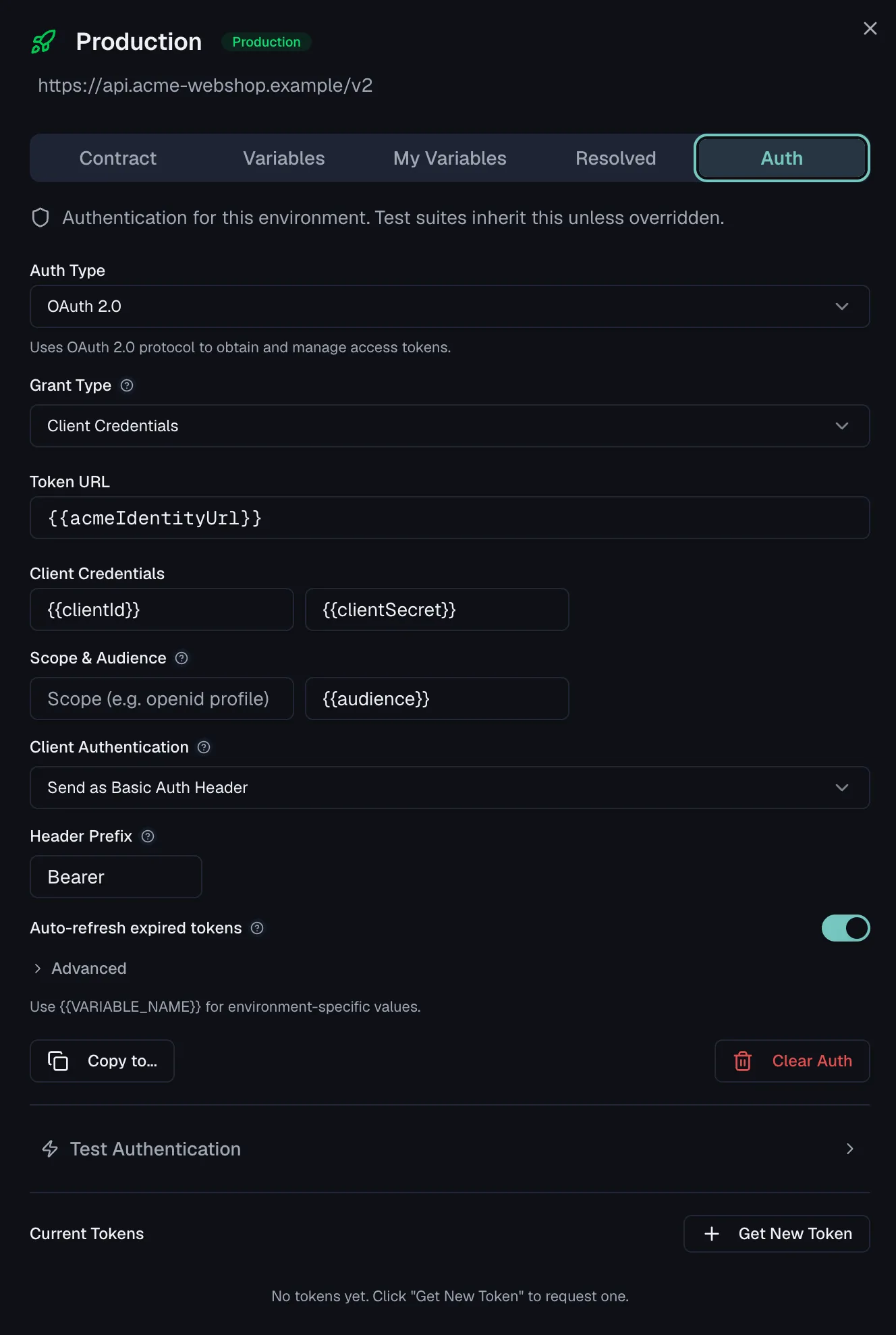
- The Auth tab of the environment detail sheet is where you set, test, copy and clear the configuration. Open an environment from the Projects page sidebar and switch to Auth. The tab notes "Authentication for this environment. Test suites inherit this unless overridden."
- Project Settings → Authentication by Environment is a read-only overview table listing every environment with its auth type badge and when it was last updated, so you can spot unconfigured environments at a glance.
Supported auth types
The Auth Type selector offers:
| Group | Type | What it does |
|---|---|---|
| Common | None | No authentication headers. |
| Common | Basic Auth | Sends username and password encoded with Base64 in the Authorization header. |
| Common | Bearer Token | Sends a token in the Authorization header as Bearer <token>. |
| Common | API Key | Sends an API key as a custom header or query parameter, where you choose the key name and whether it goes in Header or Query. |
| OAuth | OAuth 2.0 | Obtains and manages access tokens. The grant types are Client Credentials, Authorization Code, Authorization Code (with PKCE), Password Credentials (Legacy) and Device Authorization. |
| OAuth | OAuth 1.0 | Signature-based authentication for legacy APIs. |
| Token | JWT Bearer | Generates a signed JSON Web Token from a secret or private key, with a live preview of the token payload. |
| Other | Digest Auth | HTTP Digest challenge-response authentication. |
| Other | AWS Signature V4 | Signs requests for AWS services. |
| Other | Hawk Auth | HMAC-based authentication with timestamp and nonce. |
| Other | NTLM Auth | Windows NT LAN Manager challenge-response authentication. |
Every credential field accepts {{VARIABLE_NAME}} placeholders with autocomplete from the environment's resolved variables, so you keep the scheme in the auth config and the secrets in secret variables. Changes save automatically as you type.
OAuth 2.0 tokens
For OAuth 2.0 configurations, a token manager below the form lists the stored tokens with their grant type and expiry. From there you request a new token, refresh, copy or delete an existing one. The tokens belong to that one environment.
Device authorization
The Device Authorization grant follows RFC 8628 and suits providers that hand out tokens through a code you confirm in a browser, such as command-line or device logins. Enter the provider's Device Authorization URL next to the token URL and the client credentials. Get New Token then opens a dialog that shows a short user code and a verification link. Open the link, enter the code and approve the request, while Routebase checks the token endpoint at the interval the provider asks for. As soon as the provider confirms, the token is stored as the environment's active token and the dialog closes. A denied or expired request shows its reason with a Start again button. Because the grant needs that confirmation, Quick Test and test runs use the stored token and do not start the flow on their own.
Testing an auth configuration
Expand Test Authentication below the form to send a probe request with the configured credentials. Pick a Method, enter a Test URL and click Test Auth. Routebase reports the status code, the status text and the response time, so you can validate credentials before a whole suite depends on them.
Copying auth between environments
Click Copy to... on the Auth tab and pick a target environment. The configuration is copied with its secret fields masked, and OAuth 2.0 tokens never travel, because the target fetches its own.
One case is refused outright rather than copied incomplete. If the source auth holds a literal secret, which means a credential typed straight into the field, the copy is rejected with "The source environment stores a literal secret. Configure authentication manually in the target environment." Auth built from {{VARIABLE}} references copies without complaint, because each environment then resolves its own value. That is the practical argument for referencing variables rather than pasting credentials, since it is what makes an auth setup portable.
Clear Auth removes the configuration from an environment entirely.
How auth is inherited
Requests resolve their effective auth along a chain, most specific first:
- Suite-level auth, where it is set. Each test suite has an Authentication setting in its configuration sheet with three modes:
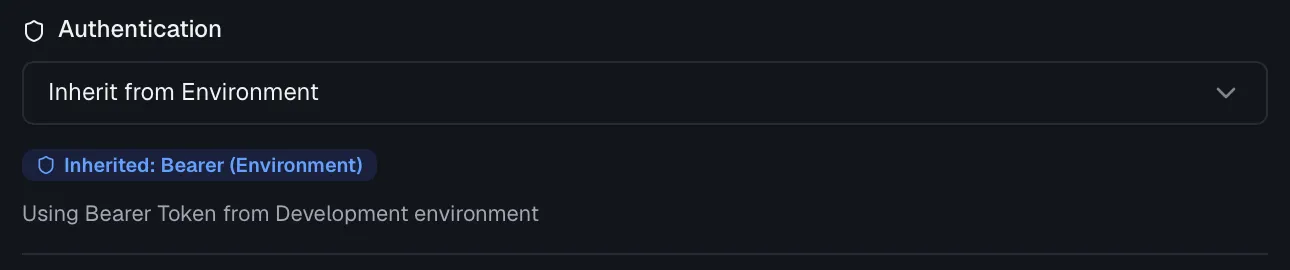
- Inherit from Environment is the default and uses the active environment's auth. A badge shows what is inherited, for example Inherited: Bearer (Environment), and a warning with a Configure Auth shortcut appears if the environment has no auth configured.
- Custom Auth is a suite-specific configuration using the same form and auth types as environments.
- No Auth sends no authentication headers for this suite, regardless of the environment.
- Environment-level auth, which is the per-environment configuration described above.
Inheritance badges are color-coded throughout the testing UI, where blue means inherited, orange means custom and gray means none.
Monitors do not use the environment auth configuration, so give a monitor explicit request headers instead and use {{variable}} placeholders for the credentials (see Monitors). Security scans authenticate through personas, which carry their own credential configuration (see Personas).
Permissions
Configuring environment and suite auth requires the tests:write permission, which all roles (Member, Admin, Owner) have by default. Secret credential values follow the same encryption and masking rules as secret variables.
Related
- Environments — where auth configurations live
- Variables — keep credentials in secret variables
- Test Suites — suite-level auth modes and inheritance
- Personas — credentials for security scanning
- Monitors — header-based auth for uptime checks