

Members & Invitations
Everyone who works in your organization appears under Settings → Team, which lists the current members with their roles and the invitations that are still on their way. This guide covers inviting people, changing roles, and removing members.
Opening and managing this page requires the org:manage-members permission, which Admins and Owners have. Inviting members (like other reputation-sensitive actions) also requires that your own email address is verified.
The members list
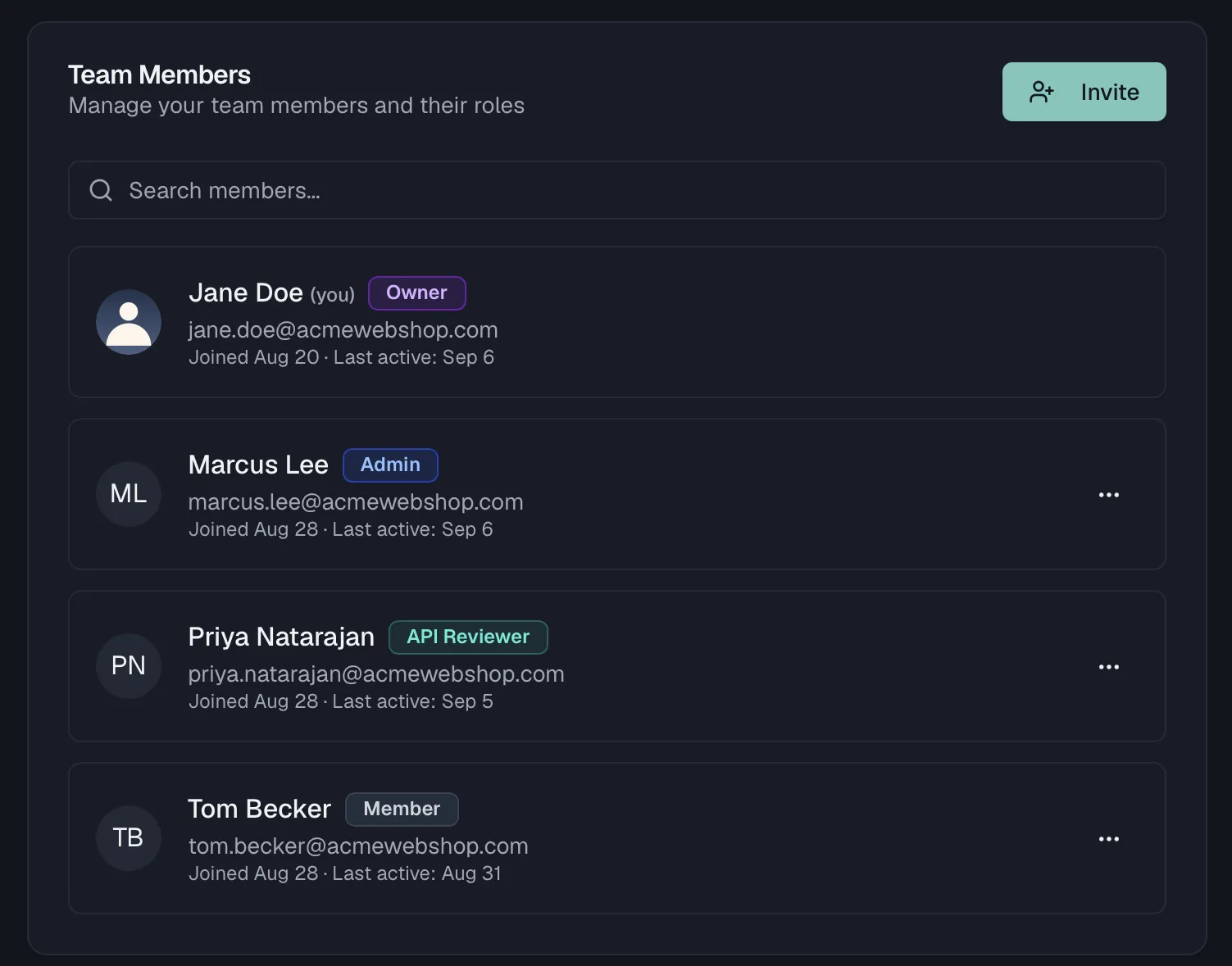
The Team Members card shows everyone in your organization with their avatar, name, email, role badge, join date and last activity. Use the Search members... box to filter by name or email.
Inviting team members
- Click Invite at the top of the Team Members card.
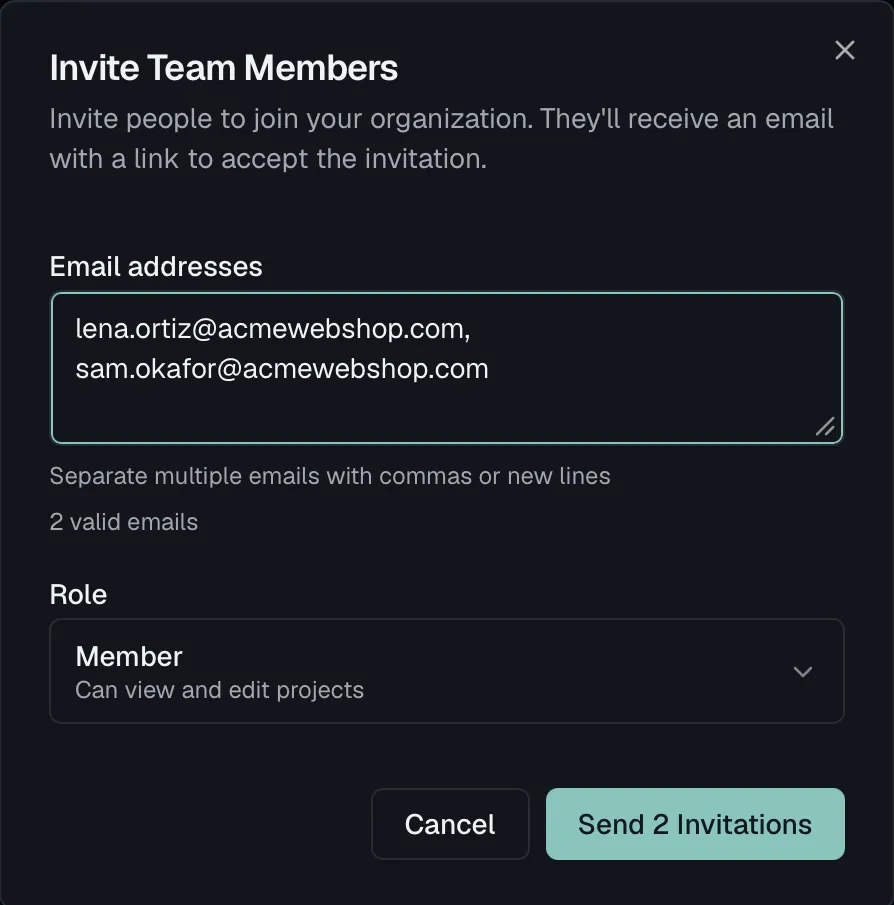
- Enter one or more email addresses, separated by commas or new lines. The dialog tells you how many valid addresses it found and flags invalid ones.
- Pick the role new members should start with, either Member for viewing and editing projects, Admin for full access plus member management, or one of your Custom Roles if you've created any.
- Click Send Invitation (or Send N Invitations).
Each person receives an email with a link to accept the invitation. Invitations expire after 7 days.
If your plan's seat limit is reached, clicking Invite prompts you to upgrade before you can add more people. See Billing & Plans.
What an invitation costs. On a paid plan the invite dialog tells you where you stand before you send. While unused seats remain, it reads "N unused seats available (as of today). Invitees fill these first at no extra cost". Once every seat is taken, it says instead that each invitee adds a paid seat when they join, and it shows the approximate prorated amount per seat. Sending the invitation itself never charges anything. The seat is added when the person actually joins and signs in, and at that moment the subscription is updated automatically and the prorated difference is charged. See Seats for the full rule, including what happens when a member leaves.
Using SSO? Users in your SSO-enforced domains are provisioned automatically on first sign-in, with roles from group mappings. Invites are for external users outside those domains, or to pre-assign a role. See Single Sign-On.
Pending invitations
Invitations that have been sent but not yet accepted appear in the Pending Invitations card, showing the email, the role it grants, who sent it, and when it expires.
- Revoke cancels the invitation, so the link in the email stops working.
- Resend appears once an invitation has expired, and issues a fresh invitation to the same address with the same role.
Once someone accepts, they move into the members list automatically.
Changing a member's role
Open the ⋯ actions menu on a member's card:
- Make Admin promotes a Member or custom-role holder to Admin. Only the Owner can promote to Admin.
- Make Member demotes an Admin or custom-role holder to Member.
- Assign Custom Role assigns one of your custom roles, and the submenu previews each role's color, permission count and permissions. See Roles & Permissions.
Removing a member
Choose Remove from Organization in the member's actions menu and confirm. The member loses access to all projects and resources of the organization immediately, and their open sessions are ended, not just their browser tabs.
Two things follow automatically:
- Their seat is released at the end of the billing period. The subscription quantity is reduced on a schedule, without a mid-period credit. If you fill the seat again before then, the reduction is cancelled. See Billing & Plans.
- They are notified, and a clock starts on their personal account. The person receives an email confirming the membership ended. It names the date 30 days out on which their Routebase account would be deleted if they don't join an organization again, and it carries a one-time link to download their personal data. Someone who is still a member elsewhere can simply ignore that date. If their address is on one of your verified domains, their sign-in is blocked as well, while external collaborators on their own domains keep theirs. The same applies when someone leaves voluntarily, as described in Organization Settings.
Guardrails
A few rules keep member management safe:
- You can't change your own role or remove yourself, because your own card has no actions menu. To exit an organization yourself, use Leave Organization on the General settings page.
- The Owner can manage everyone except other Owners.
- Admins can manage Members and custom-role holders, but not other Admins or the Owner.
Related
- Roles & Permissions — what each role can do, and how to create custom roles
- Team Access — grant groups of members access to specific projects
- Organization Settings — the danger zone, and what happens to an account after leaving
- Billing & Plans — seat limits per plan and how seats are billed