

Security Personas
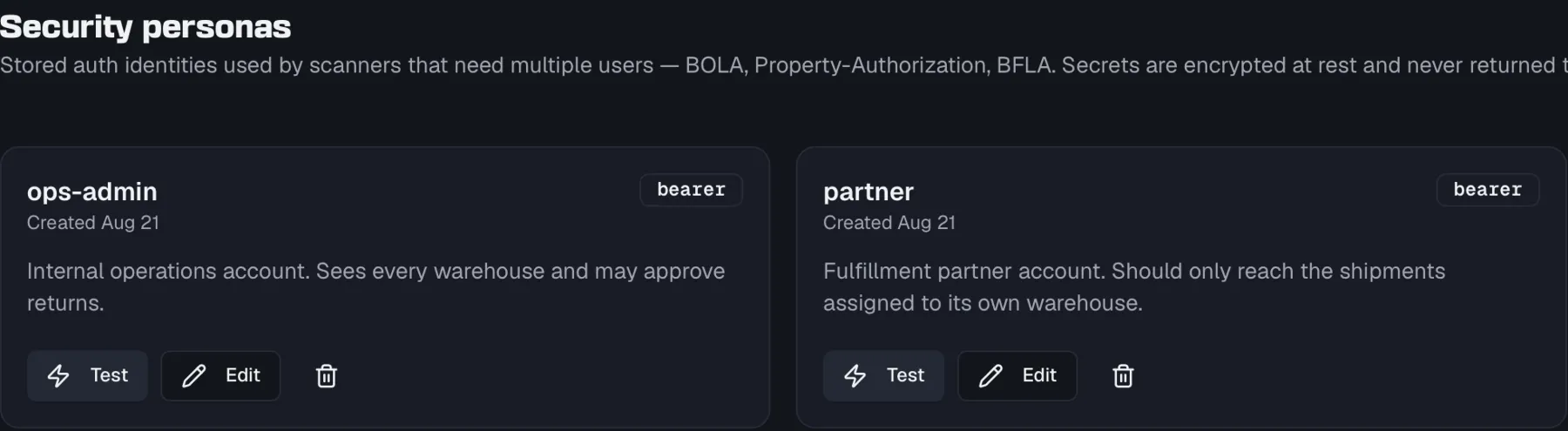
A security persona is a stored authentication identity, meaning a named set of credentials that a scanner can send when it calls your API. Personas let the authorization scanners act as different users so they can prove whether one user can reach another user's data or an admin-only function. You manage them on the Personas page in the Security area.
Personas are only used by the security scanners. They are separate from a project's environment authentication and from test-suite auth.
Why personas exist
Four scanners test authorization by comparing what different identities can do, so they need real credentials to send:
| Scanner | Personas needed | What it uses them for |
|---|---|---|
api1-bola (Broken Object Level Authorization) |
2 or more | Creates a resource as one persona, then tries to read it as another. |
api1-bola-enum (BOLA Enumeration) |
2 or more | The fallback for GET /resource/{id} endpoints with no sibling create call, which enumerates sequential ids as two personas. |
api3-property-auth (Broken Object Property Level Authorization) |
1 or more | Calls endpoints as each persona and inspects the response for sensitive fields. |
api5-bfla (Broken Function Level Authorization) |
1 or more | Calls admin-looking endpoints as a normal-user persona. |
The remaining scanners are passive and need no personas. In a scan profile, a persona-requiring scanner stays disabled until the project has at least one persona, and you assign specific personas to each of those scanners when you configure the profile.
For BOLA, use personas from different tenants or organizations, because cross-tenant access is exactly what the scanner is trying to trigger. For property and function-level checks, use personas with a clear privilege gap (for example an owner and a plain member).
Credential security
Persona secrets are encrypted at rest and are never returned to the browser after you save them. When you view a persona the app only shows its auth type. Because the plain secrets never come back, editing keeps the stored auth config untouched unless you deliberately re-enter it (see Editing a persona).
Supported auth types
The persona auth editor is the same one used across Routebase, so a persona can carry any of these:
| Group | Types |
|---|---|
| Common | Basic Auth, Bearer Token, API Key |
| OAuth | OAuth 2.0, OAuth 1.0 |
| Token | JWT Bearer |
| Other | Digest Auth, AWS Signature V4, Hawk Auth, NTLM Auth |
A persona must use a real auth type, and None is rejected because a persona with no credentials tests nothing. For API Key auth you choose whether the key travels as a header or a query parameter and set its name. Auth fields accept {{VARIABLE_NAME}} placeholders so you can pull values from environment variables rather than hard-coding secrets.
Creating a persona
Creating and editing personas requires the security:write permission (Admins and Owners). Members can view the page but not change it.
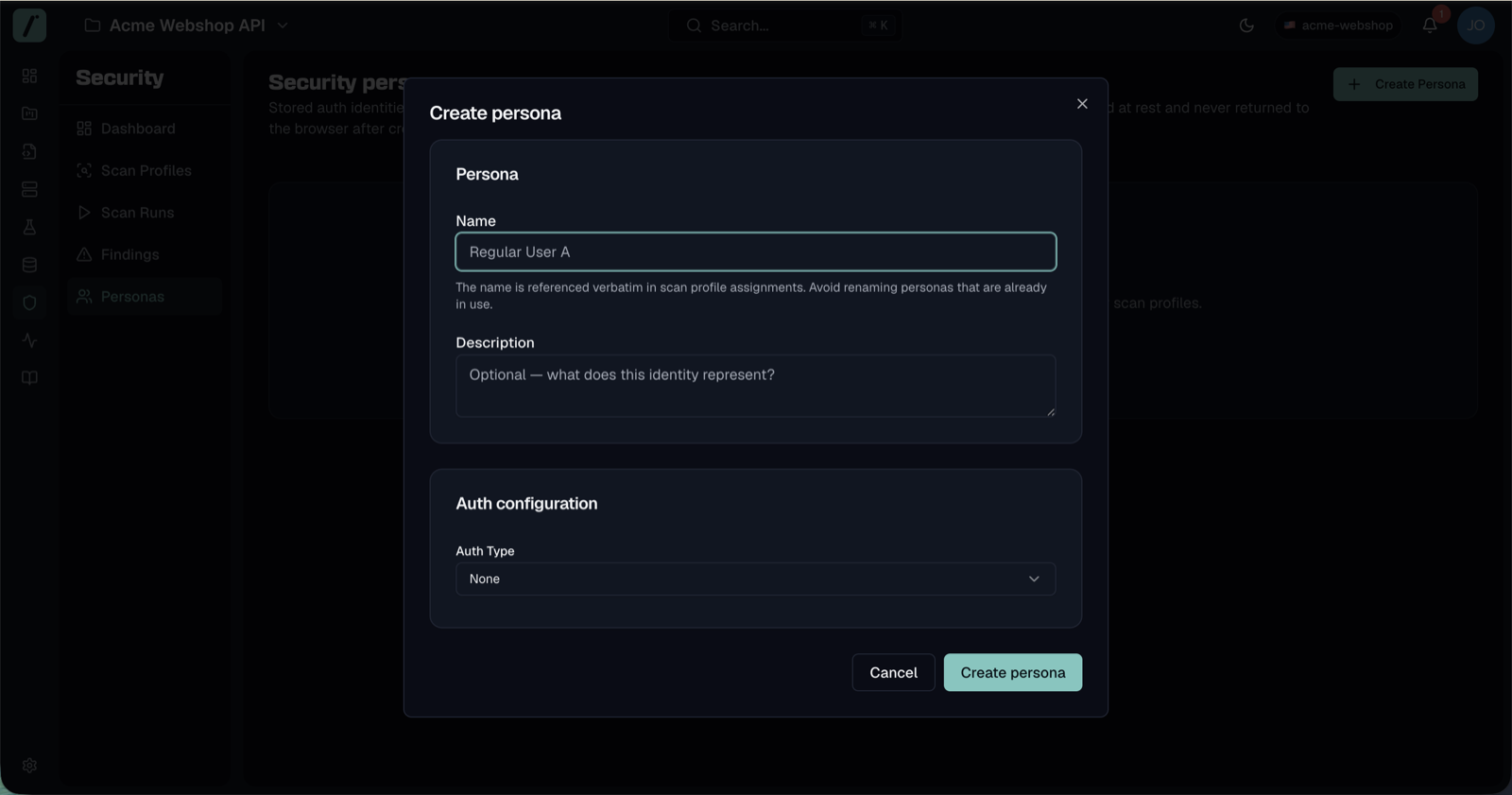
- Open Security → Personas.
- Click Create Persona.
- Enter a Name. The name is referenced verbatim by scan profiles, so choose a clear, stable one (for example
Owner A,Member B). - Optionally add a Description of what the identity represents.
- Pick the auth type and fill in the credentials.
- Click Create persona.
Each persona appears as a card showing its name, creation date, auth type and description.
Editing a persona
Because secrets are never returned to the browser, the editor separates the identity fields from the credentials. Open a persona with Edit and the Auth configuration card shows the auth editor collapsed behind a Re-configure auth button, alongside a note that reads "The server never returns plain secrets after creation. Leave this section closed to keep the existing auth config, or re-configure it to replace the stored credentials in full."
- To rename or change the description, edit the Name or Description and click Save changes. Leave the auth section closed, and the stored, encrypted credentials are preserved untouched. No re-entry is needed for the common case.
- To change credentials, click Re-configure auth to open the editor and complete the form again. Saving then replaces the stored auth config in full, because there is no partial edit and a re-configured persona overwrites the whole config. As when creating, None is rejected, so pick a real auth type.
Avoid renaming a persona that scan profiles already reference, because profiles match personas by name and a rename breaks the assignment.
Testing a persona
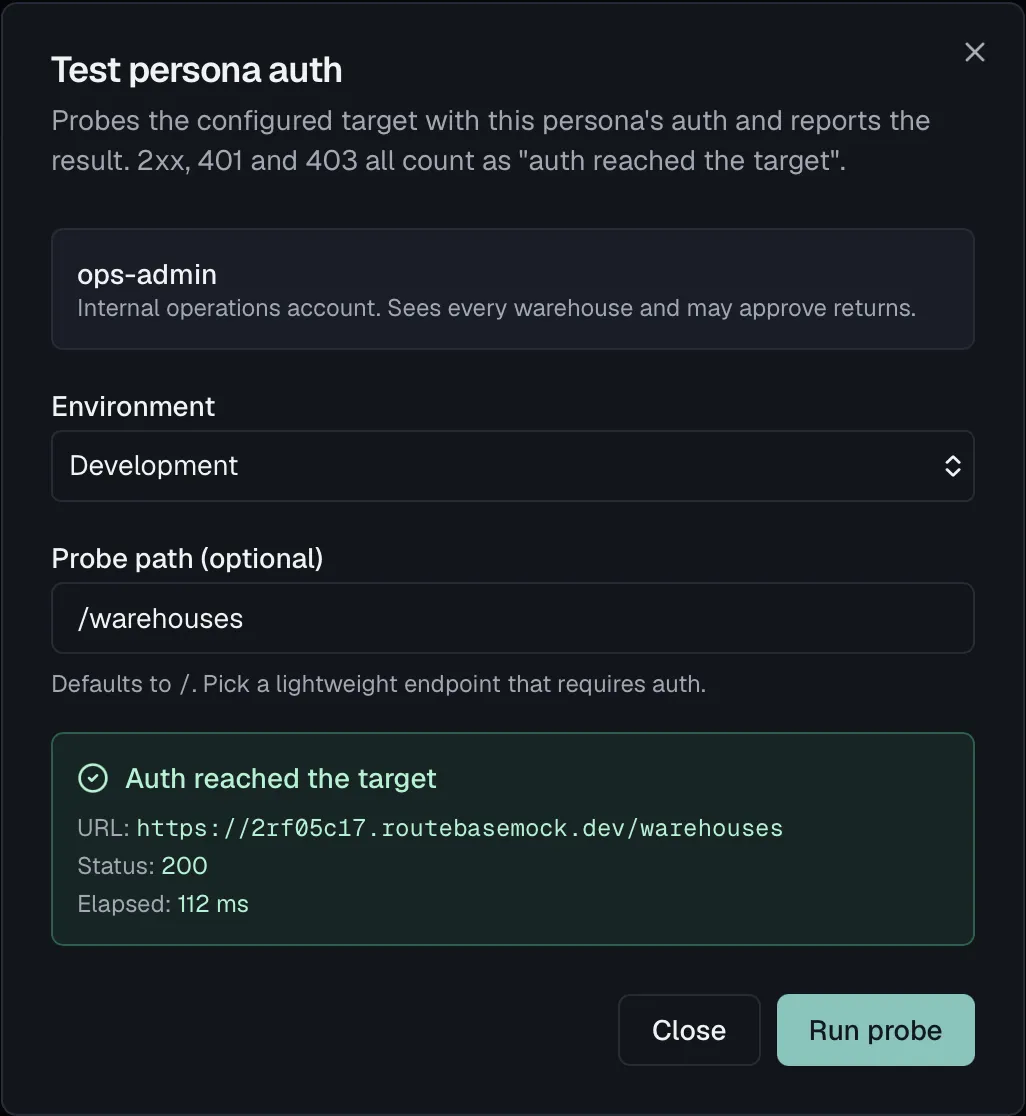
To confirm a persona's credentials actually reach your API, use Test on the persona card (requires security:execute). The dialog walks through three steps:
- Pick a target environment.
- Enter an optional probe path, which defaults to
/. A lightweight endpoint that requires auth works best, such as/me. - Click Run probe. Routebase sends a request with the persona's auth and reports the result.
A 2xx, 401 or 403 response all count as "auth reached the target", because the point is to confirm the credentials travelled rather than that they were accepted. The result shows the probed URL, the status code and the elapsed time. A transport error (the request never reached the server) reports as a failed probe.
Deleting a persona
Use the delete (trash) action on a persona card. Deletion is blocked if a scan profile still references the persona, so remove the assignment from those profiles first and then delete.
Limits
A project can hold up to 10 personas. Trying to create an 11th is rejected with a validation error, so delete an unused persona to make room. This is enough to cover a typical role hierarchy (owner, admin, member, viewer) across a couple of tenants.
Related
- Scan profiles — assigning personas to persona-requiring scanners
- Scanner reference — exactly how each scanner uses its personas
- Security overview — the wider scanning and triage workflow
- Environments — where the scan target's base URL is defined