

Notifications
Routebase keeps your team informed when things change, such as a spec being published, a test run failing or a teammate being invited. Notifications arrive in-app through the bell in the header and, if you choose, by email. Every notification belongs to a category, and you decide per category which channels you want to use.
The notification bell
A bell icon in the header is your notification center. When something happens, an unread badge appears with the count (it caps at 99+). Click the bell to open a dropdown with your most recent notifications. Each entry shows an icon, a title, a short message, its category, the project it relates to and how long ago it happened.
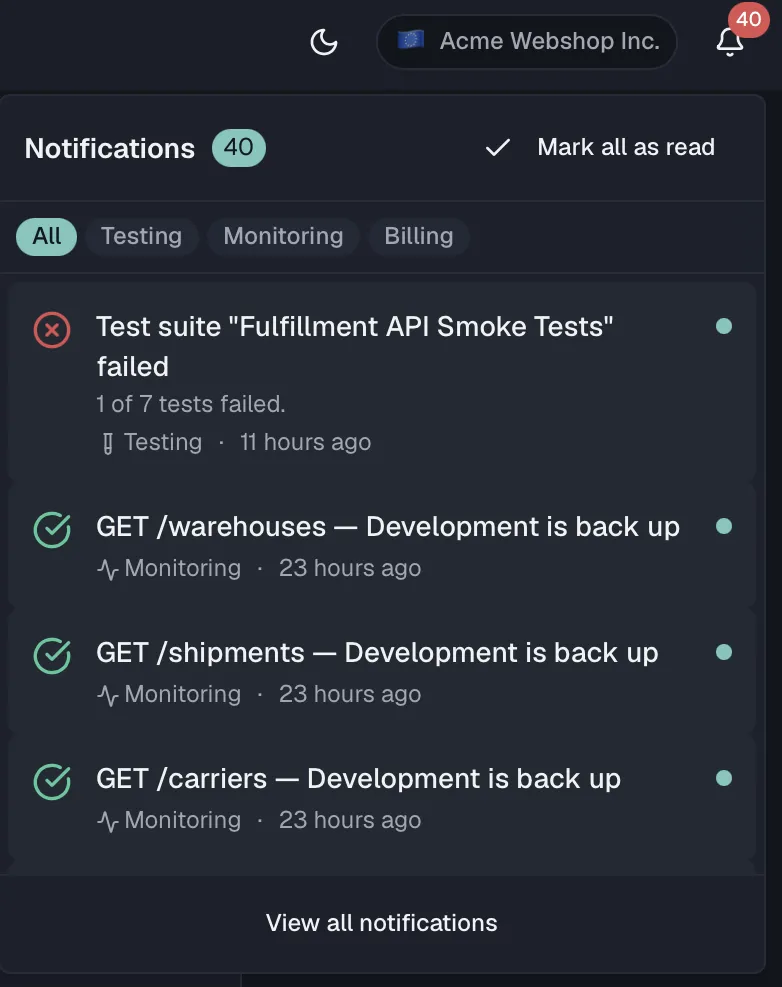
Inside the dropdown you can:
- Filter by category with the chips across the top, which narrow the list. All is always shown. The other chips, for example API Design, Testing and Monitoring, appear only for categories that actually occur in your recent notifications.
- Mark as read by hovering an unread notification and clicking the check button, which marks it read without leaving the dropdown. Clicking a notification that links to something takes you straight there and marks it read at the same time. Mark all as read clears the unread count in one go.
- See everything with View all notifications, which opens the full notifications page.
New notifications arrive in real time. The badge and list update without a page reload, and a toast pops up as the event happens.
The notifications page
View all notifications (or navigating to the Notifications page) shows your notification history in one place:
- A filter select switches between All and Unread.
- Mark all as read appears while you have unread notifications. The page header counts them, as in "3 unread notifications", or confirms "All caught up!".
- A footer shows how many of your total notifications are listed.
When there is nothing to show, the page reads No notifications above the line "You're all caught up! New notifications will appear here."
Categories and channels
Every notification belongs to one of these categories:
| Category | Covers |
|---|---|
| API Design | Spec publishing, endpoint changes, schema updates |
| Testing | Test run results, failures, and errors |
| Projects | Project creation, archiving, and member changes |
| Mock Server | Configuration changes, rule updates |
| Monitoring | Monitor alerts, incidents, schema drift, latency thresholds |
| Security | Scan results, new and reopened findings |
| Portal | Documentation portal build results |
| Style Guide | Violations found, publish blocked, config changes |
| Team | Member invitations, removals, role changes |
| Billing | Payment failures, trial reminders, plan changes |
| Deprecations | Deprecation announcements, sunset reminders, retirements |
Each category can be delivered through one or both channels:
| Channel | Where it shows up |
|---|---|
| In-App | The bell dropdown and the notifications page. |
| Sent to your account email address. |
Your notification preferences
Your personal matrix lives under Settings → Preferences, in the Notifications card. Each category is a row with an In-App and an Email switch. Toggle any switch to start or stop receiving that category on that channel. Changes save as you go.
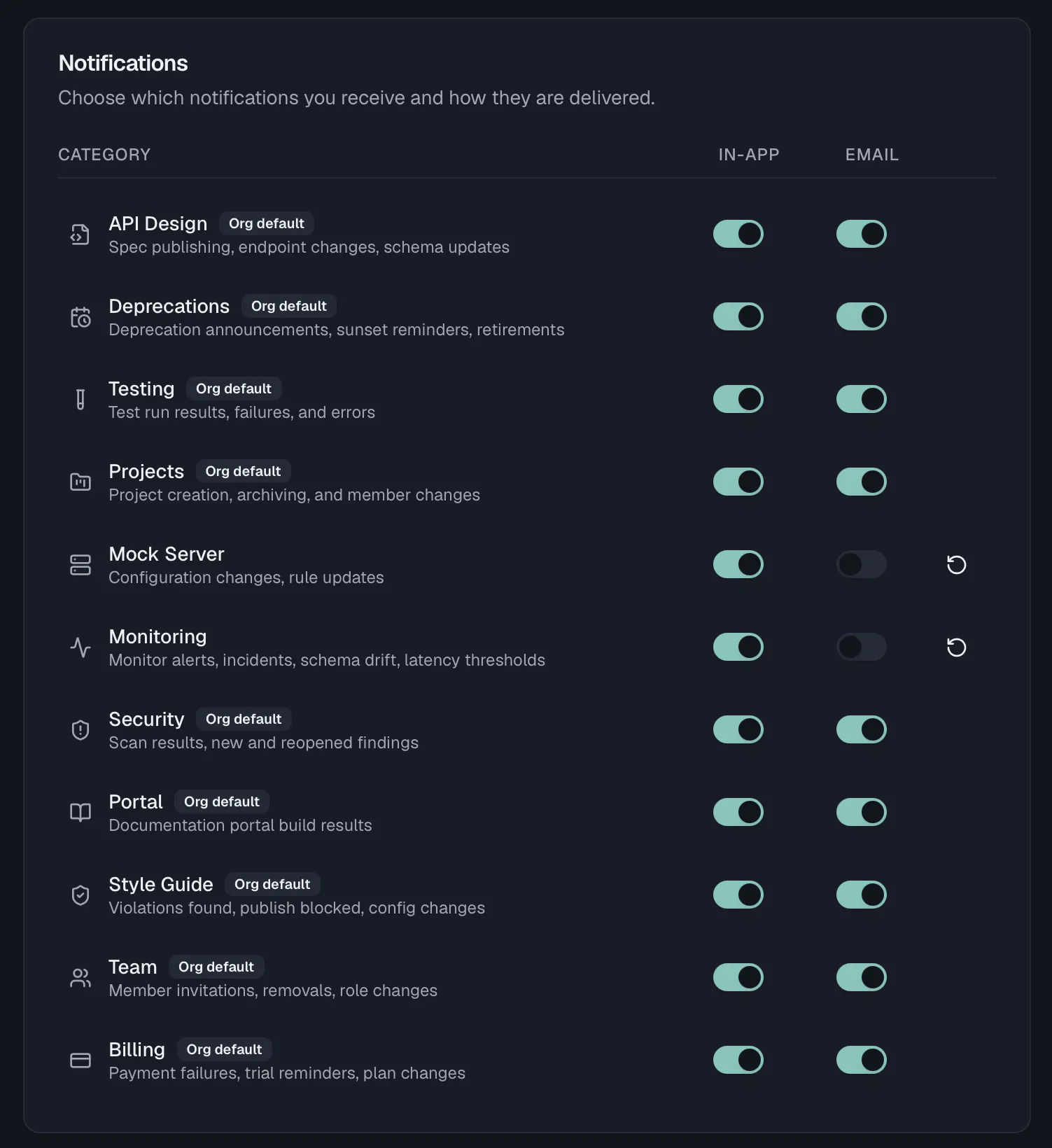
Until you change anything, a category follows your organization's default and carries an Org default badge. The moment you flip a switch, that category becomes your personal choice. A Reset to organization default button appears on overridden rows, so you can hand a category back to the org default at any time. See Notification Defaults for how admins set those defaults.
How email delivery works
Email notifications are not sent one-by-one. To keep your inbox calm:
- Routine events are batched into a digest. Events accumulate for a few minutes and are then sent as one email per category, listing everything that happened.
- Critical events skip the digest and are emailed immediately. Examples are a failed or errored test run, a breaking API change, a publish blocked by the style guide and a team invitation.
Unsubscribing
Every notification email includes an unsubscribe link (including one-click unsubscribe support in mail clients). Following it turns off email for that category without a login. Your in-app notifications are unaffected, and you can re-enable email any time from your notification preferences.
Permissions
In-app notifications and your personal preferences are available to every member, so you always control your own. Organization-wide controls are separate, and they are described in Notification Defaults and Webhooks.
Related
- Notification Defaults — the org-wide starting point for everyone's preferences
- Webhooks — push the same events to your own services over HTTP
- Monitoring Overview — the alerts and incidents behind the Monitoring category
- Test Suites — the test runs behind the Testing category