

Billing & Plans
Routebase bills per organization. Your plan sets how much you can do across projects, specs, test runs and mock requests, and it decides which advanced features are unlocked. You can change it at any time. This guide explains the plans, the trial, usage limits, and how to manage your subscription.
Everything here lives under Settings → Billing, which requires the billing:manage permission. The Owner holds it by default, and custom roles can grant it to others. Payments and invoicing are processed through Stripe. Organizations in the EU region are billed in EUR, and all others in USD.
The Billing page is organized into four tabs named Plan & Usage, Billing Details, Invoices and Plans.
Plans
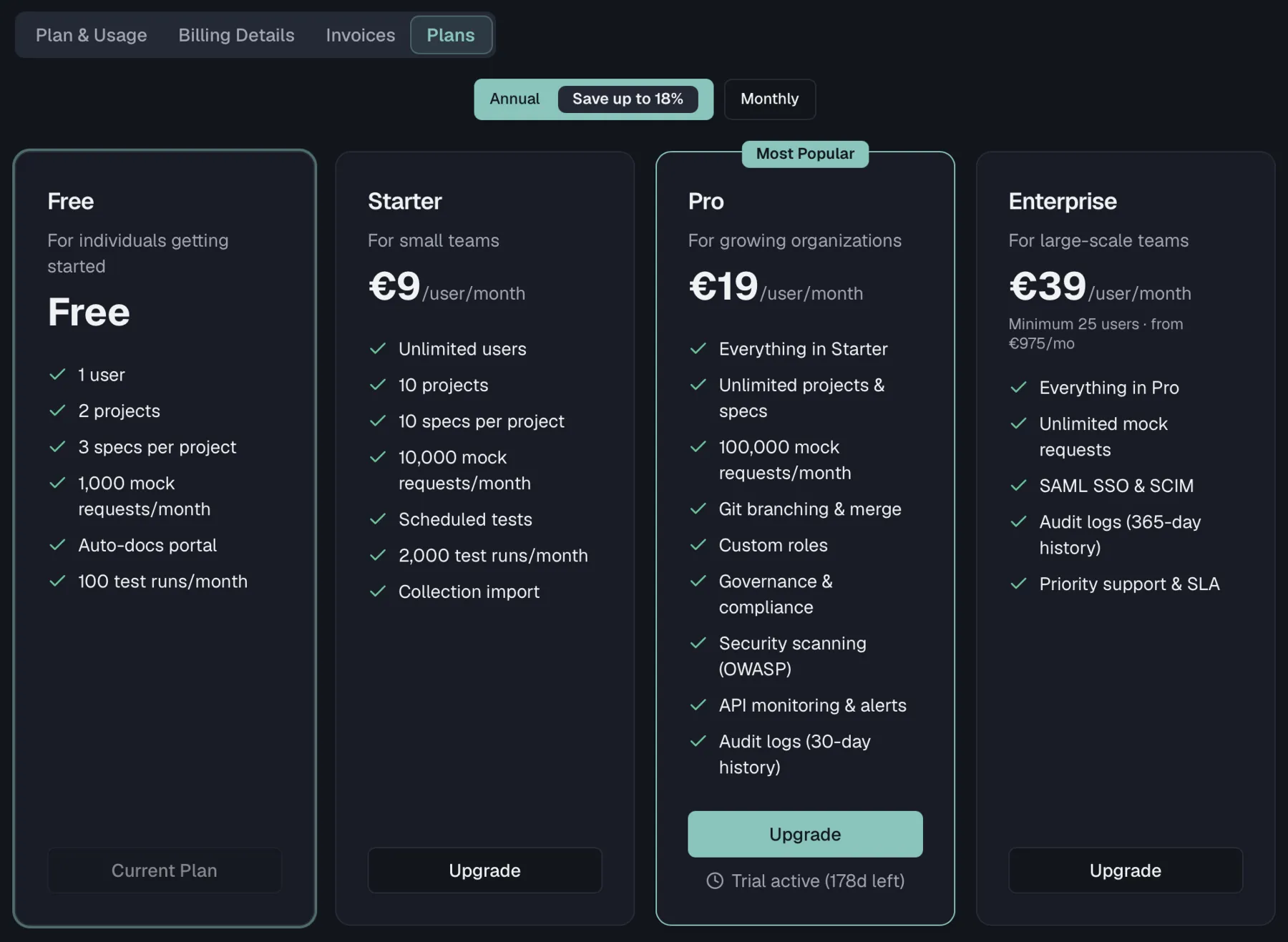
Routebase offers four plans. Pricing is per user, per month, and annual billing costs up to 18% less than monthly billing.
| Plan | Best for | Highlights |
|---|---|---|
| Free | Individuals getting started | 1 user, 2 projects, 3 specs per project, 1,000 mock requests/month, 100 test runs/month, and the auto-docs portal |
| Starter | Small teams | Unlimited users, 10 projects, 10 specs per project, 10,000 mock requests/month, 2,000 test runs/month, scheduled tests, and collection import |
| Pro | Growing organizations | Everything in Starter, plus unlimited projects and specs, 100,000 mock requests/month, spec branches and merge requests, custom roles, governance and compliance, OWASP security scanning, and API monitoring and alerts |
| Enterprise | Large-scale teams | Everything in Pro, plus unlimited mock requests, SAML SSO and SCIM, 365-day audit log history, and priority support with an SLA |
The Enterprise plan requires a minimum of 25 seats, and the plan card shows the floor with the resulting starting price. Enterprise is available to Business accounts only. Personal accounts see the other three plans plus a hint to switch to a Business account in Organization settings.
Comparing and choosing a plan
The Plans tab shows a card for every plan with its full feature list, a Most Popular badge on Pro, and an Annual / Monthly billing toggle where annual carries a Save up to 18% badge. Your current plan is highlighted and its button reads Current Plan, while every other card reads Upgrade or Downgrade, so you always know where you stand.
Changing your plan requires a verified email address, and unverified accounts see a prompt to verify first.
The 14-day Pro trial
Every new organization automatically starts on a 14-day Pro trial, so all Pro features are unlocked from day one and no payment method is required. There is one exception. Custom Domains require a paid Pro or Enterprise subscription and are not available during the trial, so a trial org sees an Available on Pro prompt instead.
- For the first day, a welcome banner reads "Welcome! You have 14 days of Pro to explore."
- After that, a compact pill in the header shows how many days are left, with a Subscribe shortcut to Billing.
- The Current Plan card shows a Pro Trial badge with the remaining days and the exact expiry date. Add a payment method before the trial ends to keep access.
When a trial expires without an upgrade, your organization returns to the Free plan. Your data is preserved, and anything above Free limits becomes read-only until you upgrade. A banner and a one-time dialog offer Upgrade plan or Continue on Free.
The trial is granted once per organization and once per person, so creating a second organization does not start a second trial. If your organization is on Free and has not used its trial, the Starter and Pro plan cards additionally offer Try free for 14 days.
Usage & limits
The Plan & Usage tab shows a live Usage panel. Every organization-wide category appears as current / limit with a progress bar, covering projects, users, teams, test suites, test runs per month, monitors, webhooks, custom domains and scan profiles. Categories without a cap on your plan are labeled Unlimited, and categories your plan does not include at all are left out.
Limits that apply per parent resource rather than per organization are not in this panel. That covers specs per project, endpoints per spec, fixtures per owner, and custom pages per documentation version, because a single organization-wide number would say nothing about the individual project or version you are working in. They are enforced where you run into them, with an upgrade hint at that spot.
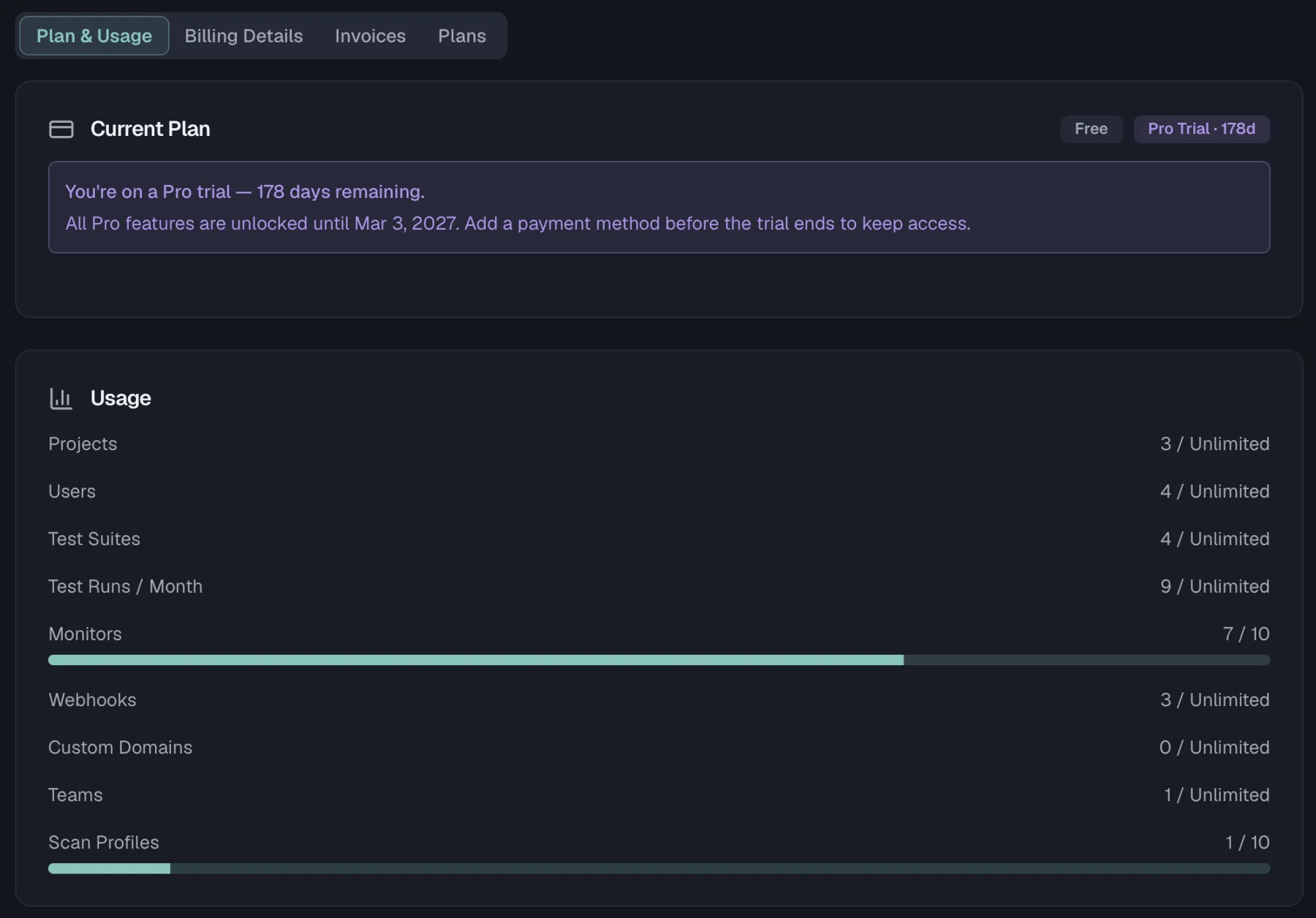
As you approach a limit the bar turns amber at 80%. Once you reach the limit, it turns red and the category is marked (read-only) with an Upgrade link right next to it. Reaching a limit never deletes anything, because existing data stays intact and viewable. You simply cannot add more in that category until you upgrade or free up space. On the Free plan, the Current Plan card additionally calls out exactly which categories are capped.
Managing your subscription
Upgrading and downgrading
From the Plans tab, pick the plan you want:
- Upgrading from Free opens a secure Stripe checkout in a new tab. When you complete it and return, your plan updates within a few seconds and a confirmation appears.
- Switching between paid plans shows a confirmation dialog first, carrying the exact amount you will be charged now as a proration including tax. Nothing is charged until you click Confirm & pay, and upgrades take effect immediately.
- Downgrading is scheduled for the end of your current billing period, so you keep your current features until then and no credit is issued for the remaining time. The scheduled change is shown on the Current Plan card, where a Cancel button lets you revert it before it takes effect.
- Moving to Enterprise always goes through a seat-picker dialog, so you can set a seat count at or above the 25-seat minimum and see the resulting price before confirming. Coming from a paid plan, that dialog also shows the exact proration.
The Stripe checkout always shows an Add promotion code field, so you can apply a promotion code before completing payment.
The Current Plan card
On a paid plan, the Current Plan card summarizes your billing interval, seats, current period, and the next invoice date and amount. From here you can also:
- Manage Payment opens the secure billing portal in a new tab, where you update your card and review payment history.
- Cancel Subscription is covered below.
If a payment fails, the card shows a notice with a grace-period date. Update your payment method before then to avoid an automatic downgrade to Free.
Seats
On a paid plan, the Seat Management card lets you adjust how many seats your subscription includes, with a live seats × price/seat/month preview.
- Adding seats charges the prorated difference immediately, and you confirm the exact amount in the Add seats dialog first.
- Reducing seats is scheduled for the end of the current billing period through Schedule Reduction, with no mid-period credit.
- On Enterprise, the 25-seat minimum is enforced here as well.
Seats also follow your team automatically
The card is not the only thing that moves your seat count. On a paid plan Routebase keeps the paid quantity in step with the number of activated members. Those are people who have accepted an invitation and signed in at least once, plus users provisioned through SSO or SCIM:
- Someone new becomes active and there is no free seat. The seat count goes up immediately, and Stripe charges the prorated difference for the rest of the current period. There is no confirmation step, because the person is already in.
- A member is removed or deactivated. The reduction is scheduled for the end of the current billing period, exactly like a manual reduction. There is no mid-period credit. If someone takes the freed seat before the period ends, the scheduled reduction is dropped again.
- Unused seats are filled first. If you deliberately bought more seats than you have people, new members occupy them at no extra cost until they are used up. The automatic sync never shrinks seats you bought ahead.
- A seat change you scheduled yourself always wins, because the automatic sync leaves a pending manual change alone rather than overwriting it.
- Free and trial organizations are unaffected, since there is no subscription to update. The correct member count is picked up when you check out.
You see the same rule stated where it matters. The Invite dialog shows how many unused seats are left. When all seats are in use, it says that each invitee adds a paid seat on joining, with the approximate prorated amount per seat.
Cancelling
Cancel Subscription keeps your plan active until the end of the current billing period. After that, your organization is downgraded to Free and Free limits apply. The confirmation dialog offers Cancel at Period End or Keep Subscription, and a notice on the Current Plan card shows the cancellation date afterwards.
Billing details
The Billing Details tab holds the information that appears on your invoices. A note at the top shows your account type, either Personal or Business. That type determines which plans are available, and the note links to Organization Settings to change it.
Billing address
Enter your legal company name, which defaults to your organization name, then the address lines, city, state or province, postal code and country. The country is required. Once complete, the card shows a read-only summary with an Edit Address button. A status indicator in the header shows whether the address is Synced with Stripe, still syncing, or failed, and a failure carries a Retry button.
Tax ID
Add a tax ID for tax-compliant invoices. The available ID types depend on your billing-address country, so set the address first. Each entry is validated and reports Validating…, Verified, Invalid or Verification unavailable. For EU countries, a verified EU VAT ID enables reverse charge, so no VAT is charged on your invoices and the card says so explicitly. Use Change Tax ID or Remove Tax ID to update it, and both ask for confirmation.
Invoice emails
Invoices are sent automatically when payment is processed. You can toggle Send invoice emails, see the read-only primary email, which is your organization's billing email, and add up to 10 additional recipients such as your accounting inbox.
Invoices
The Invoices tab lists your invoice history in a table with Date, Subtotal, Tax, Total and Status. The tax column carries the rate, or "Reverse charge" where it applies, and the status reads Paid, Open, Draft, Uncollectible or Void. Each row offers View for the hosted invoice and PDF for a download, and rows with tax details expand to show the bill-to address, tax ID and tax breakdown.
Before your first paid subscription the tab shows No invoices yet.
Related
- Organization — account type, and org-wide settings
- Members — the users occupying your seats
- Roles & Permissions — who can manage billing
- Region Selection — determines your billing currency (EUR in the EU, USD elsewhere)