For AI agents: the complete documentation index is at https://docs.routebase.dev/llms.txt. Every page is also available as Markdown by appending index.md to its URL or by sending Accept: text/markdown.
Routebase controls what each person can do through roles. Every member has exactly one role, either one of the three built-in roles or a custom role you define yourself. This guide explains the built-in hierarchy, how to create custom roles, and lists the full permission matrix.
Built-in roles
The three built-in roles form a simple hierarchy, because each higher role includes everything the role below it can do and adds more.
Role
What they can do
Member
The day-to-day contributor, who can view projects, design and edit API specs, write and execute tests, write documentation, create spec branches and review changes. Mock servers, monitoring, security findings and billing stay read-only.
Admin
Everything a Member can do, plus full management. Admins create and delete projects, publish and delete specs, merge branches, and manage mock servers, monitoring, security scans, webhooks and the docs portal. They also manage members, teams and organization settings.
Owner
Everything an Admin can do, plus the two controls reserved for the account holder, which are managing billing and deleting the organization.
If the built-in roles aren't granular enough, custom roles let you define your own permission sets. Common examples are a read-only "Viewer" for external stakeholders, a "QA Lead" who can run tests but not publish, or a "Billing Admin".
Custom roles are a Pro plan feature, so on lower plans the page shows an upgrade prompt. Opening Settings → Roles & Permissions requires the org:manage-settings permission, which Admins and Owners have.
Creating a custom role
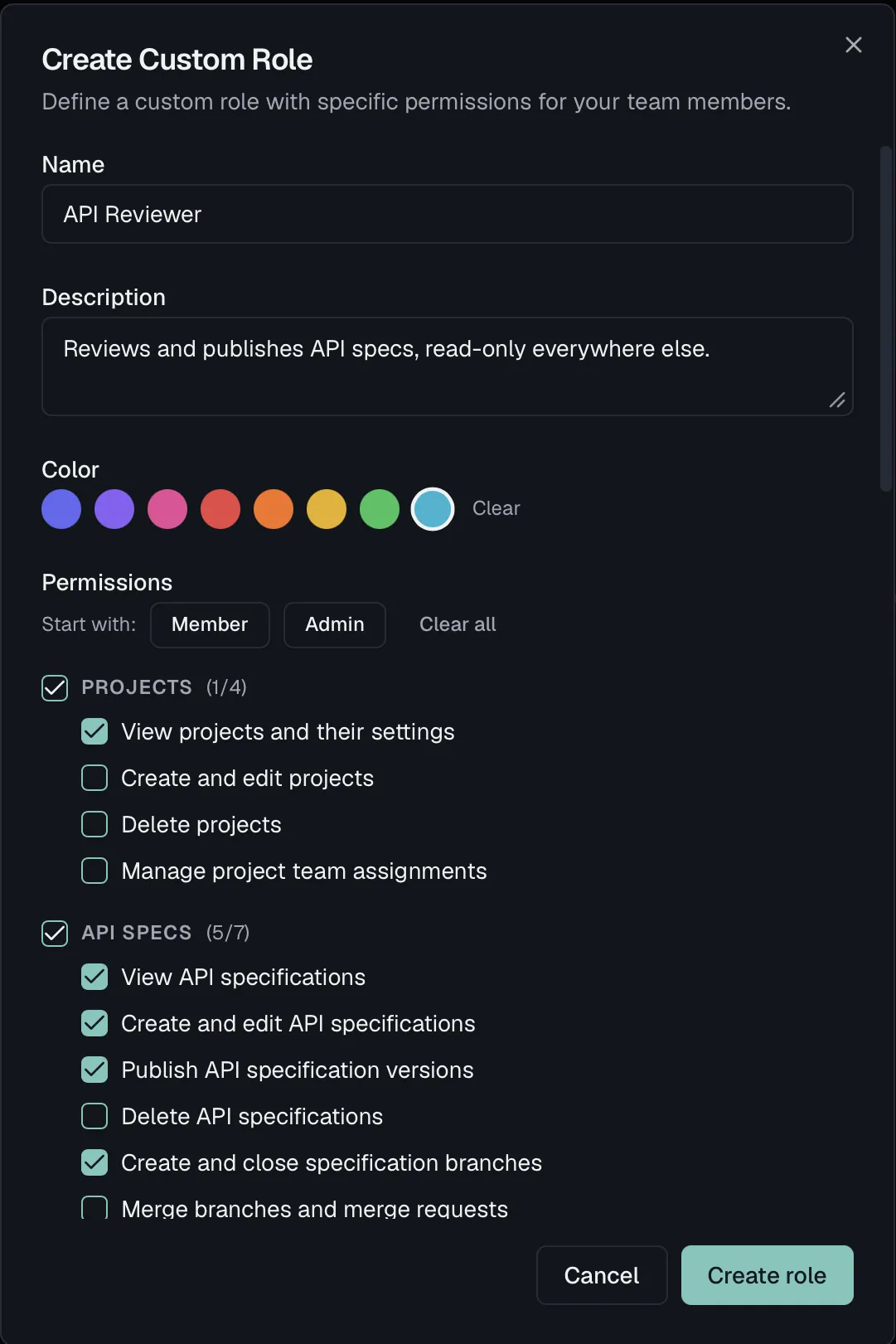
Open Settings → Roles & Permissions and click Create Role.
Give the role a Name such as Viewer, QA Lead or Billing Admin, plus an optional Description and an optional Color. The color shows up on the role's badge throughout the app.
Tick the Permissions the role should grant. You can start from a preset (Member or Admin) and adjust, select whole groups at once, or pick individual permissions. At least one permission is required.
Click Create Role.
You can only grant permissions you hold yourself. Anything outside your own permission set is shown greyed out and cannot be ticked. For an Admin that means the two Owner-only permissions, Manage subscription & payment (billing:manage) and Delete the organization (org:delete). Only an Owner can put those into a role. The same boundary applies when you edit a role, so a role carrying an Owner-only permission can be created and changed by Owners alone.
Assigning, editing, and deleting
Assign a custom role to a member from the actions menu on the Team page, or pick it as the starting role when sending an invite.
Edit a role's name, description, color and permissions at any time, and the change applies to everyone holding the role.
Delete a role from its card. Members currently assigned to a deleted role are downgraded to the built-in Member role.
After a downgrade from Pro
If your plan drops below Pro, the custom roles you already created stay in place and everyone holding one keeps working. Nothing is silently reassigned. What stops is handing them out, because assigning a custom role to another member, and inviting someone into one, both ask you to upgrade. Editing and deleting keep working, so you can still narrow a role down or remove it while on the lower plan.
Each role card shows its permission count and how many members currently hold it.
Permission matrix
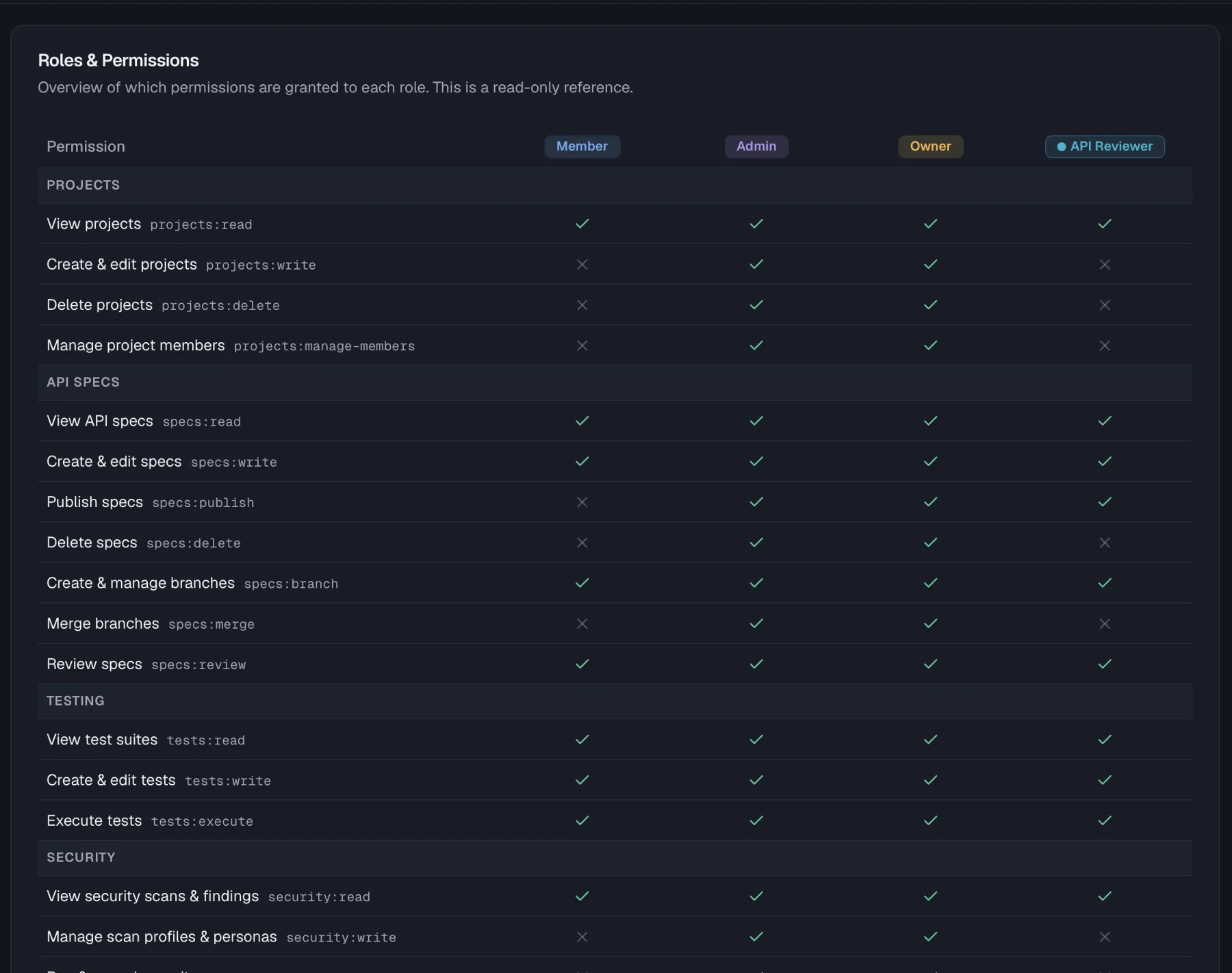
The Roles & Permissions page includes a read-only matrix showing exactly which permissions each role grants, including columns for your custom roles. The same information is listed below, grouped by area as in the app. The code in parentheses is the permission identifier you'll also see when configuring API key scopes.
Projects
Permission
Member
Admin
Owner
View projects (projects:read)
✓
✓
✓
Create & edit projects (projects:write)
—
✓
✓
Delete projects (projects:delete)
—
✓
✓
Manage project members (projects:manage-members)
—
✓
✓
API Specs
Permission
Member
Admin
Owner
View API specs (specs:read)
✓
✓
✓
Create & edit specs (specs:write)
✓
✓
✓
Publish specs (specs:publish)
—
✓
✓
Delete specs (specs:delete)
—
✓
✓
Create & manage branches (specs:branch)
✓
✓
✓
Merge branches (specs:merge)
—
✓
✓
Review specs (specs:review)
✓
✓
✓
Testing
Permission
Member
Admin
Owner
View test suites (tests:read)
✓
✓
✓
Create & edit tests (tests:write)
✓
✓
✓
Execute tests (tests:execute)
✓
✓
✓
Security
Permission
Member
Admin
Owner
View security scans & findings (security:read)
✓
✓
✓
Manage scan profiles & personas (security:write)
—
✓
✓
Run & cancel security scans (security:execute)
—
✓
✓
Mock Server
Permission
Member
Admin
Owner
View mock server (mock-server:read)
✓
✓
✓
Manage mock server (mock-server:manage)
—
✓
✓
Monitoring
Permission
Member
Admin
Owner
View monitoring (monitoring:read)
✓
✓
✓
Manage monitoring (monitoring:write)
—
✓
✓
Documentation
Permission
Member
Admin
Owner
View documentation content (docs:read)
✓
✓
✓
Create & edit documentation (docs:write)
✓
✓
✓
Publish documentation versions (docs:publish)
—
✓
✓
Manage documentation portal (docs:manage-portal)
—
✓
✓
Notifications
Permission
Member
Admin
Owner
View webhooks & delivery history (notifications:read)
—
✓
✓
Manage webhooks (notifications:manage)
—
✓
✓
Billing
Permission
Member
Admin
Owner
View subscription & usage (billing:read)
✓
✓
✓
Manage subscription & payment (billing:manage)
—
—
✓
Organization
Permission
Member
Admin
Owner
Manage members (org:manage-members)
—
✓
✓
Manage teams (org:manage-teams)
—
✓
✓
Manage general settings (org:manage-settings)
—
✓
✓
Manage SSO, SCIM, API keys & domains (org:manage-security)
—
✓
✓
Manage API governance & org defaults (org:manage-governance)