

Branching
Editing a spec directly is fine for small corrections. Anything larger is different, whether that is a new resource, a reshaped schema, or a redesign you want a colleague to look at before it lands. Such a change should exist somewhere other people are not affected by until it is ready, and that is what branches are for.
A branch in Routebase works the way it does in Git, with one difference worth internalizing up front. A branch is taken from a draft version and merges back into that same draft version. It is not a way to change a published version. Published versions are frozen, and nothing reopens them, a merge included. See Spec Versioning for the version lifecycle this sits inside.
Branching is available on the Pro plan and above and requires the specs:branch permission.
The workflow at a glance
| Step | Where | Permission |
|---|---|---|
| Create a branch | Branch switcher in the header → New Branch | specs:branch |
| Edit on the branch | The API Designer, as usual | specs:write |
| Pull main's newer changes in | Branch banner → Rebase | specs:branch |
| Open a merge request | Branch banner → Create Merge Request | specs:write |
| Review it | Merge request → Reviews tab | specs:review |
| Merge it | Merge request → Merge | specs:merge |
Reviewing and merging are separate permissions on purpose. A Member can propose a change and comment on someone else's, while an Admin or Owner decides what lands.
The branch switcher
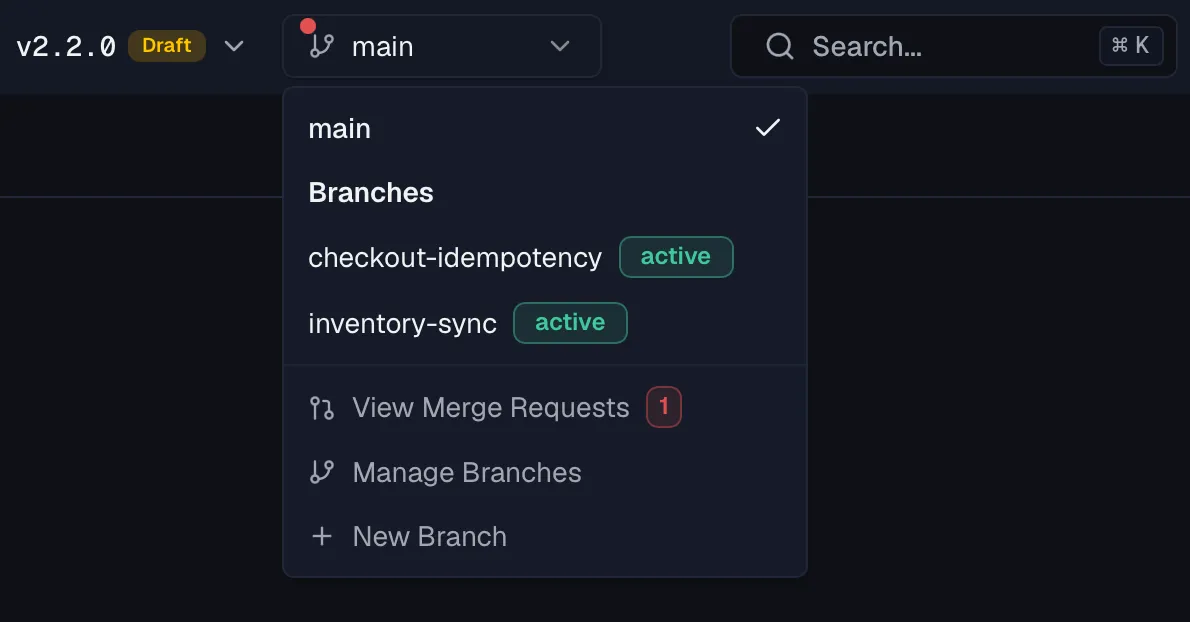
The branch switcher sits in the app header next to the version switcher, and appears once you have a project, a spec and a version in context. It always shows which branch you are on, reading main when you are on none.
Opening it gives you:
- main switches back to the main draft.
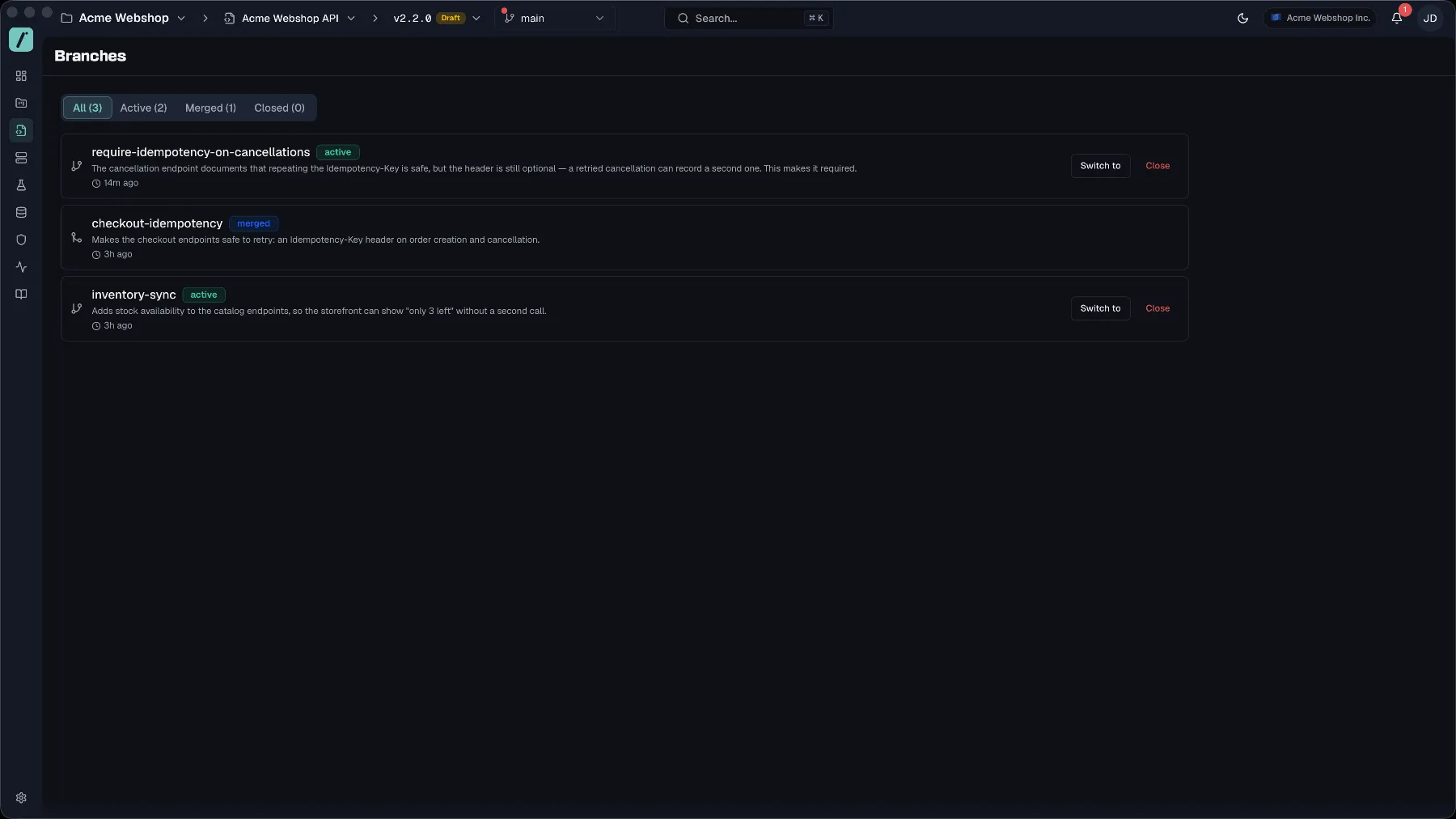
- Branches lists every active branch of the current version, each with a status badge. Merged and closed branches are not listed, because they are history rather than somewhere you can go.
- View Merge Requests opens the merge request list for this spec. When merge requests are open, the entry carries a count badge and the switcher itself gets a small red dot, so an open request is visible without opening the menu.
- Manage Branches opens the branch list for the current version. It holds every branch including the merged and closed ones, it filters by status, and it is the one place a branch can be closed.
- New Branch opens the create dialog. On Free and Starter this entry shows a lock and a Pro hint, and selecting it opens the upgrade dialog instead of the create dialog.
Creating a branch
Choose New Branch and fill in:
- Branch name is required and takes letters, digits, hyphens and underscores only. The name has to be unique among the branches of that version, and reusing one fails with "A branch named '{name}' already exists for this version."
- Description is optional, and the field asks "What changes will this branch contain?"
Creating a branch takes a snapshot of the version at that moment. That snapshot is the reference point for everything that follows. The diff you see later is computed against it, and so is the answer to whether something changed on the branch, on main, or on both. You do not interact with the snapshot directly, but it explains why a branch that sits open for a long time accumulates conflicts. Main keeps moving while the snapshot does not.
After creating, the switcher moves you onto the new branch.
Working on a branch
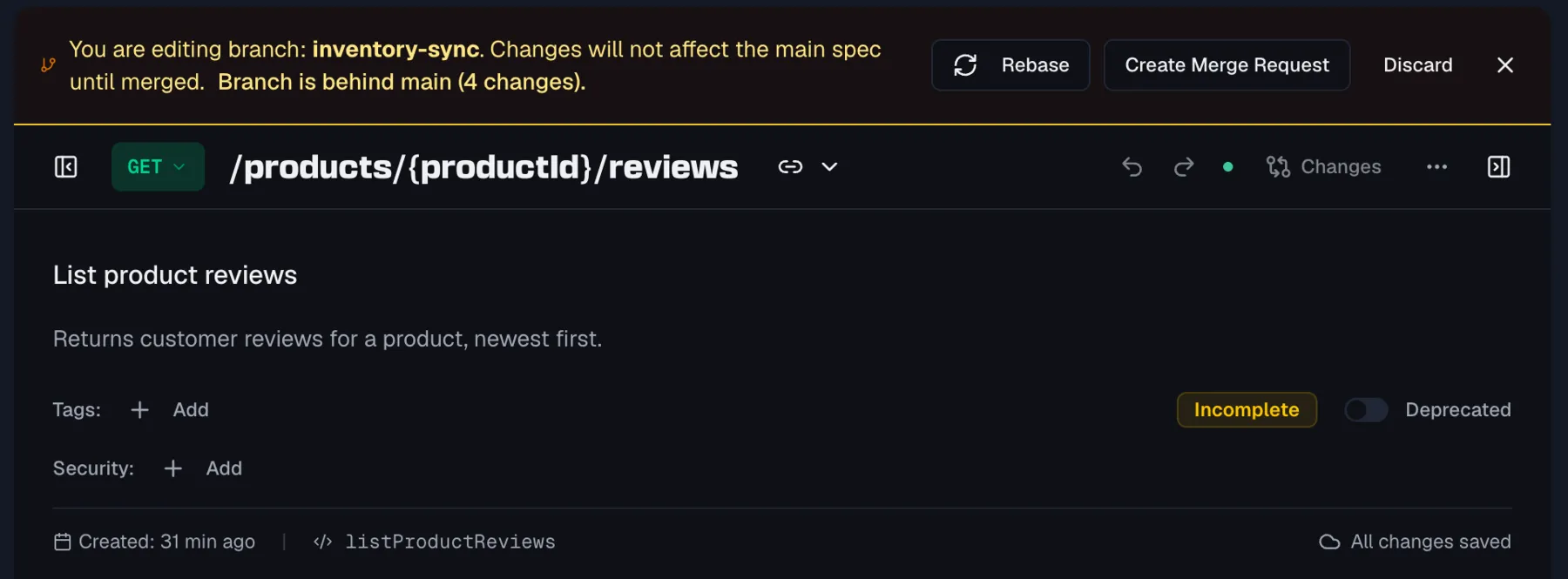
While you are on a branch, a banner sits above the designer:
You are editing branch: {name}. Changes will not affect the main spec until merged.
Everything you edit is stored against the branch, whether that is endpoints, schemas or folders. The main draft is untouched until a merge.
The banner also carries the exits:
- Rebase appears only when the branch is behind main, together with the hint "Branch is behind main (N changes)."
- Create Merge Request opens the merge request dialog.
- Discard closes the branch after a confirmation. Its changes never reach the main spec, and this cannot be undone.
- × is Switch back to main. It leaves the branch as it is and discards nothing.
Rebasing
A branch that stays open while main moves on drifts away from it. Rebasing pulls main's newer changes into the branch, so the difference between the two shrinks back to just your work.
Rebase early and often. A rebase resolves divergence while there is little of it. More importantly, it is the only place in the product where a conflict between main and a branch is put in front of you. The merge itself never asks, because whatever the branch carries is written onto main, including over a change main made in the meantime. Rebasing is how you see that coming.
sequenceDiagram
    participant B as Your branch
    participant M as main

    Note over B,M: you branch off

    M->>M: someone else lands a change
    B->>B: you edit your endpoints

    B->>M: Rebase — what moved since I branched?
    M-->>B: new, refreshed, removed<br/>and anything we both touched
    Note over B: you decide every conflict:<br/>Take main or Keep branch

    B->>M: Merge the request
    Note over M: the branch is written onto main.<br/>This step never asks.
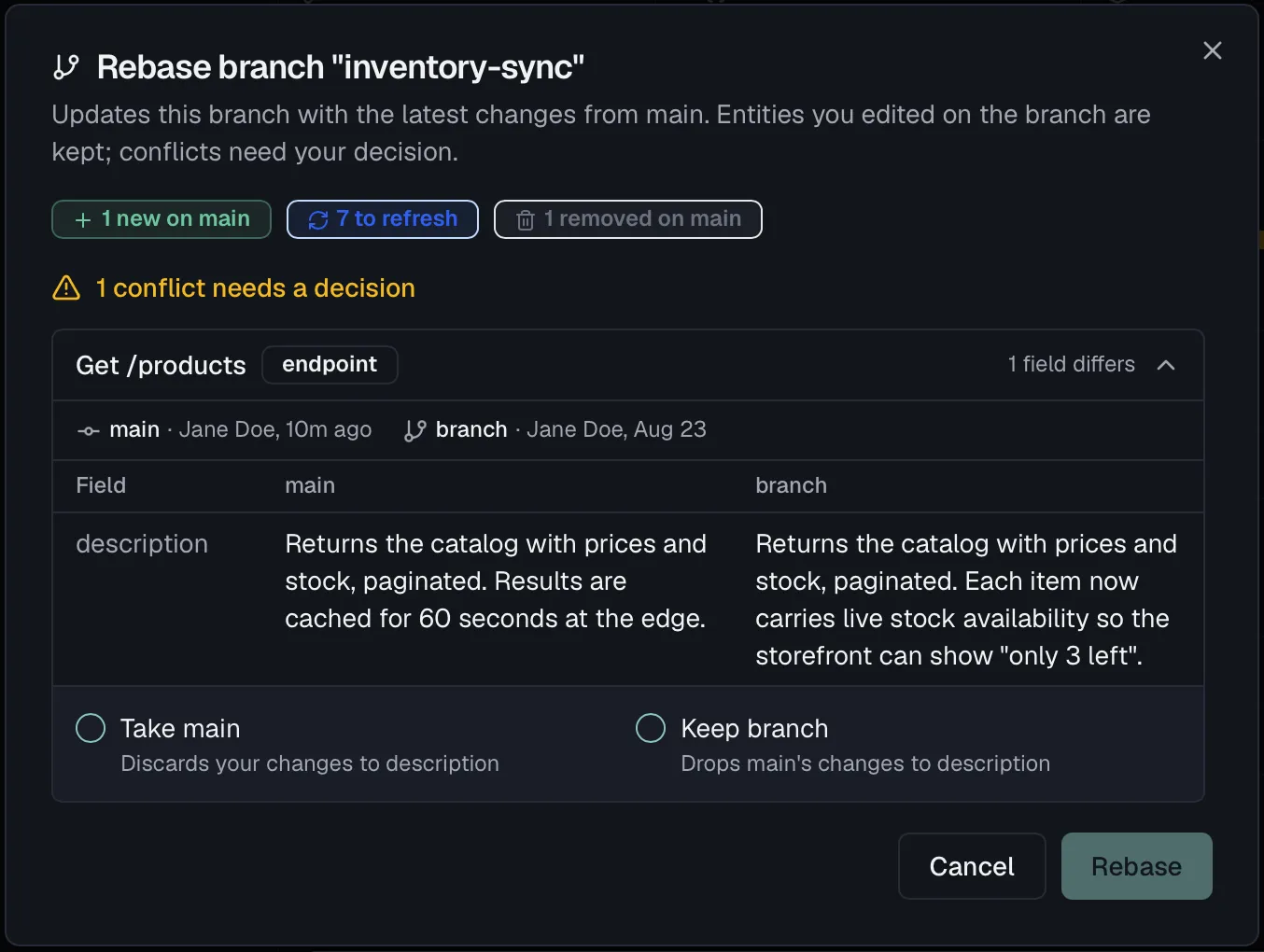
Selecting Rebase computes a plan and shows what it found:
| Badge | Meaning |
|---|---|
| N new on main | Entities added on main since you branched. They come across. |
| N to refresh | Entities main changed that you did not. They are updated on the branch. |
| N removed on main | Entities deleted on main. |
Anything both sides touched is listed separately as a conflict that needs a decision. Three kinds occur:
| Conflict | What happened |
|---|---|
| Changed on both sides | You and main both edited the same entity. |
| Deleted on main, edited on branch | You edited something main removed. |
| Changed on main, deleted on branch | You removed something main edited. |
For each one you choose Take main or Keep branch. The Rebase button stays disabled until every conflict has a decision, because there is no partial rebase.
The plan is recomputed inside the transaction that applies it, so a preview you left open while somebody else pushed to main cannot apply stale decisions. You get the current state or nothing.
Merge requests
A merge request is the review surface for a branch. Open one from the branch banner:
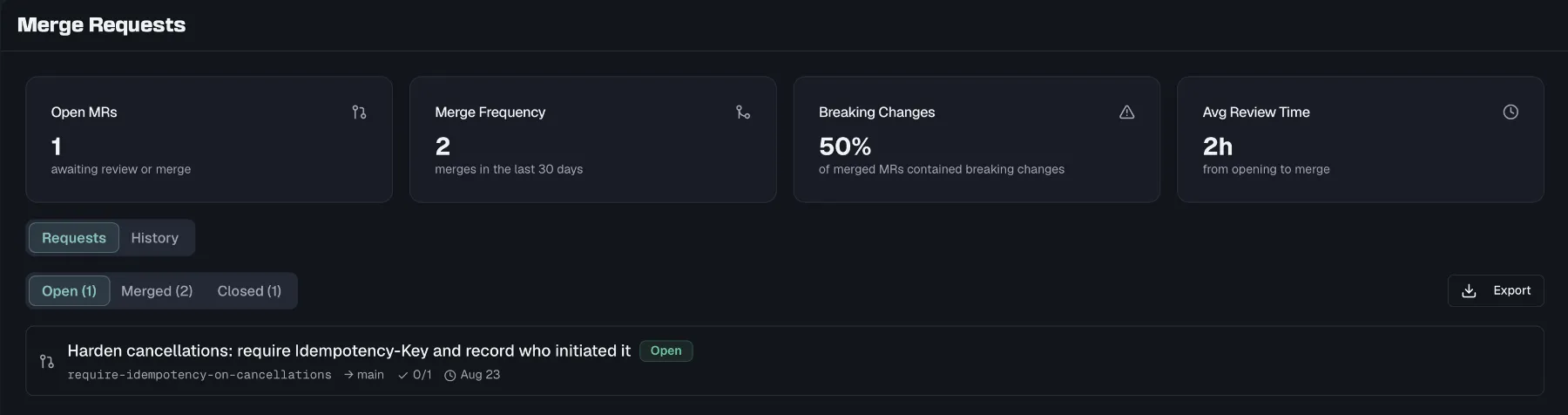
- Title is required.
- Description is optional.
- Reviewers is required and takes at least one person, picked from your organization's members. Everyone you add is notified as soon as the merge request is open, apart from yourself if you assign your own merge request to you.
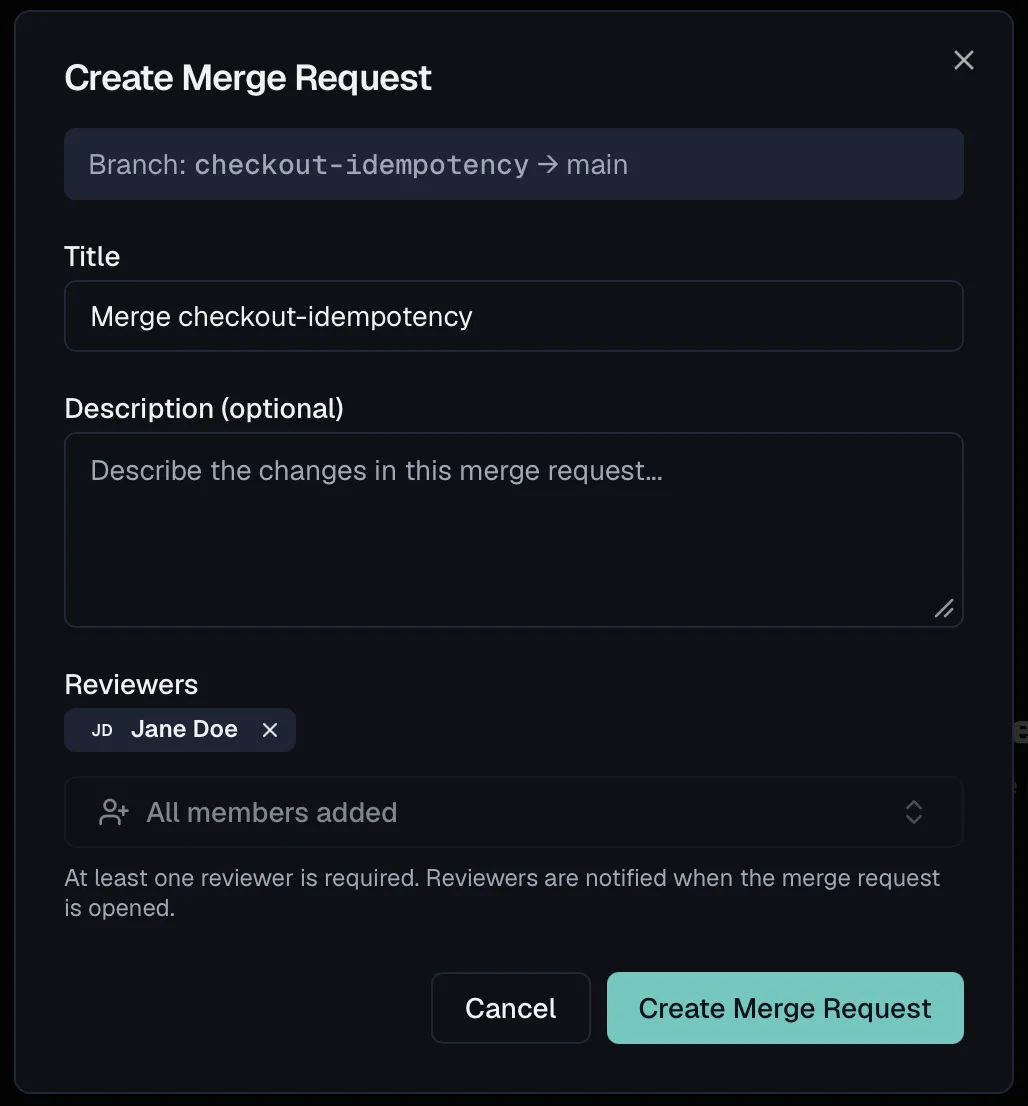
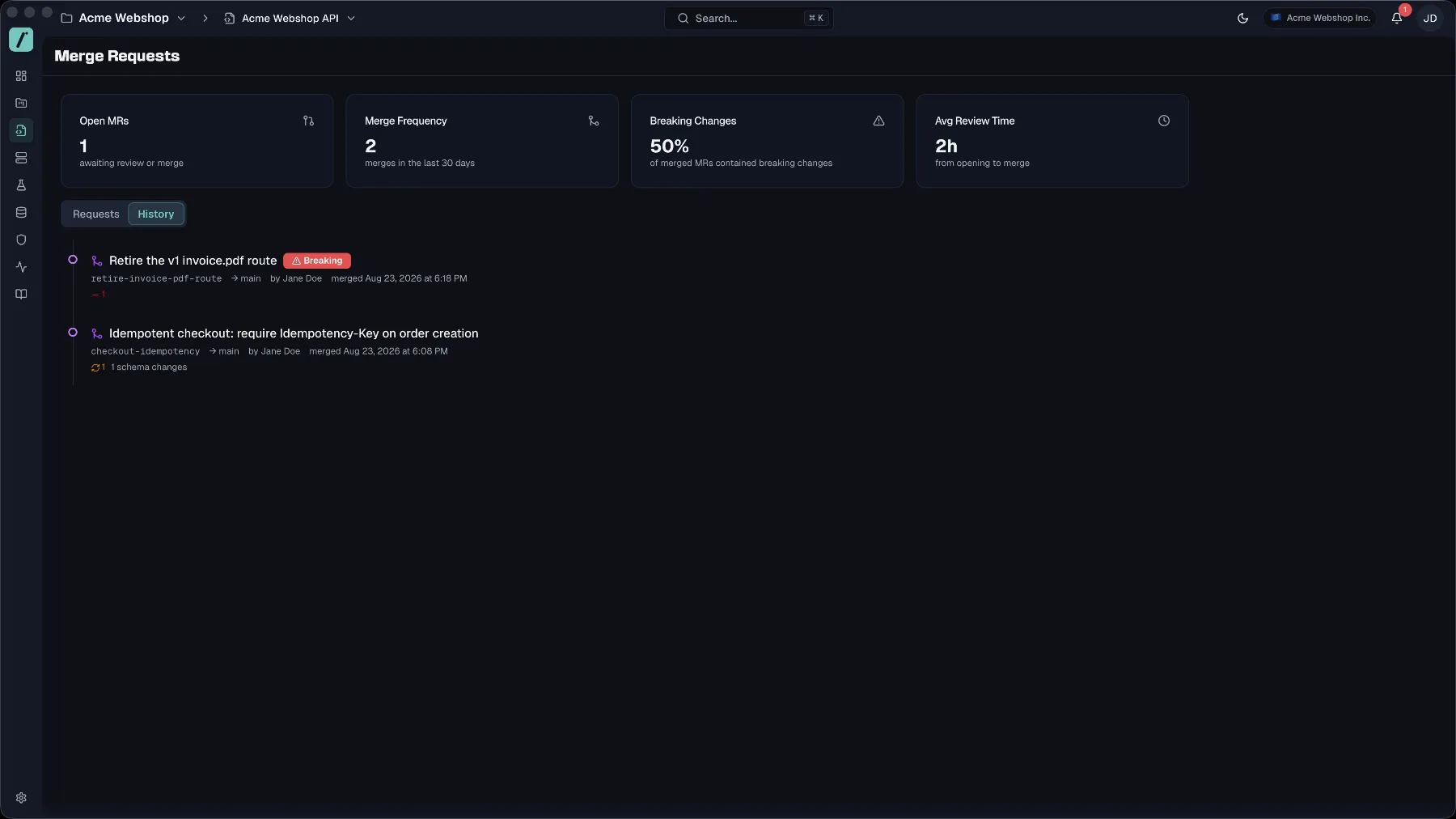
The merge request page opens on four figures for the spec. They are open requests, merges in the last 30 days, the share of merged requests that carried breaking changes, and the average time from opening to merge. Below them the page splits into two tabs. Requests is the list, and History is the merge timeline in the order things actually landed, where each entry shows the changes that were recorded at its merge.
Those figures and that timeline only cover merges recorded from this release onwards. Anything merged earlier is counted out and named as such rather than folded in.
A merge request always runs in one direction, which is {branch} → main, and it moves through six statuses:
| Status | What it means |
|---|---|
| Open | Created, no review submitted yet. |
| In Review | At least one review has been submitted. |
| Approved | Enough reviewers approved. Ready to merge. |
| Merged | Applied to the main draft. |
| Rejected | Turned down. |
| Closed | Withdrawn without merging. |
Reviewing
The Reviews tab lists the assigned reviewers with their decision, which reads Pending, Approved or Changes Requested. If you are one of them, it also gives you Approve and Request Changes with an optional comment.
How many approvals are needed comes from the spec's merge policy, and the default is one. A merge request flips to Approved automatically the moment the number of approvals reaches that threshold, so nobody promotes it by hand.
The policy has a second rule, which is to require an Admin or Owner approval when the branch carries breaking changes. With it on, an approval from a Member is not enough for a breaking merge. The merge is refused with "Breaking changes detected — at least one Admin or Owner must approve." until someone with the standing signs off. Whether the branch counts as breaking is decided from the live diff at merge time, by the same rules the Classified Changes tab uses, so reworking the branch can clear the requirement on its own.
New policies have this rule switched on. Policies that already existed keep it off, so nothing that was mergeable before became unmergeable.
The policy is read and written through the API and through the MCP tools get_merge_policy and update_merge_policy. There is no settings page for it yet.
Changes
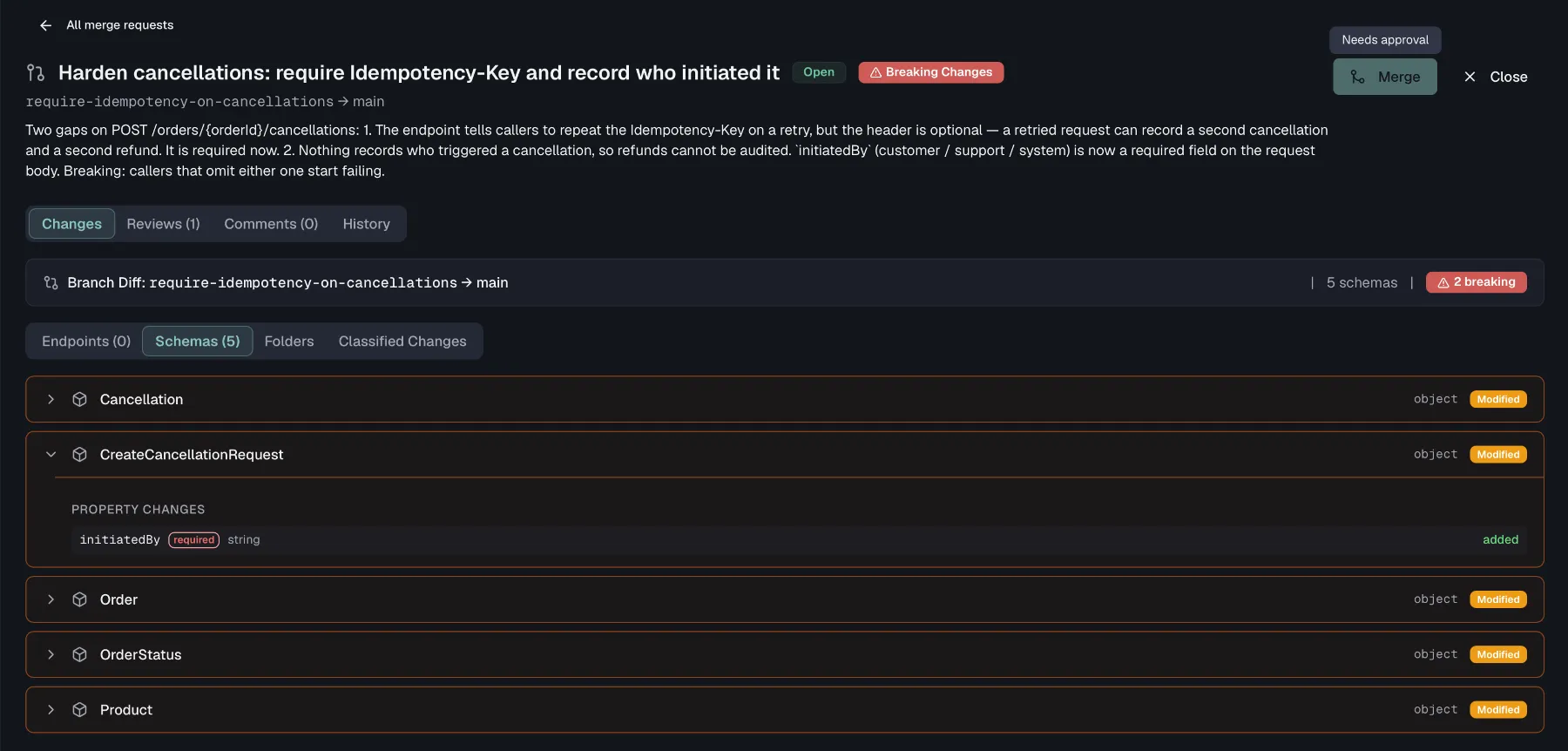
The Changes tab is a full diff of the branch against main, computed live rather than stored:
- A summary banner with the counts and the branch name.
- Endpoints, Schemas and Folders tabs, each listing what was added, modified or removed.
- A Classified Changes tab, which appears when the diff contains breaking changes and sorts them by the breaking-change rules.
The Changes tab does not list conflicts. Divergence between main and a branch is detected during a rebase and decided there, which is the one place in the product where it surfaces at all.
The same live diff drives the red Breaking Changes badge beside the status in the merge request header. Because it is computed rather than stored, it always describes the branch as it stands right now, so reworking the branch makes the badge disappear on its own.
Comments
The Comments tab is a threaded discussion on the merge request, with comments, replies to comments, and a count on the tab.
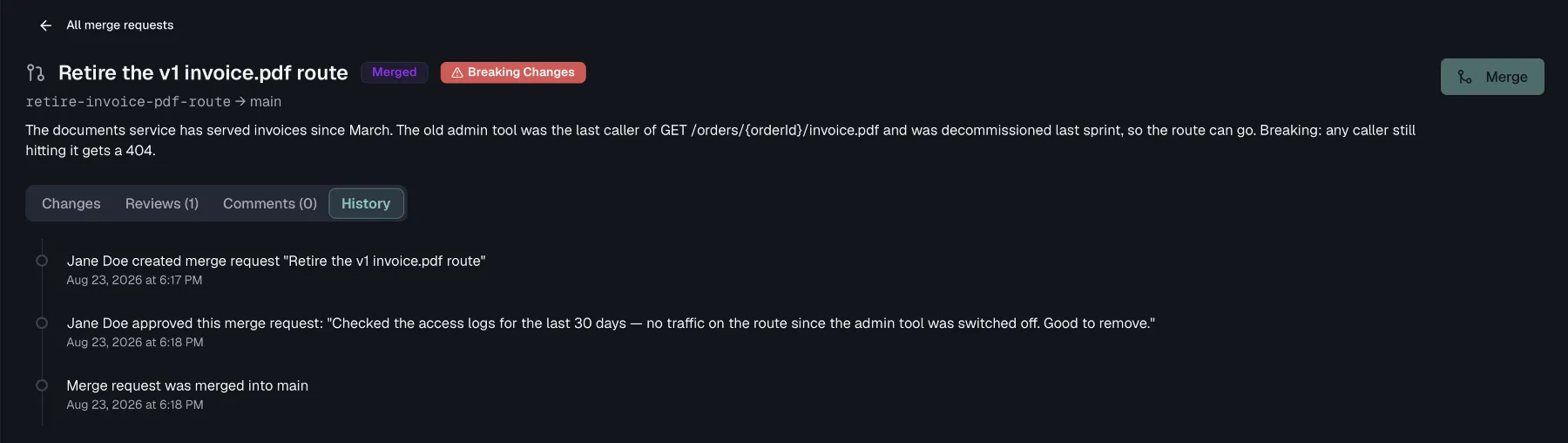
History
The History tab is the trail of the merge request. It records who opened it and when, every approval and every change request in the order they happened, and the merge itself. A reviewer who has not answered yet does not appear here, because the Reviews tab is where pending assignments are listed.
Merging
Merge is enabled once the merge request is Approved, and requires specs:merge. A confirmation dialog asks before anything is applied, and warns explicitly when the branch carries breaking changes.
Three conditions have to hold, and each produces a distinct message when it does not:
- The merge request is approved, or you get "Only approved merge requests can be merged."
- The branch is still active, or you get "Only active branches can be merged."
- The target version is still a draft, or you get "Branches can only be merged into draft versions." If the version was released while the branch was open, the merge has nowhere to go. Create a new version and rebase the branch onto it.
The merge itself re-runs the diff and applies every change the branch carries. Where main moved on in the meantime, the branch wins, because the merge does not stop to ask. Rebase before merging if that matters to you, since the rebase is what puts a decision in front of you. Applying the changes and marking the branch merged happens in one transaction, so a merge either lands completely or not at all.
Once merged, the author and every reviewer are notified, and the event is available to webhooks.
What a branch does not cover
Two limits are worth stating plainly, because both surprise people who expect Git semantics:
- A branch belongs to one version of one spec. You cannot merge across specs, and you cannot merge into a version other than the one you branched from.
- A branch is not a release. Merging puts your changes into the main draft. Making them official is still a release, as described under Spec Versioning.