

Environments
Environments model the stages your API runs through, from development to staging to production and anything in between. Each environment carries its own base URL, its own variables and its own authentication configuration, so the same tests and requests work against every stage without editing them.
Environment types
| Type | Typical use |
|---|---|
| Development | Local or shared dev backends. |
| Test | QA and automated-test targets. |
| Staging | Pre-production verification. |
| Production | The live API. |
| Custom | Anything else, such as previews, sandboxes and partner environments. |
The type is a label with its own icon and color, used across the sidebar, the switcher and the badges, and it does not change behavior. New projects get Development, Staging and Production by default, which you adjust under Advanced options when creating the project.
Creating an environment
On the Projects page, expand your project in the left sidebar and click Add environment.
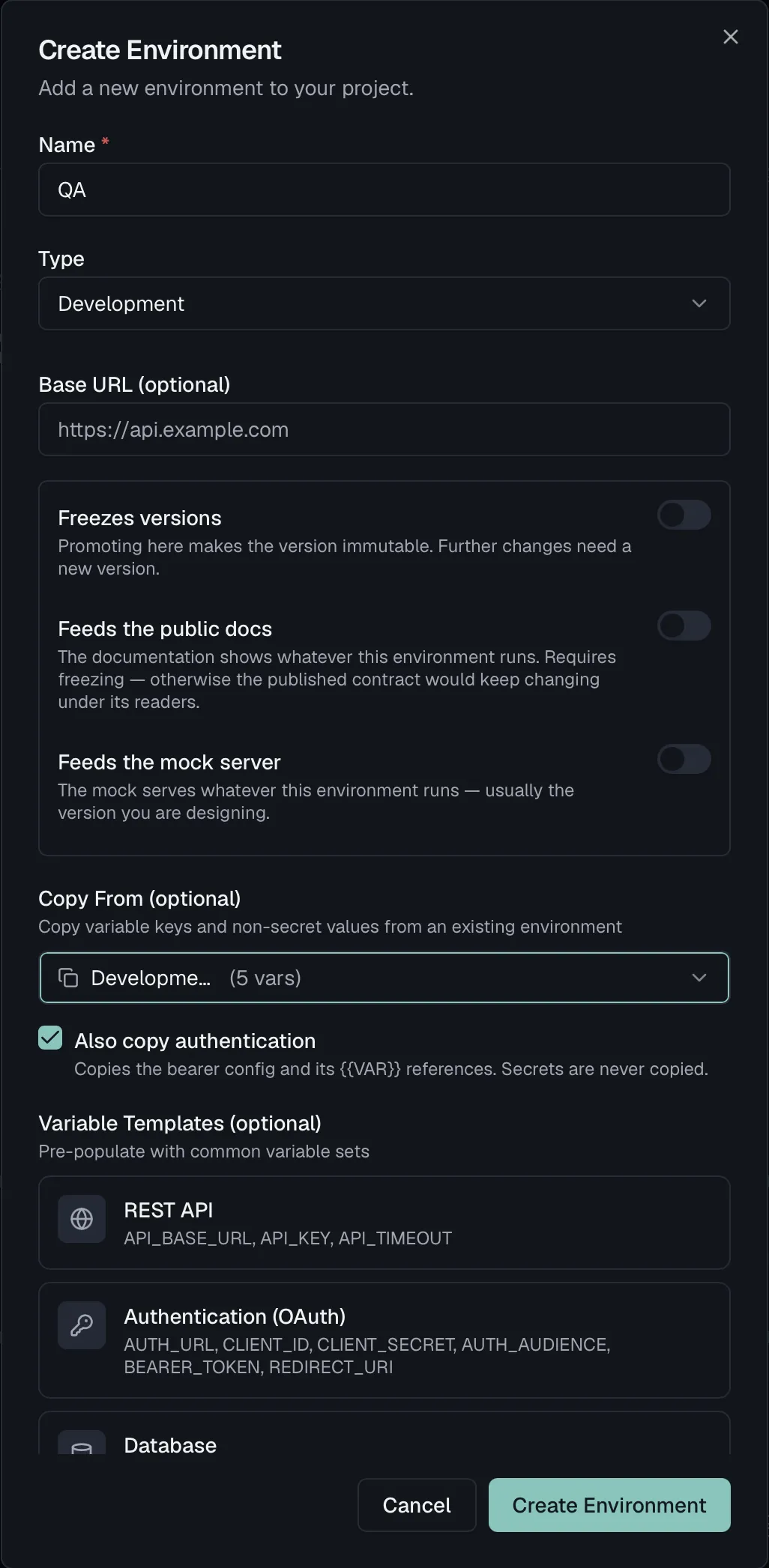
Enter a Name such as QA or Preview, and pick a Type.
Optionally set the Base URL, for example
https://api.example.com.Choose the environment's roles, described below. All of them are off by default.
Optionally use Copy From to seed the new environment from an existing one. Variable keys and non-secret values come across, while secret values are never copied. Only the key structure travels, so you can fill in the environment-specific secrets.
With a source picked, Also copy authentication appears, switched on. It brings the source environment's auth configuration over as well. Two cases turn it off and say why:
- "Source environment has no authentication configured." means there is nothing to copy.
- "Source auth stores a literal secret — configure authentication manually." means a typed-in secret cannot travel to another environment. Auth built from
{{VARIABLE}}references copies fine, which is a good reason to reference variables instead of pasting credentials.
The checkbox only appears if you have the tests:write permission.
Optionally pick one or more Variable Templates to pre-populate common variable sets. The templates are REST API, Authentication (OAuth) and Database.
Click Create Environment.
Environment roles
Three switches decide what an environment does when a spec version is released into it. They are independent flags on purpose, because nothing keys off an environment's name or type. You are therefore free to call your environments whatever you like and run your own workflow, such as freezing at staging.
| Role | What it does |
|---|---|
| Freezes versions | "Promoting here makes the version immutable. Further changes need a new version." This is what turns a promotion into a permanent, published contract. |
| Feeds the public docs | "The documentation shows whatever this environment runs." This requires Freezes versions, because otherwise the published contract would keep changing under its readers, so the wizard flags the combination if freezing is off. |
| Feeds the mock server | "The mock serves whatever this environment runs", which is usually the version you are designing. |
Roles can also be changed after creation. See Promotion and what runs where below and the release flow for how versions get into an environment.
The environment detail sheet
Click an environment in the project sidebar to open its detail sheet:
- The name, which you click to rename inline.
- The type badge, which you click to switch the type from a dropdown.
- The base URL, which you click to edit inline.
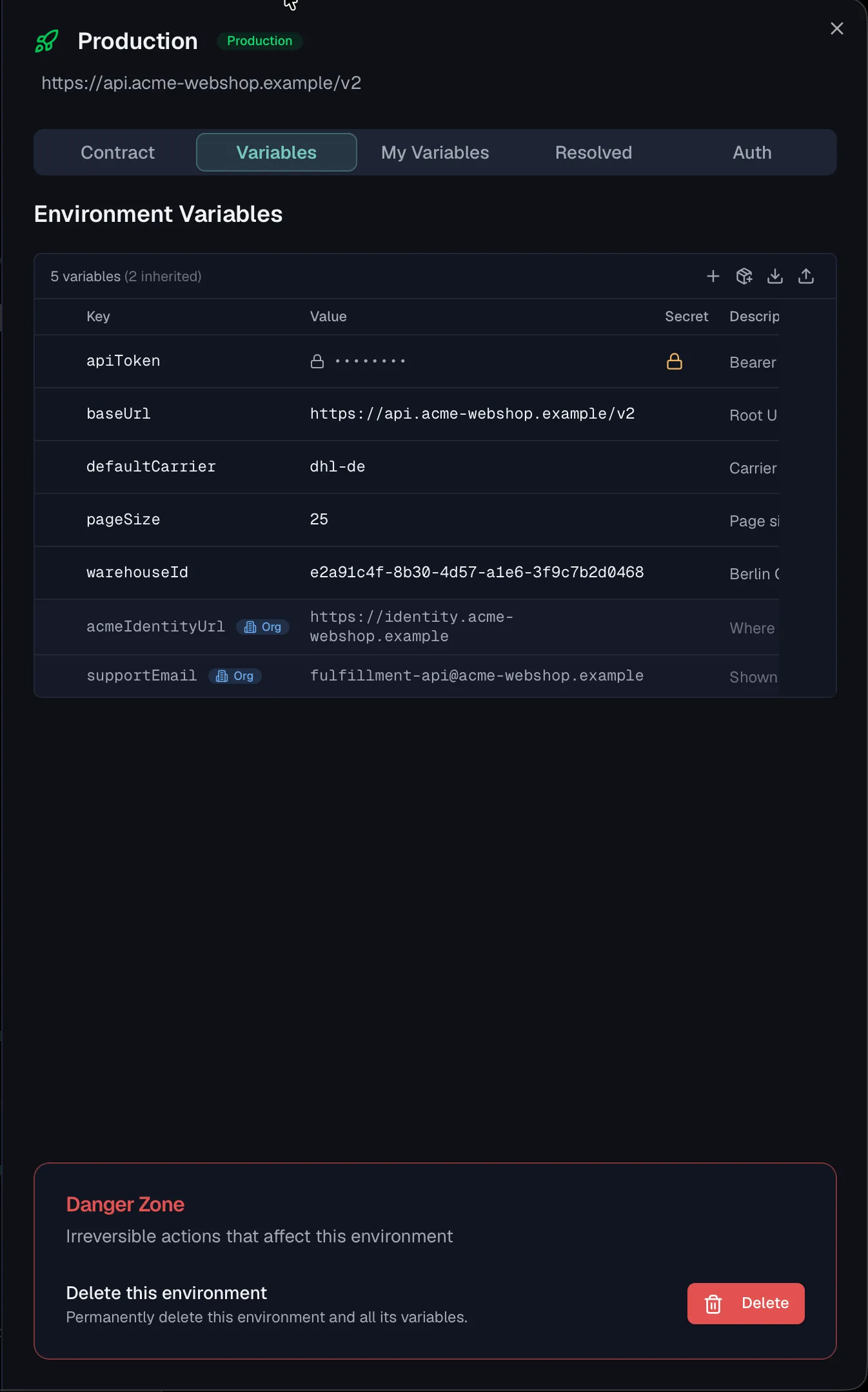
- Five tabs named Contract, Variables, My Variables, Resolved and Auth. Promotion and what runs where below covers the Contract tab, while Variables and Project Auth describe the rest.
- A Danger Zone on the Variables tab, which permanently deletes the environment and all its variables.
You can also right-click an environment in the sidebar for quick Edit and Delete actions.
The active environment
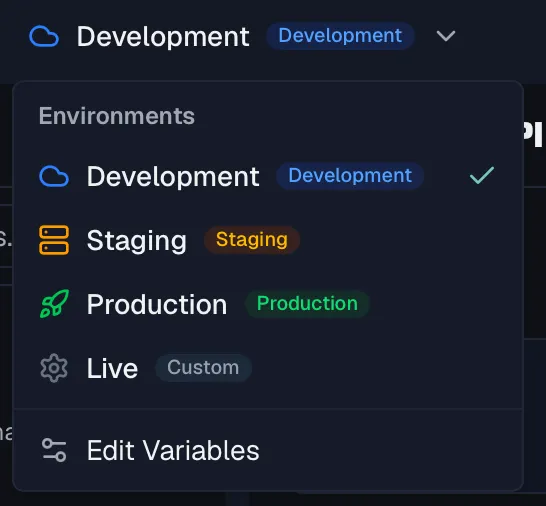
Inside a project, the environment switcher in the header shows which environment is currently active. The active environment determines which base URL, variables and auth configuration your requests and test runs use, and the choice is remembered per project.
The switcher also offers Edit Variables, which opens the variable editor with its Variables, My Variables and Resolved tabs without leaving your current page.
You can additionally set a Default Environment per project in Project Settings, which is the environment used when no specific one is selected.
How features use environments
| Feature | How the environment is used |
|---|---|
| Try It (API Designer) | Sends a real request for the endpoint you have open, using the selected environment's base URL, variables and auth. It sends to your mock server instead if you pick that as the target. See Endpoints. |
| Testing | The environment's base URL is exposed to test requests as the built-in {{baseUrl}} variable, so a test URL like {{baseUrl}}/products runs against whichever environment is active. Test suites also inherit the environment's auth by default. See Test Suites. |
| Monitoring | Monitors generated from a spec are bound to an environment. Monitor URLs, headers and request bodies support {{variable}} placeholders resolved from that environment, as in {{baseUrl}}/health. See Monitors. |
| Security scanning | Scans run against the environment's base URL, which must be an absolute URL. Environments whose base URL uses plain http:// are flagged as a misconfiguration finding. See Security Overview. |
If the environment has no base URL, features that need one tell you. Try It, for example, asks you to set a base URL before sending.
Promotion and what runs where
Beyond variables and auth, an environment tracks which version of each specification it serves. That link is a pin, and you set it by promoting a version. The canonical way to promote is the Release Version wizard, while the environment's Contract tab is the manual fallback for teams whose deployment pipeline has not reported the version itself.
The Contract tab
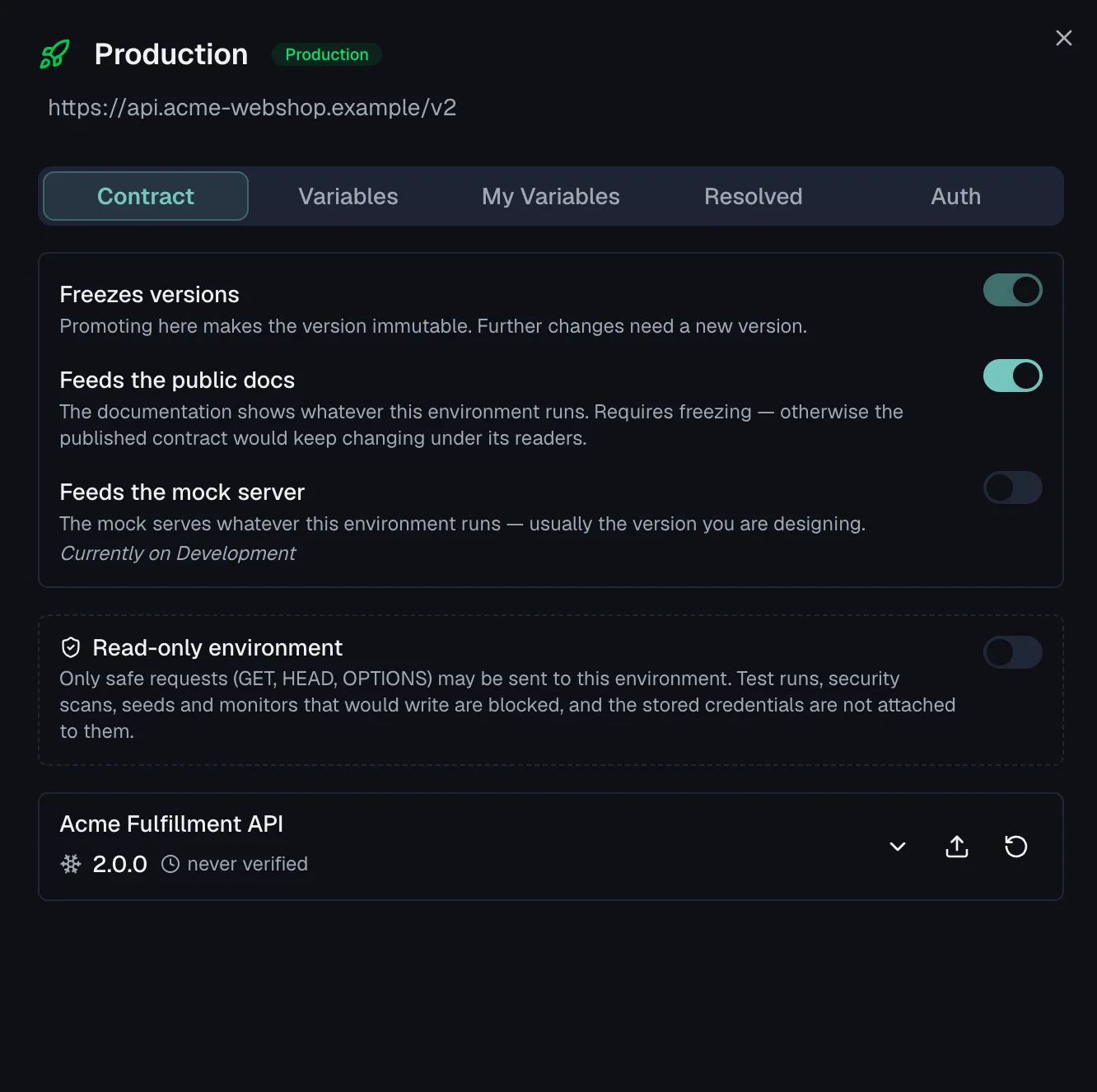
The Contract tab of the environment detail sheet lists every specification in the project and, for each, the version this environment runs:
- A version number, with a snowflake if that version is frozen, meaning its contract can no longer change.
- A draft badge when the pinned version is still mutable. That is normal while you design, since the mock, tests and monitors follow it.
- "Nothing deployed yet" when the environment serves nothing for that spec. This is a neutral state rather than a warning, because with design-first the spec is expected to be ahead of every environment.
- A verification note said out loud. It reads never verified, verified {time ago}, last run failed, or verified against {version} when the last run checked a different version than the pin shows today. The first of those explains itself with "Nobody has run the contract tests against this environment. The pinned version is a claim, not a fact — run the suite to check it". A promotion is an assertion rather than a deployment, because Routebase does not deploy your service, so an unchecked pin is never presented as fact.
Promote and roll back
From a spec's row on the Contract tab, the Promote a version action opens the Promote a version dialog, described as "Tell Routebase which contract an environment serves from now on. The contract tests are what verify the claim."
Pick the Version and the Environment. Both lists are complete on purpose:
- Every version of the spec is offered rather than only the draft, so an environment running 1.2 while you design 1.4 can state what it actually serves. A snowflake marks the frozen ones. Deprecated versions are left out, since promoting one is refused anyway.
- Every environment is offered, in the order you named them, with a snowflake on the ones that freeze. A hotfix can therefore go from a fresh draft straight to production, with no ladder to climb.
Once an environment is picked, the dialog says what it runs today with a line like "Production currently runs 1.1.0." The trade-off is then named before you commit, if that environment freezes versions and the chosen version is not frozen yet. The warning reads "Promoting to {environment} freezes {version} — further changes need a new version. This cannot be undone." The button then reads Freeze and promote to {environment}, or plain Promote to {environment} for a non-freezing environment. Re-pinning a version that is already frozen is not a second freeze, and the dialog says so instead of warning, with "{version} is already frozen — its contract does not change. Only what {environment} serves moves."
The Roll back action moves the pin to the version this environment ran before. Rollback only moves the pointer, as the dialog puts it in "Nothing was un-frozen — a frozen contract stays frozen." There is no unpublish, because a frozen version stays frozen forever. Roll back is the one click for the common case, while the promotion history below is the precise way back.
Promotion history
Every promotion is recorded, and the arrow at the end of a spec's row opens that record, newest first, with the top entry marked current. Each entry names the version and when it was promoted. The column that carries the weight is the last one, which says where the pin came from:
| Origin | What it means |
|---|---|
| stated in the UI | Someone asserted this in Routebase. Whether the service really serves it is what the contract tests decide. |
| reported by the pipeline | The deploy job reported it after it ran, so the pin follows the pipeline rather than a wish. See CLI in CI/CD. |
| deployed by Routebase | Routebase rolled the configuration out itself, which makes this one a fact rather than a claim. |
That distinction is the reason the list exists. Routebase does not deploy your service, so a pin set by hand and a pin reported by your pipeline must not read alike.
Two kinds of entry carry a marker. A snowflake marks the promotion that froze the version, and a back-arrow marks one that was a rollback, explained as "the pointer moved back here. Nothing was un-frozen."
Pin this again on an earlier entry reopens the promote dialog on that version rather than pinning it on the spot. A promotion into a freezing environment is irreversible, and that warning is not something a row in a list should be able to skip.
Permissions
- Creating and editing environments, including their variables and roles, requires projects:write, which Admins and Owners have.
- Deleting an environment requires projects:delete, which Admins and Owners have.
- Promoting a version into an environment and rolling back its pin require specs:write rather than
projects:write, because the pin is a fact about the API contract and therefore follows the spec permission. The Member role includes it. - Every member can view environments and switch the active one for themselves.
Related
- Projects — the container environments live in
- Versioning — the release flow that promotes versions into environments
- Variables — values scoped to each environment
- Project Auth — per-environment authentication
- Test Suites — run the same tests against every environment
- Monitors — environment-bound uptime and health checks