

Maintenance Windows
A maintenance window suppresses monitoring alarms during planned work such as a deployment, a database migration or a patch night, so expected downtime doesn't page anyone. While a window is active, failed checks will not trigger incidents for the monitors it covers. Scheduling and deleting windows requires the monitoring:write permission.
Scopes
A window is scheduled against one of three scopes:
| Scope | Covers |
|---|---|
| Monitor | One specific monitor. |
| API Spec | Every monitor generated from that spec. |
| Environment | Every monitor in that environment, which is the right choice for a full-stack deployment. |
Scheduling a window
There are two entry points:
- The monitor tree on the Monitors page. Right-click an environment, an API spec or a monitor in the sidebar tree and choose Schedule Maintenance.
- The monitor detail page. Open a monitor, switch to the Maintenance tab and click Schedule, which schedules at monitor scope only.
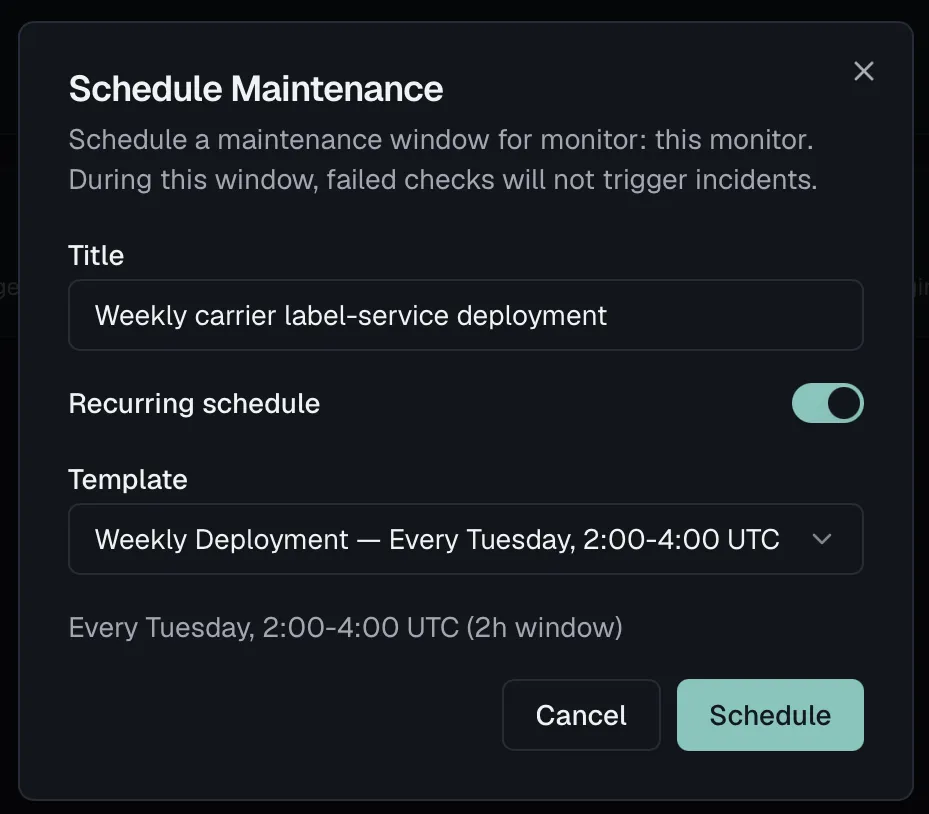
In the Schedule Maintenance dialog:
- Enter a Title such as Database migration.
- Leave Recurring schedule off for a one-off window, then pick a Start and an End date-time. The end must be after the start, and the dialog validates that.
- Click Schedule.
Recurring windows
For work that repeats, turn on Recurring schedule and pick a Template:
| Template | Schedule |
|---|---|
| Weekly Deployment | Every Tuesday, 2:00–4:00 UTC |
| Monthly Patching | First Saturday monthly, 0:00–6:00 UTC |
| Nightly Window | Every day, 3:00–4:00 UTC |
| Custom schedule | Your own 5-field cron expression (UTC) plus a duration in hours and minutes |
Custom cron expressions are validated as you type (minute hour day-of-month month weekday).
Effect on alerts and incidents
A window reaches a monitor directly, through its spec or through its environment. While one is active for a monitor:
- Failed checks do not open incidents.
- The monitor, and its groups in the tree, are marked with a wrench icon.
- The dashboard's In Maintenance stat card counts the active windows, and an Active Maintenance card lists each one with its scope and end time.
Checks themselves keep running, so you still see the results in the check timeline once the window ends.
Reviewing and deleting windows
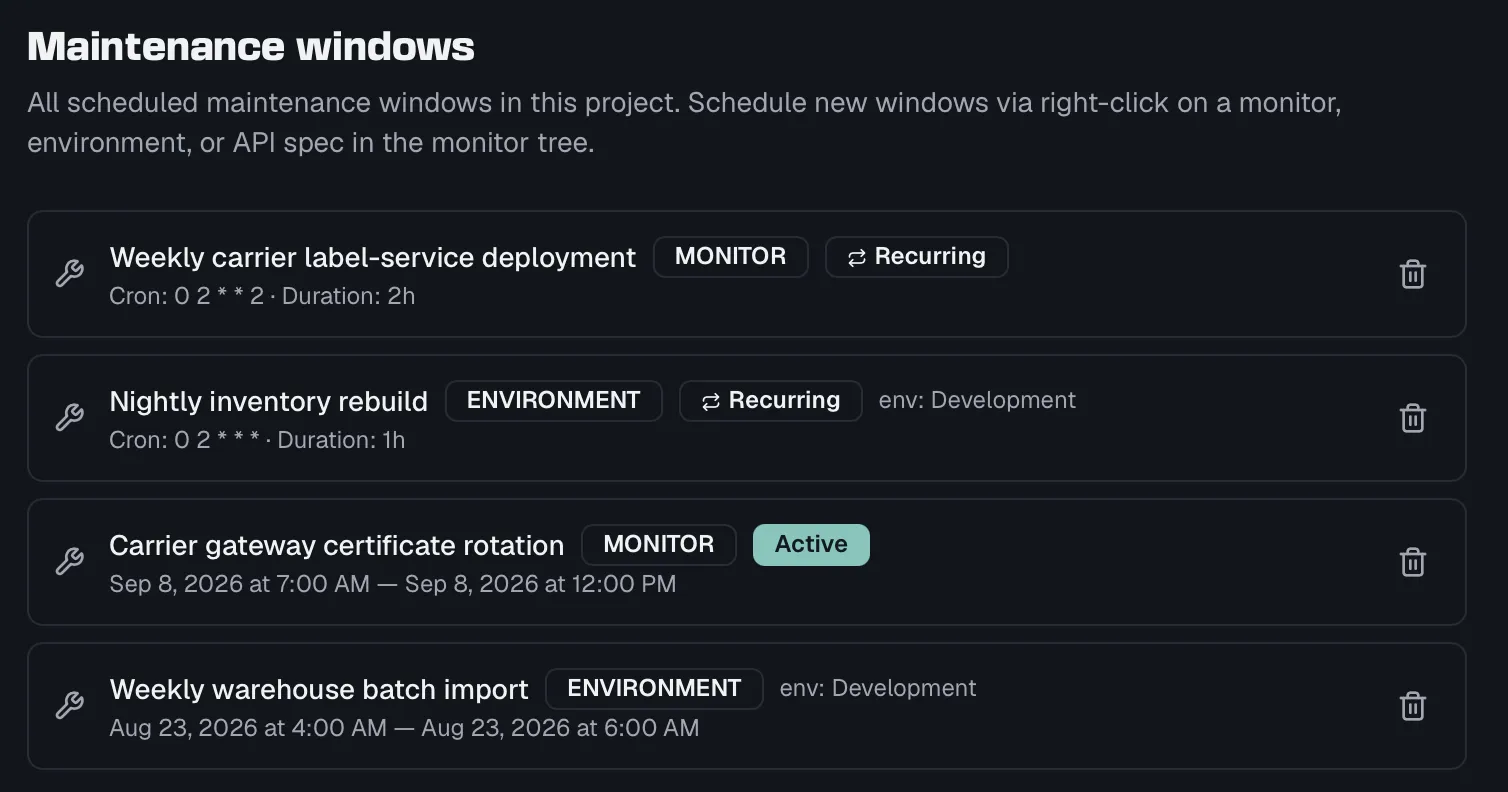
- Per monitor, the Maintenance tab on the monitor detail page lists that monitor's windows with Active and Recurring badges, showing either the start and end times or the cron schedule and duration. Delete one with the trash icon.
- Project-wide, Monitoring → Settings hosts the full calendar of every window in the project with its scope, its target environment or spec, its activity status and its schedule. Windows can be deleted here too, while new ones are scheduled from the monitor tree, as the section itself points out.
Related
- Incidents — what maintenance windows suppress
- Monitors — the monitor tree where windows are scheduled
- Monitoring Overview — where active windows appear on the dashboard