

Custom Domains
Routebase works with your domains in two places, and this guide covers both. Verified organization domains prove you own an email domain, which claims it for your organization and unlocks SSO enforcement for its users. Documentation portal addresses control where your published docs are served.
Verified organization domains
Verified domains have their own page at Settings → Domains, in the Security group of the settings sidebar. It describes itself as "Verify your email domains to claim them for this organization and protect against shadow workspaces." Managing them requires the org:manage-security permission, which Admins and Owners have.
There is no plan requirement, because domain verification is available on every plan. Claiming your domain is protection against someone opening a workspace behind your back rather than a premium feature. What is Enterprise-only is SSO enforcement, which builds on a verified domain. See Single Sign-On.
Adding a domain
- Click Add domain.
- Enter a root domain like
acme.com, without a scheme such ashttps://and without a path. Subdomains such asdocs.acme.comare also accepted. - Click Add domain to register it. The domain appears in the list with a Pending verification badge.
Verifying ownership via DNS
A newly added domain shows a verification panel with the DNS TXT record you need to publish:
| Field | Value |
|---|---|
| Host | the record name shown in the panel (copy button provided) |
| Type | TXT |
| Value | a unique verification string (copy button provided) |
Create that record in your DNS provider, then click I've added the record — Verify now. DNS propagation may take a few minutes, so wait and retry if verification fails right away.
Domain status
Each domain in the list shows when it was added and verified, plus one of three status badges:
| Badge | Meaning |
|---|---|
| Pending verification | The TXT record has not been confirmed yet. |
| Verified | Ownership is proven, so the domain is claimed for your organization as described below. SSO enforcement is available but off. |
| SSO required | Users on this domain must sign in via SSO. |
Once a domain is verified, an SSO required switch appears next to it. See Enforcing SSO for what happens to existing password users when you turn it on. Enforcement needs an active SSO connection, so it is only useful on Enterprise, while everything described under What verifying a domain claims applies on every plan.
To delete a domain, open its ⋯ menu and choose Remove domain. Any SSO enforcement for that domain is then disabled, and the domain stops being claimed.
What verifying a domain claims
A verified domain belongs to your organization across all of Routebase. Two things follow from that:
Nobody else can found an organization on it. Someone signing up with an address under your verified domain cannot create their own separate workspace. The onboarding wizard tells them on entry, and the same check runs again when the organization would actually be created, reading "acme.com belongs to Acme Inc. Contact their administrator to get invited." This is what keeps an ex-employee, or a well-meaning colleague in another department, from starting a shadow workspace under your company's name.
Being blocked is not being added. There is no automatic join. The person is pointed at your administrator and has to be invited like anyone else, or sign in through an active SSO connection with just-in-time provisioning enabled. Verifying a domain never pulls existing accounts into your organization either.
A verified domain also has an effect at the other end of the membership. Someone whose address is on one of your verified domains loses their sign-in when they leave your organization, while external collaborators on their own domains do not. See Organization Settings.
Only verified domains claim anything. A domain still showing Pending verification has no effect at all, because adding one costs nothing and proves nothing.
Documentation portal addresses
Each published documentation portal has its own public address, managed per portal in its settings page. See Publishing documentation for the full publishing flow.
Portal subdomain
The Portal Subdomain card sets your portal's default public address, which is a subdomain under docs.routebase.dev such as acme-webshop-docs.docs.routebase.dev. Enter a name and click Save:
- The name is 3 to 63 characters long and takes only lowercase letters, numbers and single hyphens.
- It must be globally unique across Routebase.
- Saving requires the docs:manage-portal permission.
Your portal is reachable at this subdomain once published. If your portal is built but has no subdomain yet, its settings page says "Your portal is built but isn't publicly reachable yet."
Custom domain
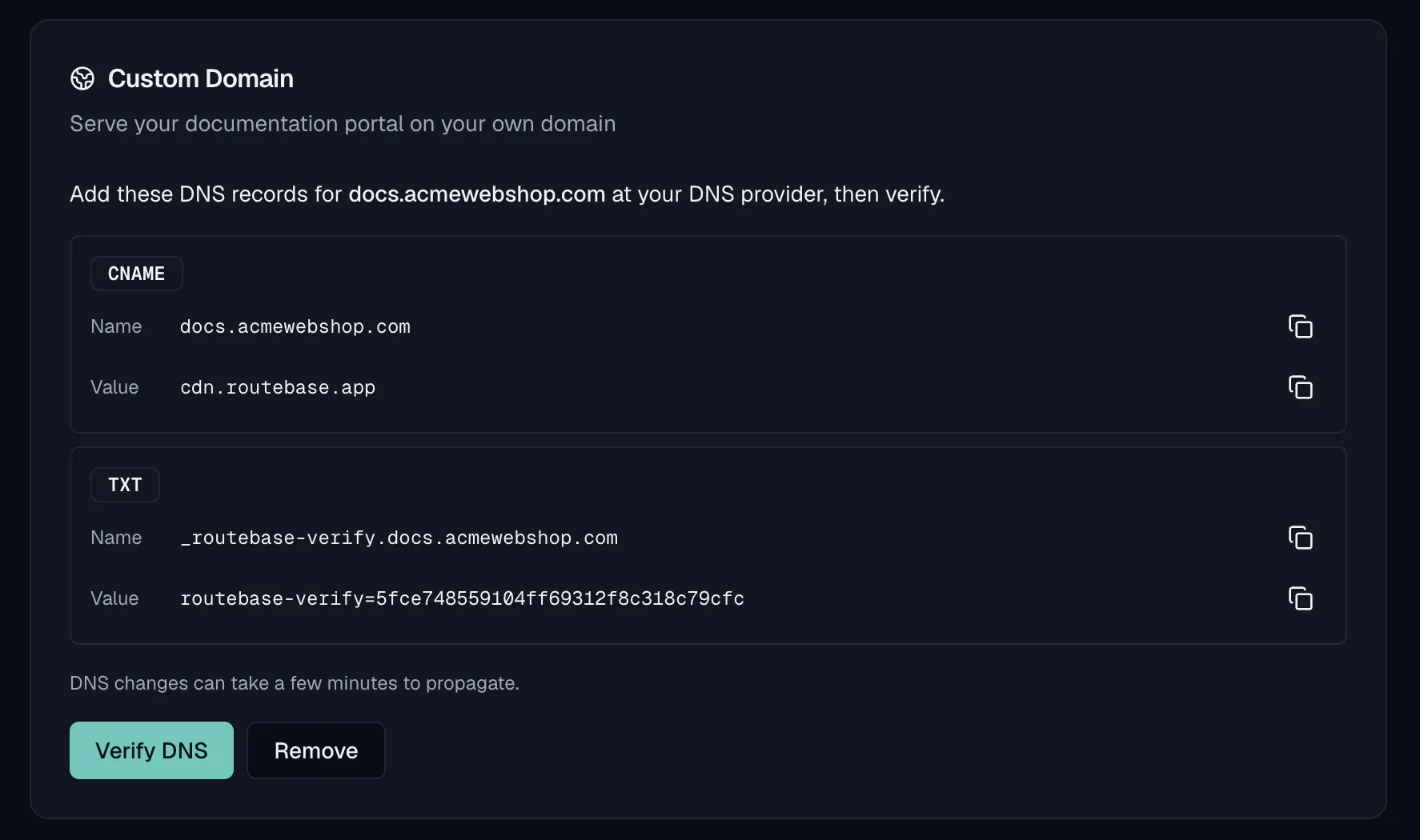
The Custom Domain card, described as "Serve your documentation portal on your own domain", lets you serve the portal on a domain you own, with your own DNS records and an automatically issued SSL certificate. It sits directly below the Portal Subdomain card and requires the docs:manage-portal permission.
Custom domains are a Pro or Enterprise feature. On the Free or Starter plan the card shows an upgrade prompt instead, and so does a Pro trial, which does not include custom domains. The prompt reads "Custom domains are available on the Pro plan. Upgrade to serve your documentation portal on your own domain with automatic SSL." and carries an Available on Pro — Upgrade button. The backend enforces this too, so unpaid requests are rejected.
Setting up a custom domain
The card walks you through a short sequence of steps:
- Enter your domain. Type a subdomain you own, such as
docs.example.com, and click Add domain. The helper text notes "Enter a subdomain you own, e.g. docs.example.com. You'll add DNS records next." - Add the DNS records. The card then shows the records to create at your DNS provider, which are a CNAME and a TXT record, each with its Name and Value and a copy button. Above them it says "Add these DNS records for
docs.example.comat your DNS provider, then verify." DNS changes can take a few minutes to propagate. - Verify DNS. Click Verify DNS. If a record is not found yet, the card reports the granular result, giving CNAME and TXT each a Found or Not found badge, so you know which record still needs to propagate.
- Activate (provision SSL). Once DNS is verified, the card says "DNS verified for
docs.example.com. Activate to issue the SSL certificate." Click Activate (provision SSL), and issuing the certificate can take a few minutes. - Active. When the certificate is live, the card shows "Your portal is live at" with a link to your domain, plus a Domain Health readout. That readout gives DNS and SSL each a Valid or Invalid badge, along with the last-checked time, any error detail, and a Check now button to re-run the check on demand.
At every step a Remove button lets you drop the domain, and your portal then falls back to its default routebase.dev address.
If your plan changes
If your subscription later drops below Pro through a downgrade or a cancellation, the custom domain is suspended rather than deleted, and the portal falls back to its {subdomain}.docs.routebase.dev address. The card explains that your domain "is suspended because your plan no longer includes custom domains. Upgrade to Pro to reactivate it automatically — your DNS records stay configured, no re-verification needed." Re-upgrading reactivates the domain automatically. Because the DNS records stay in place, you do not have to verify DNS again.
Related
- Single Sign-On — what verified domains unlock on Enterprise
- Members & Invitations — the way people on your domain actually join
- Publishing documentation — building and publishing your docs portal
- Documentation branding — make the portal at your address look like yours