

Mock Server Settings
These settings decide how a mock behaves before any rule matches, covering CORS, access tokens, proxy mode and the generated data. They are configured on two levels. Per-server settings apply to the mock server inside a project, while organization-wide defaults decide what every new mock server inherits, so a convention you set once does not have to be repeated per project. This guide covers both.
Per-server settings
In the Mock Server workspace, click Mock Server Settings at the bottom of the left panel. A settings sheet opens with all configuration for this server, and changes are saved as you make them. Editing requires the mock-server:manage permission, which Admins and Owners have by default. With only mock-server:read, the values are visible but read-only.
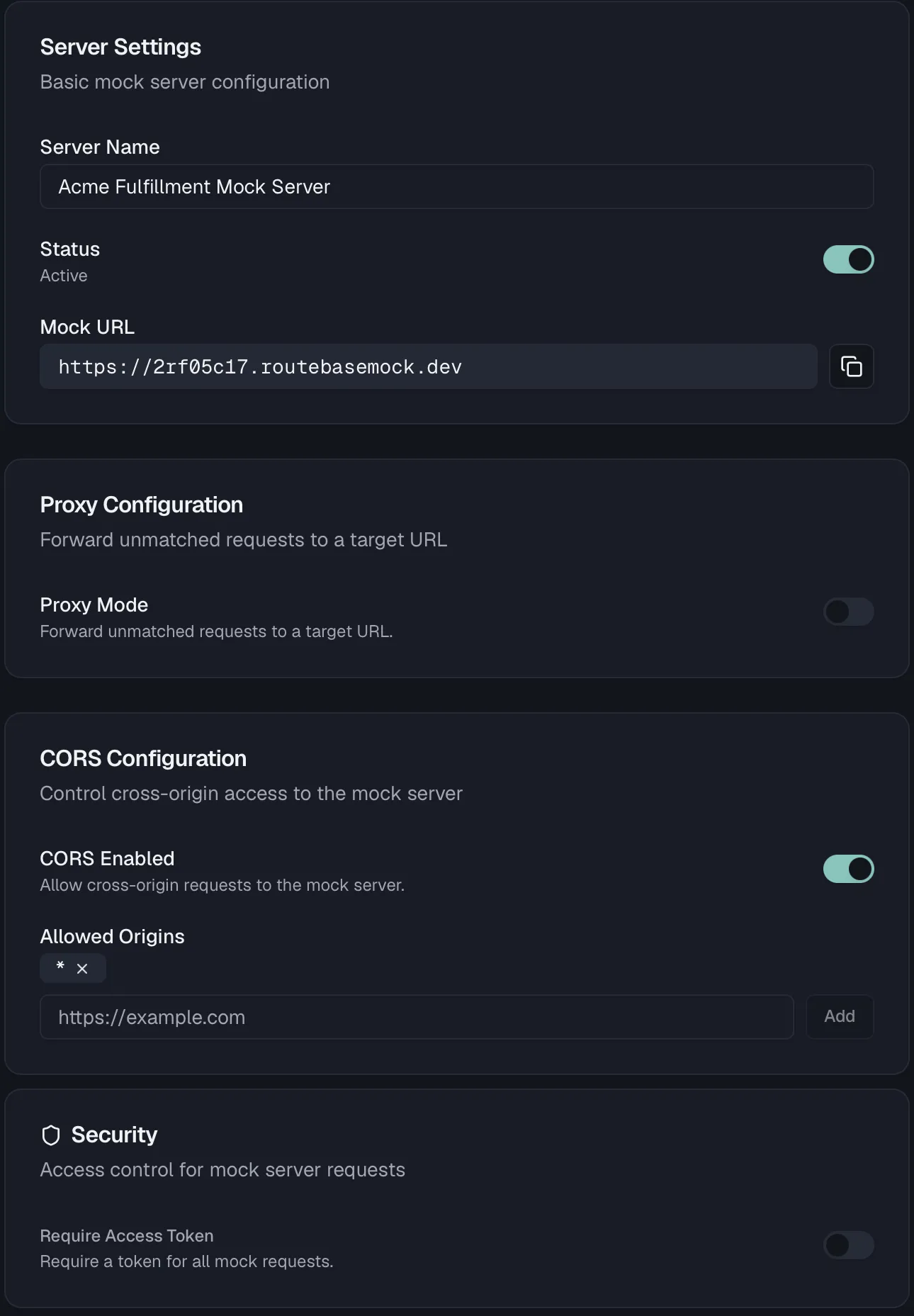
Server Settings
| Setting | What it does |
|---|---|
| Server Name | A display name for the server. |
| Status | Toggle the server Active/Inactive. An inactive server stops answering requests without losing configuration. |
| Mock URL | The server's public base URL (https://<id>.routebasemock.dev), read-only with a copy button. |
Proxy Configuration
| Setting | What it does |
|---|---|
| Proxy Mode | When enabled, requests that no mock rule matches are forwarded to a real backend instead of failing. Requires a Starter plan or higher, so on the Free plan the toggle is disabled with an upgrade hint. |
| Proxy Target URL | The backend that unmatched requests are forwarded to, e.g. https://api.example.com. Shown once Proxy Mode is on. |
CORS Configuration
| Setting | What it does |
|---|---|
| CORS Enabled | Allow cross-origin requests to the mock server, so browser apps can call the mock URL from your dev environment. |
| Allowed Origins | The list of origins permitted to call the server (e.g. https://example.com). Add origins one at a time, and remove one by clicking the × on its chip. Shown once CORS is enabled. |
Smart Mock Settings
These settings control generated data. Each one carries a badge showing whether it currently follows the Org Default or holds a Custom value. Once you change a setting, a Reset to org default link appears so you can fall back to the inherited value.
| Setting | Options | What it does |
|---|---|---|
| Data Locale | English, German, French, Spanish | Language of generated names, cities, and other locale-sensitive data. |
| Time Format | ISO 8601, Unix Timestamp, RFC 2822 | Format of generated dates and times. |
| Timezone | UTC plus common IANA zones (Europe/Berlin, Europe/London, Europe/Paris, America/New York, America/Chicago, America/Denver, America/Los Angeles, Asia/Tokyo, Asia/Shanghai, Australia/Sydney) | Timezone for generated dates and times. |
| Default Mock Type | Smart Mock First, Response Example First | Which response source takes priority when an endpoint has both a Smart Mock body and a documented response example. |
| Built-in Matching | On/Off | Enable or disable the built-in field-name matching rules for Smart Mock data generation. |
Security
| Setting | What it does |
|---|---|
| Require Access Token | When enabled, every mock request must carry the server's access token, either in an Authorization: Bearer <token> header or in a ?token=<token> query parameter. |
| Access Token | Shown once the requirement is on, with copy and Regenerate buttons. Regenerating revokes the old token immediately. |
Danger Zone
Delete Mock Server permanently deletes the server, all its rules, and its request logs. The action cannot be undone and asks for confirmation.
Organization-wide defaults
Under Settings → Mock Server (in the API Governance group), organization admins configure the baseline that every new mock server starts from. Individual servers can still override each value, and the per-server Org Default / Custom badges show where a server has diverged. Changing these settings requires the org:manage-governance permission, which Admins and Owners have by default.
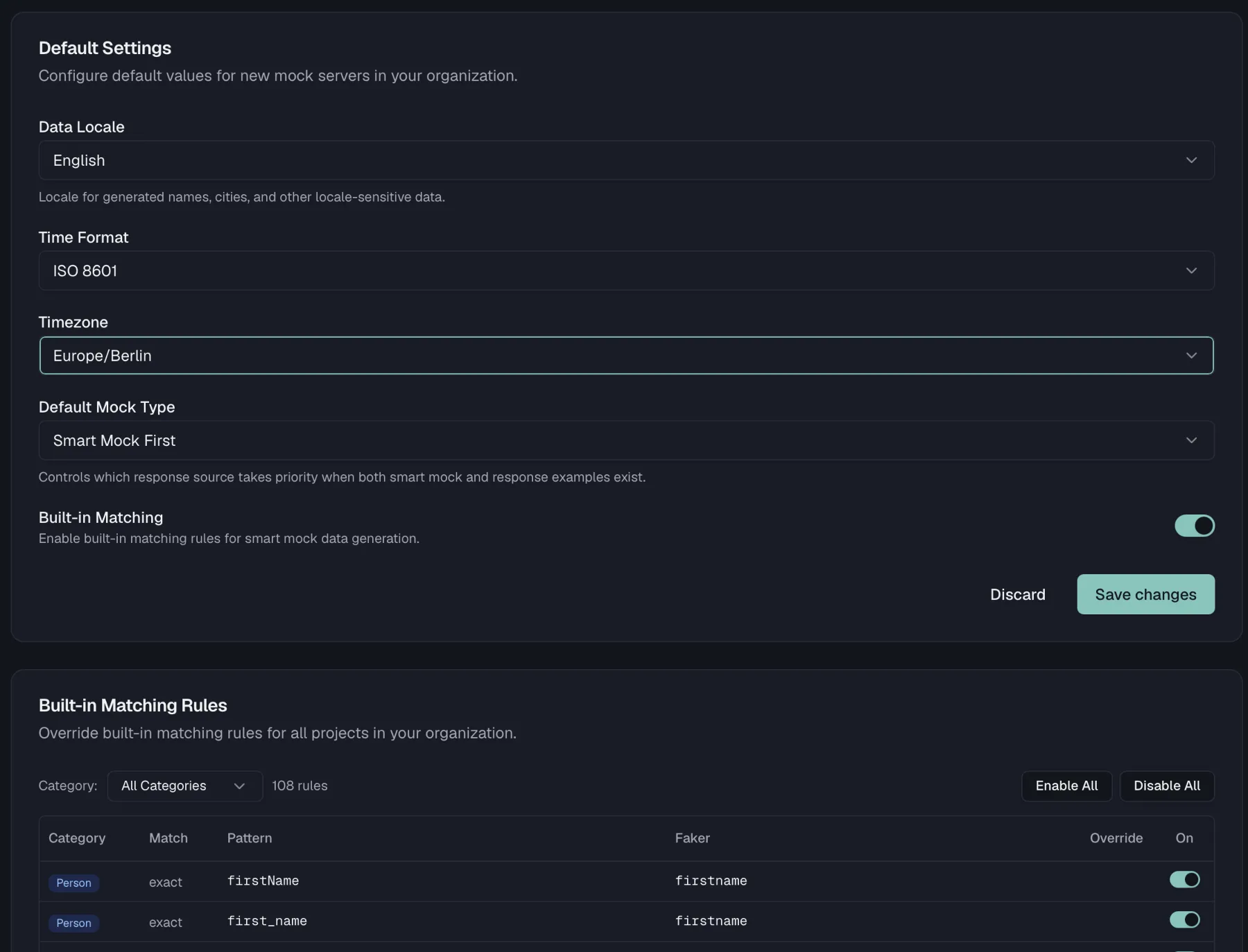
The page opens with the organization's Mock Usage, which counts the requests this month against the plan limit and warns about an upgrade from 80% onward. Three cards follow it.
Default Settings
This card sets the same five values as the per-server Smart Mock Settings as organization-wide defaults. Those values are Data Locale, Time Format, Timezone, Default Mock Type and Built-in Matching. Unlike the per-server sheet, the card uses an explicit Save Changes button, with Reset to discard unsaved edits.
Built-in Matching Rules
Override the shipped Smart Mock matching rules for all projects in the organization by toggling individual rules on or off, or by using Enable All and Disable All. The card shows how many rules are currently overridden. Projects can still adjust built-in rules locally in their mock server's Smart data tab.
Custom Matching Rules
Organization-wide custom matching rules apply to all projects and use the same fields as project-level custom rules. Those fields are the condition type and pattern, the data type, the faker type, the category, the remark, the sort order and the case sensitivity. Use Add Rule to create one, and edit, toggle or delete existing rules from the same card.
How defaults, org rules, and project rules interact
- A new mock server starts with all five Smart Mock settings inherited from the organization defaults.
- Changing a setting on the server makes it Custom, and Reset to org default re-attaches it, so later changes to the org default flow through again.
- For data generation, project-level matching rules in the Smart data tab sit alongside org-wide rules and built-in rules. Matching rules are applied when mock bodies are generated, so after changing rules use Regenerate affected rules or regenerate individual rules to see the effect in existing mocks.
Related
- Mock Server — rules, response bodies, and the mock workflow
- Test Data — fixtures served by fixture-backed response modes
- Roles & Permissions — how mock-server and governance permissions map to roles
- Billing — plan limits, including monthly mock requests