

Mock Server
Routebase's mock server turns any API spec into a live, callable endpoint, so your frontend, your tests and your demos can run against a working API long before the real backend exists. Every project gets its own mock server with a public base URL on routebasemock.dev. Point any HTTP client at that URL and it answers according to rules you control, complete with realistic data, simulated errors, latency and state.
Creating a mock server
Open Mock Server in your project. If the project does not have a mock server yet, you can choose how to start:
- Empty mock server starts blank so you add rules manually.
- From OpenAPI spec creates the server and immediately auto-generates a rule for every endpoint in one of your API specs. This option requires at least one spec in the project.
Creating and configuring a mock server requires the mock-server:manage permission, which Admins and Owners have by default. Users with only mock-server:read see the mock server but no create or edit controls.
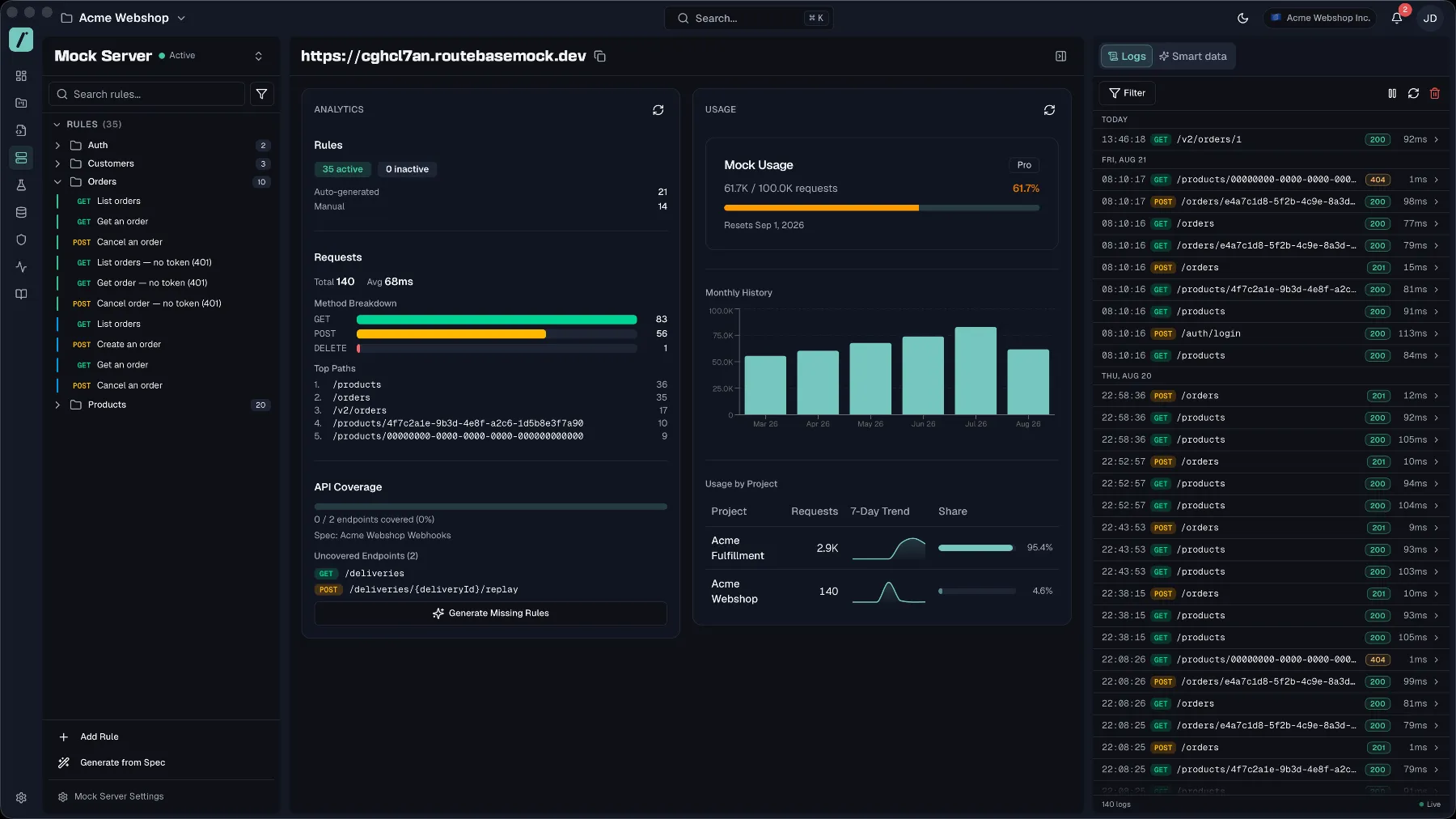
The server can be switched Active or Inactive at any time from its settings, and an inactive server stops answering requests without losing any configuration. The status is always visible as a colored dot next to the "Mock Server" heading in the left panel.
The workspace
The Mock Server page is a three-panel layout:
| Panel | Contents |
|---|---|
| Left | The rule tree, holding all mock rules grouped by path prefix, with search, filters and drag-to-reorder. Below it sit Add Rule, Generate from Spec and Mock Server Settings. |
| Center | The dashboard with Analytics and Usage when no rule is selected, and the rule editor when one is. The server's base URL sits in the header with a copy button. |
| Right | Two tabs. Logs is the live request log, and Smart data holds the data-generation matching rules. The panel can be collapsed to give the editor more room. |
Calling the mock server
The base URL looks like https://abc123de.routebasemock.dev. Append any path, and the server matches it against your rules and returns the winning rule's response. Each rule's editor also shows the full Endpoint URL, which is the base URL plus the path pattern, with a copy button ready to paste into your client.
The mock server is also wired into the API Designer's Try It panel, so pick Mock Server as the request target and your requests go straight to the mock URL.
If you enable Require Access Token in the server settings, callers must send the token via an Authorization: Bearer <token> header or a ?token=<token> query parameter.
Mock rules
A mock rule decides how one kind of request is answered. Each rule matches on:
| Match criteria | Details |
|---|---|
| Method | One of GET, POST, PUT, PATCH, DELETE, HEAD and OPTIONS, or Any Method. |
| Path pattern | The URL path, with parameters in braces as in /users/{id}. Must start with /. |
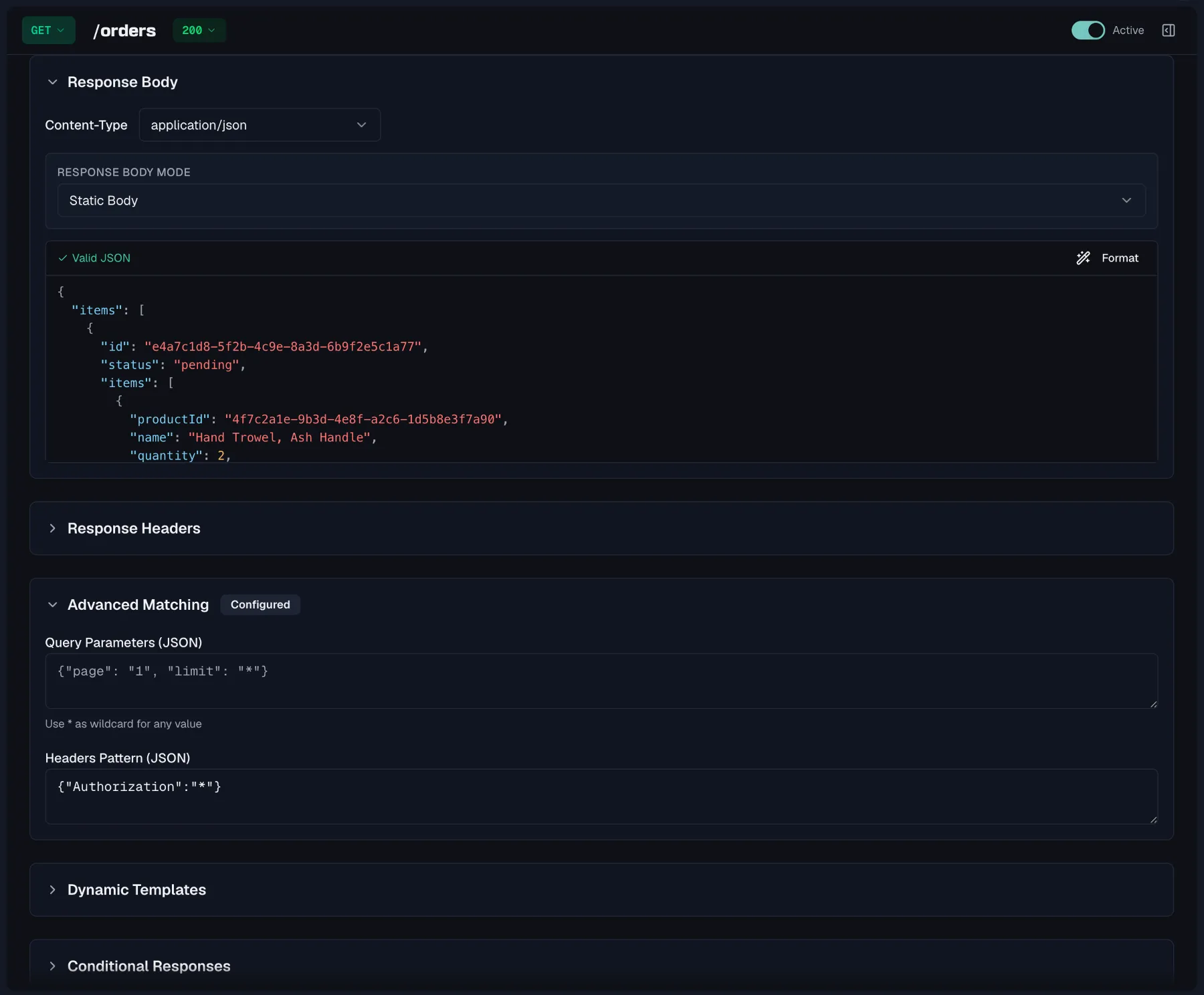
| Query Parameters (JSON) | Optional, under Advanced Matching. It matches only when the query string fits, as in {"page": "1", "limit": "*"}. Use * as a wildcard for any value. |
| Headers Pattern (JSON) | Optional. It matches only on specific headers, as in {"Authorization": "Bearer *"}. |
When more than one rule could match, priority breaks the tie and the highest-priority rule wins. Drag rules in the tree to reorder them, though drag and drop is disabled while a search or filter is active.
The response side of a rule defines the status code from 100 to 599, the Content-Type as one of application/json, application/xml, text/plain or text/html, optional response headers as a JSON object, and the body.
Working with rules
- Create a rule via Add Rule in the left panel, and the create dialog covers all rule settings at once.
- Edit by selecting a rule in the tree. The editor auto-saves as you type, while Ctrl+S or Cmd+S saves immediately, and a save indicator shows the current status. Method, path, status code and the Active toggle live in the editor's header toolbar, while everything else is organized into collapsible sections.
- Each rule has a name and an optional description, both editable inline by clicking them. A rule can be toggled Active or Inactive, duplicated or deleted, either from the ⋯ menu in the editor's header or from the same rule's menu in the tree described below.
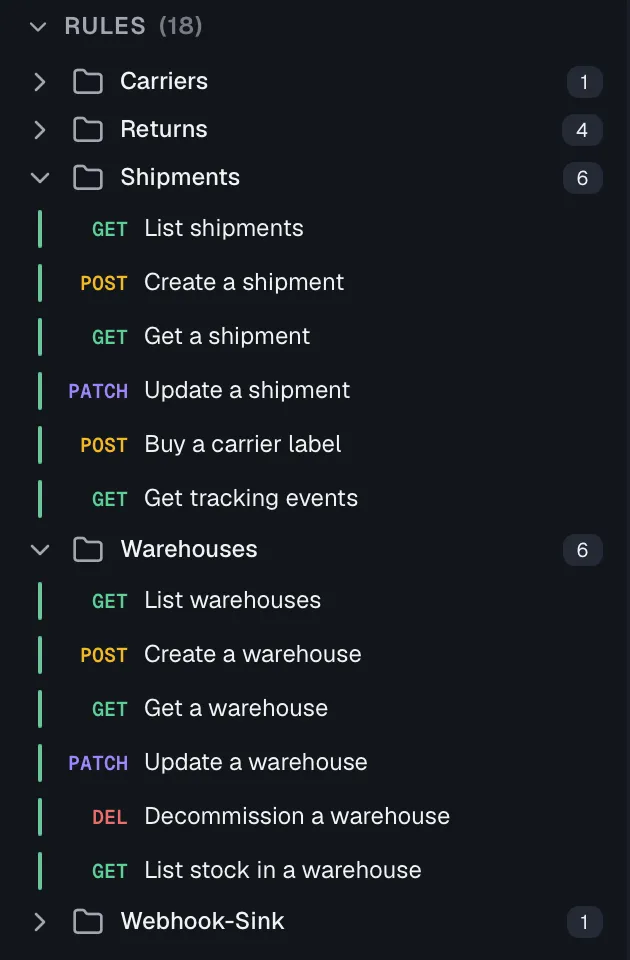
- The tree offers search, a filter popover by HTTP method and active or inactive state, and expand and collapse-all controls. A colored line next to each rule shows its status, where green means active, gray means inactive, yellow means out of sync with the source spec, and blue means following the spec draft live.
Working in the rule tree
Rules are grouped into folders by the first segment of their path, so /orders/{id} and /orders/{id}/items both land in Orders, and anything without a usable first segment collects in Other. Folders are sorted alphabetically with Other last. They exist only as a view of the paths, so there is nothing to create, name or move a rule into.
Every action below needs mock-server:manage, and with only mock-server:read the menus do not appear at all.
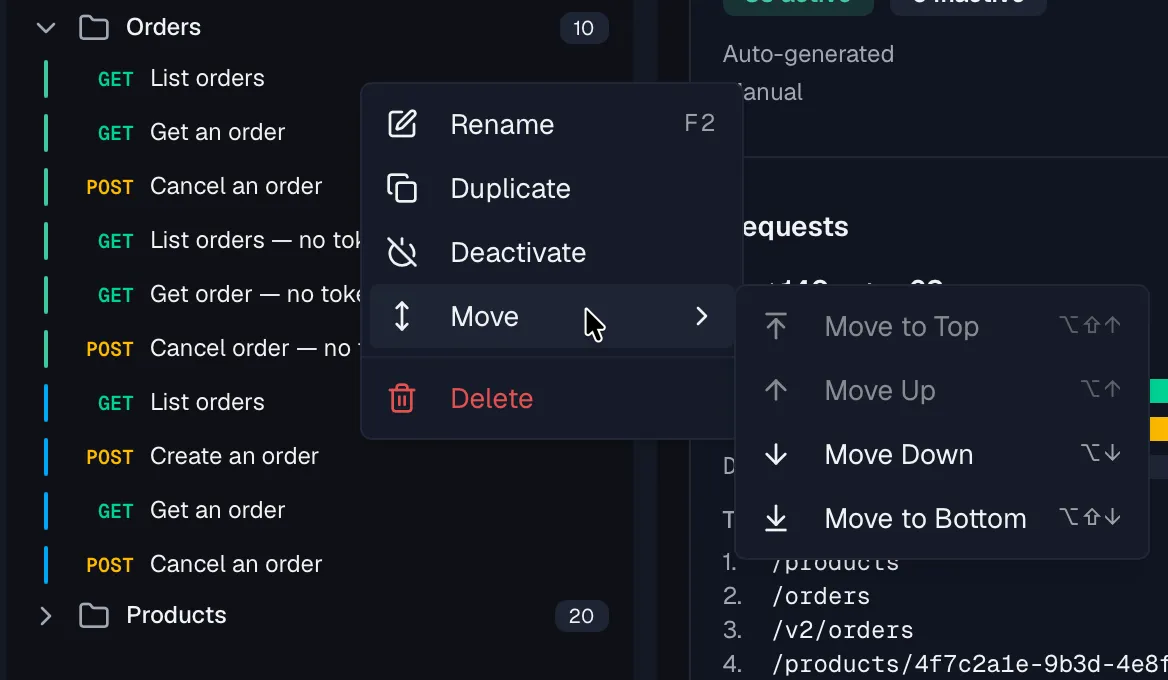
The rule menu opens either by right-clicking a rule or from the ⋯ button that appears when you hover it, and both open the same menu:
| Action | Shortcut | Notes |
|---|---|---|
| Rename | F2 |
Turns the row's name into an input. Enter saves, Esc discards, and clicking away also saves. Double-clicking the row does the same thing without opening the menu. |
| Duplicate | none | Copies the rule with a (Copy) suffix. |
| Activate / Deactivate | none | The label follows the rule's current state. |
| Move | ⌥↑ ⌥↓ ⌥⇧↑ ⌥⇧↓ |
Up, down, to top, to bottom. |
| Delete | none | Asks for confirmation first. |
The keyboard shortcuts act on the focused row, so click a rule once before using them.
Moving is folder-scoped. Priority is a single project-wide order, but a move only permutes the rule within its own folder. The slots that folder already occupies in the global order stay put, and every rule outside it keeps its position, so reordering two /orders rules never disturbs the /users rules sitting between them. Dragging a rule works the same way.
Deleting a folder removes every rule in it. Right-click the folder row, or use its hover ⋯ button, and choose Delete Folder. The confirmation names the count up front with "All 12 rules in "Orders" will be deleted", then lists the first eight by method, name and path, with a +N more line for the rest. It is one request, and it cannot be undone.
While a search or a filter is active, the folder menu, the Move entry and drag-and-drop all disappear. Reordering only makes sense against the full list, so the tree hides those actions rather than reordering a filtered view. Clear the search and the filters to get them back. Renaming, duplicating, toggling and deleting a single rule stay available throughout.
Response bodies: the four modes
A rule's body is produced in one of four modes, selected under Response Body Mode:
| Mode | What it returns |
|---|---|
| Static Body | The JSON / text body exactly as entered, on every request. For JSON content types, the editor validates the body and offers a one-click Format. |
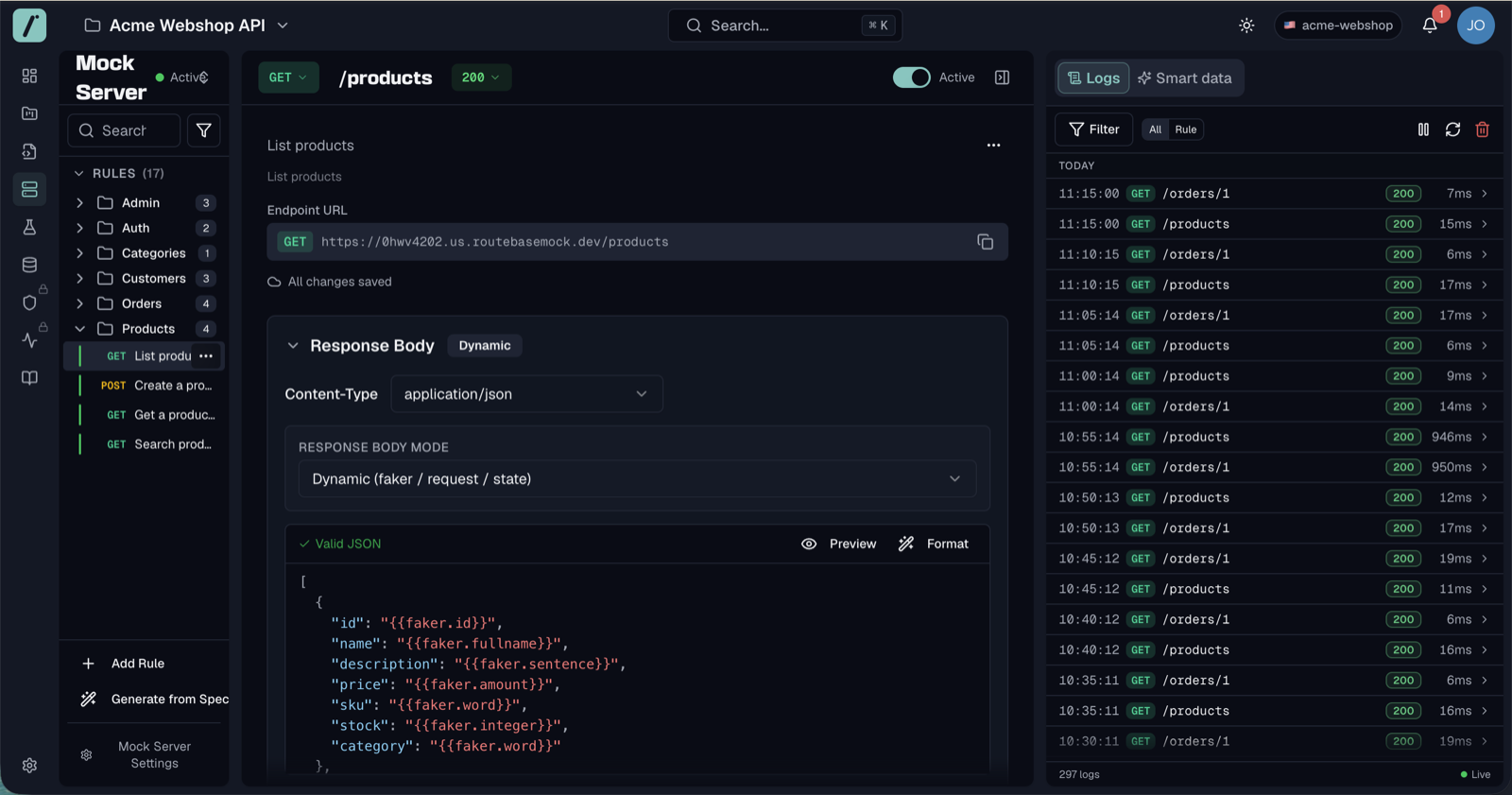
| Dynamic (faker / request / state) | The body is a template, where {{faker.*}}, {{request.*}} and {{state.*}} placeholders resolve on each request, so every call can look different. |
| Fixture Reference | The body is loaded from a project test-data fixture at serve time, so mocks and tests share one source of truth. The body editor is ignored in this mode. |
| Smart Mock (Fixture + Faker) | The body is still used as the template. {{fixture.*}} placeholders resolve first, then {{faker.*}} and {{request.*}}, which mixes real fixture data with generated values. |
For the two fixture-backed modes you pick a fixture from the project, created under Project Settings → Test Data, and an optional pipe to transform it before serving. Presets cover the common cases with first, last, random, count and toJsonArray. A custom pipe chain additionally supports toJson, pluck:<field>, where:<field>=<value> and jsonPath:<expr>, chained with | as in where:role=admin | first | toJson.
Faker placeholders
In Dynamic and Smart Mock bodies, {{faker.*}} placeholders generate realistic values. The body editor autocompletes them as soon as you type {{faker., and the available generators include:
| Category | Placeholders |
|---|---|
| Names & person | firstName, lastName, fullName, age, gender, prefix |
| Contact | email, username, phone |
| Identifiers | uuid (alias guid), id |
| Date & time | date, pastDate, futureDate, dateTime, timestamp, year, month, weekday, time, timeZone |
| Numbers | integer (alias int), decimal (aliases float, number), boolean (alias bool) |
| Address | streetAddress (alias address), city, country, state, zipCode (alias postalCode), countryCode, latitude, longitude |
| Business | company (alias companyName), jobTitle (alias job) |
| Web & network | url, domain, ipv4 (alias ip), ipv6, mac (alias macAddress), userAgent, password, slug |
| Colors | color (alias hexColor), colorName |
| Text | word, words, sentence, paragraph (alias text), title |
| Finance | currency, currencyName, amount (alias price), iban, creditCard |
| Media | imageUrl, avatarUrl, fileName, mimeType |
Alongside faker values, {{request.path.id}}, {{request.query.filter}} and {{request.body.name}} echo values from the incoming request, and {{state.variableName}} reads stateful-mock state. Generated names, cities, dates and times follow the data locale, time format and timezone configured in the server settings.
When a dynamic body contains placeholders, a Preview button renders it with generated values so you can check the result without sending a request.
Realistic behavior: conditions, errors, rate limits, delays, and state
Beyond the base response, each rule can layer on behavior from its collapsible sections:
Conditional Responses
Return different responses from the same rule depending on the request. Each conditional response carries one or more conditions, combined with Match ALL or Match ANY logic. A condition has four parts:
- A source, which is Query Parameter, Request Body, Header, Path Parameter or HTTP Method.
- A path, written in dot notation for body fields as in
user.name. - An operator, chosen from Equals, Not Equals, Contains, Not Contains, Starts With, Ends With, Regex Match, Exists, Not Exists, Greater Than, Greater or Equal, Less Than and Less or Equal.
- A value to compare against.
When a conditional response matches, its Response Override applies, which can change the status code, the content type and the body. Fields left empty keep the rule's defaults. In a typical setup a valid ID returns 200, and everything else falls through to a 404 override.
Error Simulation
Make the rule fail on purpose, at a configurable probability. Leaving the field empty means 100%, so the error always triggers. The error types are 500 Internal Server Error, 502 Bad Gateway, 503 Service Unavailable, 504 Gateway Timeout, plus Timeout, which waits and then closes the connection, and Connection Reset, which aborts immediately. Lower probabilities suit testing how your client handles intermittent failures.
Rate Limiting
Cap the rule at a max requests count per window, where the window is Per Second, Per Minute or Per Hour. Requests past the limit get HTTP 429 Too Many Requests with a Retry-After header until the window resets.
Delay Settings
Add a fixed Delay (ms) before the response, plus an optional Random Max Delay (ms) that adds a random extra delay up to that value. Together they mimic real network and processing latency.
A rule whose content type is a sequential media type, such as application/jsonl or text/event-stream, is delivered item by item. The mock server flushes each JSON line or each event on its own, and the Item delay (ms) field pauses between two items, up to ten seconds each. Rules generated from a specification take the item schema of the response and produce two items in the framing of the content type. The pauses share one budget of sixty seconds per response with the rule's delay, so a rule with a delay of fifty seconds leaves ten seconds for the pauses between its items.
Stateful Mock
Enable State Management to give the rule state that persists across requests, so a POST followed by a GET reflects what changed. Define the Initial State (JSON) such as {"counter": 0, "items": []}, read values with {{state.variableName}} in the response body, and mutate state via a __state__ block in the body template.
Generate rules from your spec
Instead of writing rules by hand, choose Generate from Spec, or the From OpenAPI spec card when creating the server. In the Generate Mock Rules dialog, pick an API Specification, optionally filter by a specific version, and decide whether to skip existing rules so endpoints that already have a rule are left untouched. The result toast reports how many rules were generated and how many were skipped.
Generated bodies are built with Smart Mock, which maps each response-schema field to a realistic generator based on its name and type. A field containing email produces an email address, one containing phone produces a phone number, and so on.
Matching rules (Smart data tab)
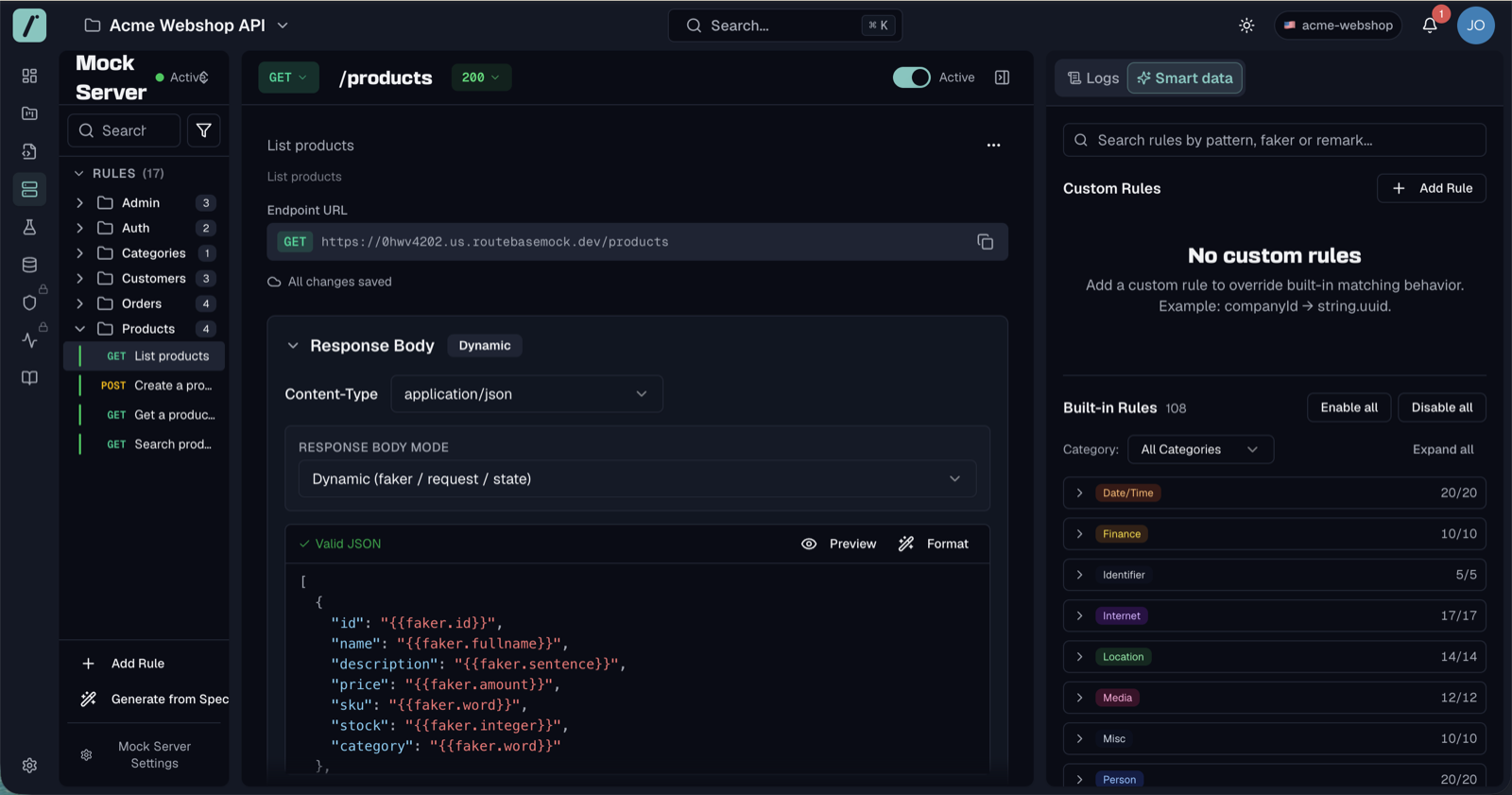
The Smart data tab in the right panel controls how field names map to generators:
- Built-in Rules are the shipped patterns, grouped into the categories Person, Location, Internet, Date/Time, Finance, Identifier, Media and Misc. They cannot be edited, but each can be toggled on or off individually or in bulk with Enable all and Disable all, and you can search and filter by category.
- Custom Rules are your own project-scoped rules. Each one carries a condition type of Exact, Wildcard with
*, or Regex, plus the pattern to match. It also takes a data type of Any, String, Integer, Number or Boolean, and the faker type to generate, such asinternet.emailorperson.firstName. It also takes a category, an optional remark, a sort order where lower values are evaluated first, and case sensitivity. While you type, a live Preview shows the value your rule would generate and which rule matched.
Custom rules are applied at generation time, so changes do not affect existing mock rules until you regenerate them. A banner in the Custom Rules section offers Regenerate affected rules to update all auto-generated rules in one click, and existing response bodies are overwritten.
Keeping mocks in sync with your spec
Spec-generated rules stay connected to their source endpoint:
- Following the draft live applies to rules generated from a draft version. They project their response from the current draft schema on every request, so new fields appear in the mock automatically. The body editor is read-only in this state, because the stored value is only the last snapshot. Click Customize to take ownership and edit it, which stops the live updates.
- Drift detection applies to a rule pinned to a published version. It shows a banner when the spec's latest published version has moved on, reading "This mock is frozen at v2, but the spec's latest published version is v3". Review Changes shows a field-by-field diff, and Sync from Spec re-points the mock to the latest published version and regenerates its body, overwriting manual body edits.
- Re-Generate with Smart Mock sits in the ⋯ menu in the rule editor's header and appears only for rules generated from a spec. It regenerates the response body from the endpoint's schema at any time, and a side-by-side preview compares the current body with the new one before you Apply.
When a server has both a Smart Mock body and a documented response example, the Default Mock Type setting decides which wins. See Mock Server Settings.
Proxy mode
Enable Proxy Mode and set a Proxy Target URL in the server settings, and the mock server forwards any request that no rule matches to your real backend. This lets you mock only the endpoints you are working on while everything else passes through to the live service. Proxied responses are marked as such in the request log. Proxy Mode requires a Starter plan or higher.
Request logs
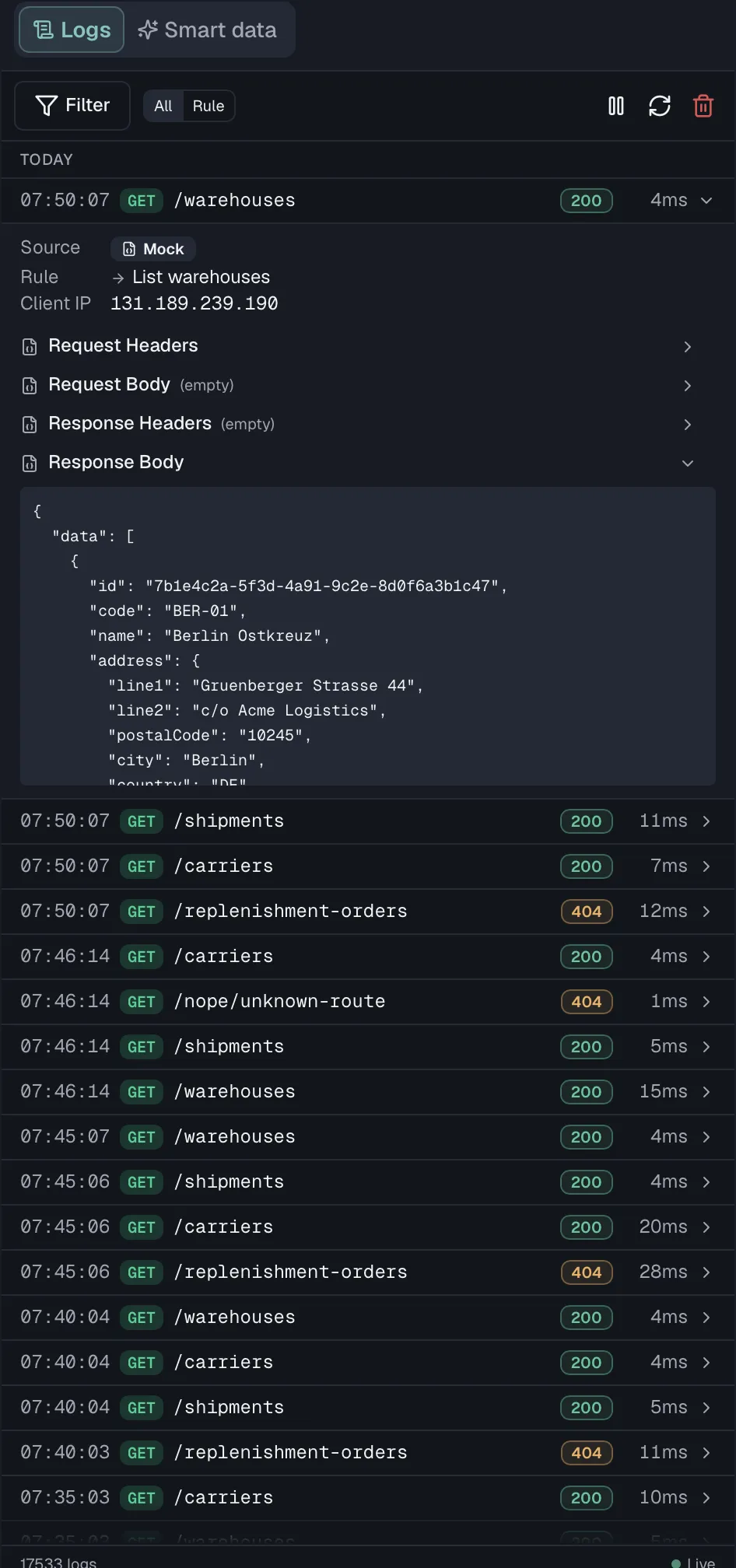
The Logs tab records every request the mock server handled. Each entry shows the timestamp, method, path, status and response time. Expanding it reveals whether the response was a Mock or Proxied, which rule matched, the client IP, the query string, and the full request and response headers and bodies, each of them copyable.
- The log auto-refreshes every few seconds while visible. A green Live indicator shows it is running, and you can pause it, resume it, or refresh manually.
- Filter by HTTP method, path substring, status class of 2xx, 3xx, 4xx or 5xx, and source, meaning mock against proxied. With a rule selected, an All / Rule toggle narrows the log to that rule's traffic.
- Clear logs wipes the history when you want a clean slate.
Analytics and usage
When no rule is selected, the center panel shows the server dashboard:
- Analytics carries rule counts split by active against inactive and auto-generated against manual, how many rules use conditions, error simulation, rate limiting or state, and log statistics. It also carries API Coverage, which lists the uncovered endpoints and offers a Generate Missing Rules shortcut. Coverage counts the endpoints of the current version of every spec in the project, and an endpoint counts as mocked once an active rule answers requests to it. The Mock Coverage bar on the project dashboard uses the same measure.
- Usage shows mock requests served this month against your plan's limit with your tier badge, warnings from 80% usage onward, a monthly history chart covering the last six months, and a per-project breakdown. At 100% of the monthly limit, new mock requests are blocked until the counter resets or you upgrade, and the banner offers Upgrade Plan directly.
Permissions
- mock-server:read allows viewing the server, rules, logs and usage. All roles have this by default.
- mock-server:manage allows creating the server, adding, editing, reordering and deleting rules, and changing matching rules and settings. Admins and Owners have it by default, and rule hover actions and editing controls are hidden without it.
Related
- Mock Server Settings — server configuration, CORS, tokens, and organization-wide defaults
- Test Data — fixtures you can serve as mock responses
- Endpoints — the operations rule generation starts from
- Schemas — the structures Smart Mock bodies are generated from
- Test Suites — validate the real API once it's ready