

Documentation Versioning
Documentation versions let you rework your docs safely while readers keep seeing the current release. Each version is a full, independent copy of the content tree, covering pages, folders and API snapshots, and each version has its own lifecycle.
Version statuses
| Status | Badge | Meaning |
|---|---|---|
| Draft | Draft | Work in progress. Changes can be made freely. |
| In Review | In Review | Under review. Awaiting approval before publishing. Still editable. |
| Live | Live / Published | Published and visible. Read-only, because the content is immutable. |
| Archived | Archived | Superseded by a newer version. Read-only. |
Only one version can be Live at a time, because publishing a new version automatically archives the previous Live one.
The version switcher
While the documentation editor is open, the app header shows the current version (for example v2 with its status badge, plus a lock icon for read-only versions). Click it to open the version switcher, which lists all versions and provides the actions below.
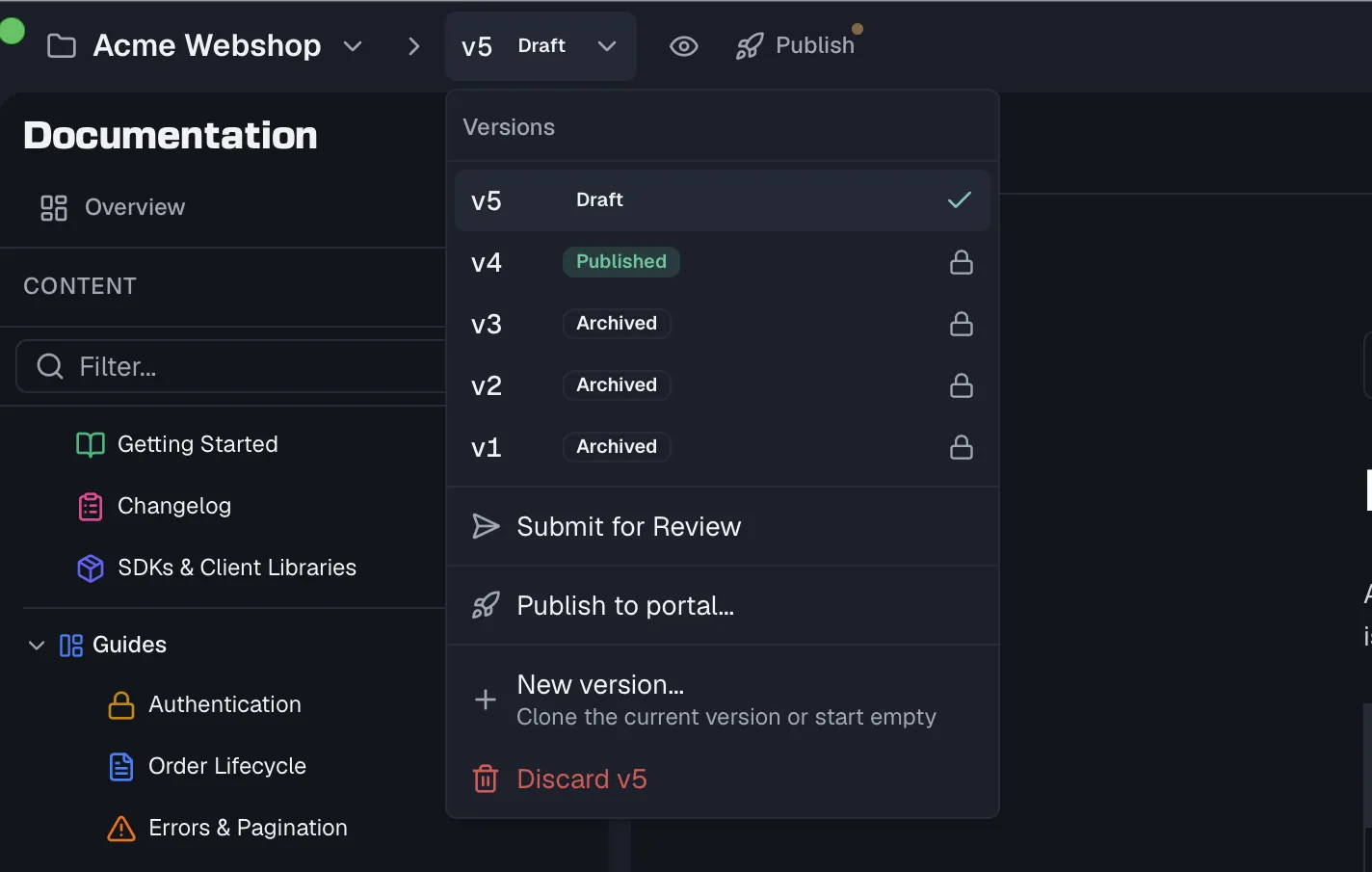
Switching versions lands on that version's Overview, which shows its status, what needs attention and its content stats. See Documentation Overview.
Creating versions
- New Version, described as "Start from an empty version", creates a fresh, empty draft.
- Clone Version, described as "Copy the current version's content", opens a dialog that creates a new Draft by cloning the selected version. The dialog notes that "All pages, folders, and spec snapshots will be copied." If the project has specs with newer published versions, it also offers Update API Spec Snapshots, where you check the specs you want the clone to pin to their latest published version.
Cloning is the standard way to prepare the next iteration of live docs. Clone the Live version, edit the draft, then publish it.
Version numbering
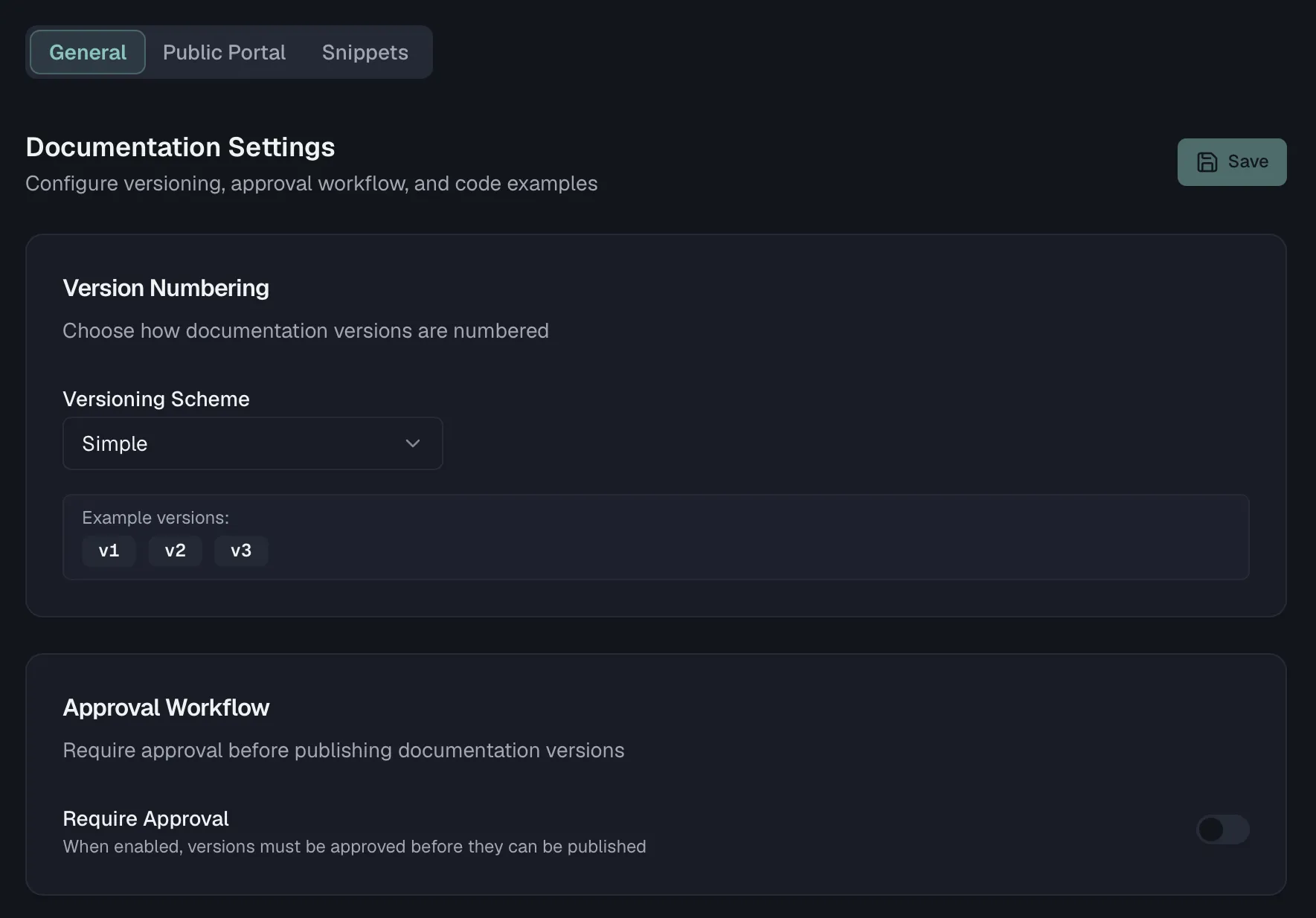
By default versions are numbered v1, v2, v3. In Documentation Settings → General → Version Numbering you can pick a Versioning Scheme, each with an example preview:
| Scheme | Examples |
|---|---|
| Simple | v1, v2, v3 |
| Semantic | v1.0.0, v1.1.0, v2.0.0 |
| Date-based | 2026.03, 2026.04, 2026.05 |
| Custom | release-1, beta-2, hotfix-3 |
The status lifecycle
Status actions appear in the version switcher based on the current status:
- Click Submit for Review to move a Draft to In Review. The action reassures you that "You can return it to draft later if needed."
- From In Review, click Return to Draft for further editing, or Go Live to publish.
- Click Go Live to take an In Review version live. The confirmation warns that "Once live, all content becomes immutable and cannot be edited. If there is a current live version, it will be automatically archived."
Publishing a version requires the docs:publish permission. Members can edit documentation but cannot take it live, while Admins and Owners can.
Note that "Live" describes the version's status inside Routebase. Whether readers can reach it on the public portal is controlled separately by version visibility and the portal build, as described in Publishing.
Approval workflow
In Documentation Settings → General → Approval Workflow you can turn on Require Approval, which reads "When enabled, versions must be approved before they can be published." Add the user IDs of team members who may approve version publishing.
Discarding a version
Draft and In Review versions can be discarded from the version switcher (Discard vN). The confirmation warns that the version's content is permanently removed and cannot be undone. Live and archived versions cannot be discarded.
Visibility: Internal vs. Public
Every published version has a visibility flag:
- Internal keeps the version visible only to your team inside Routebase.
- Public makes it eligible for deployment to the public portal.
Toggle it in the Publication card on Documentation Settings → Public Portal → Publish with Make Public / Make Internal (requires docs:manage-portal). Switching a deployed version back to Internal removes it from the public portal after a confirmation. Details in Publishing.
Working with pinned API snapshots across versions
API references inside a documentation version are pinned snapshots of published spec versions. Versioning your docs and versioning your specs stay independent:
- A new spec release does not change existing doc versions. You'll see an update banner on the reference view and can update the snapshot in a mutable version.
- When cloning, use Update API Spec Snapshots to pull the newest published spec versions into the new draft in one step.
See API Spec Versioning for the spec-side lifecycle.
Related
- Documentation Overview — the content model behind versions
- Publishing — visibility, builds, and the deployed-versions list
- API Spec Versioning — publishing spec versions that docs can embed