Routebase turns your API specs and hand-written guides into a versioned documentation portal. Each project has its own documentation workspace where you organize **pages**, **folders**, and **API references** in a single content tree, then publish the result as a hosted portal for your readers.
Open **Documentation** in the sidebar while a project is active. Viewing documentation requires the **docs:read** permission, and making changes requires **docs:write**. The built-in Member role includes both.
## Your first visit
What happens the first time a project has no documentation depends on what you are allowed to do with it.
If you can complete the whole setup, Routebase opens a three-step assistant titled *"Set up your documentation portal"*. Completing it means holding **docs:write**, **docs:manage-portal** and **docs:publish**, which Admins and Owners do.
1. Under **Content**, give the portal a name and tick the API specs you want embedded as an API reference. Draft-only specs show **Publish & add** and are published on the way in, which needs **specs:publish**. A spec with no publishable version at all is shown disabled as **No version**. The step creates a Getting Started page from an editable template as the portal's entry page.
2. Under **Branding**, save the **portal address**, which is the subdomain and is required to continue, then pick one of the built-in themes. Colors, fonts and logo are left for the theme editor later.
3. Under **Go Live**, review a summary of name, address, theme and content, then click **Publish portal**. That makes version 1 public, enables the portal and starts the first build. You land on the live URL and can keep editing afterwards.
**Skip setup — go to the editor** at the bottom leaves the assistant at any point and drops you into an empty documentation workspace instead.
Members who can edit but not publish or configure the portal never see the assistant. For them a documentation workspace with an initial draft version is created silently, and the portal side is left to someone who can do it.
 ## The version overview
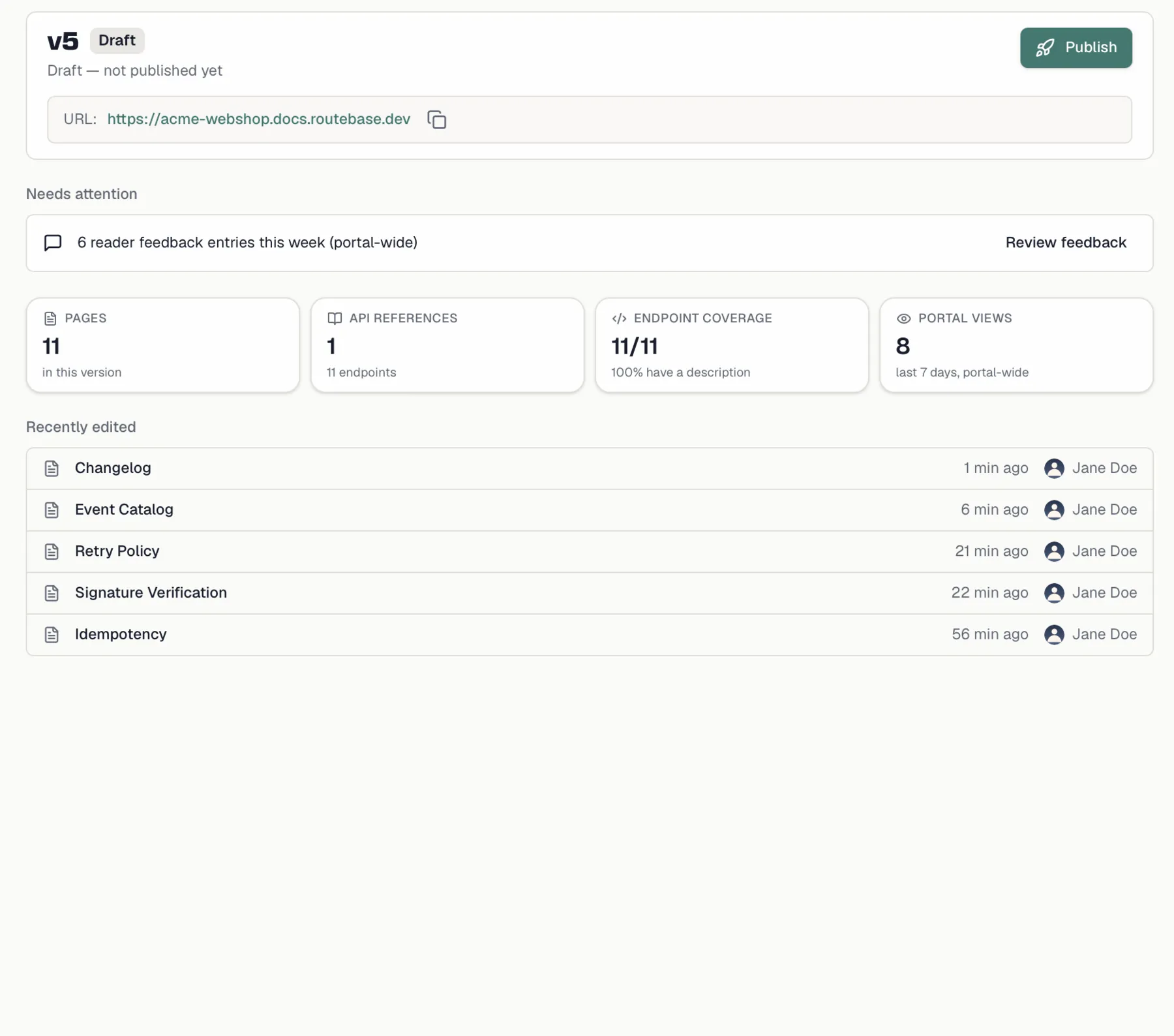
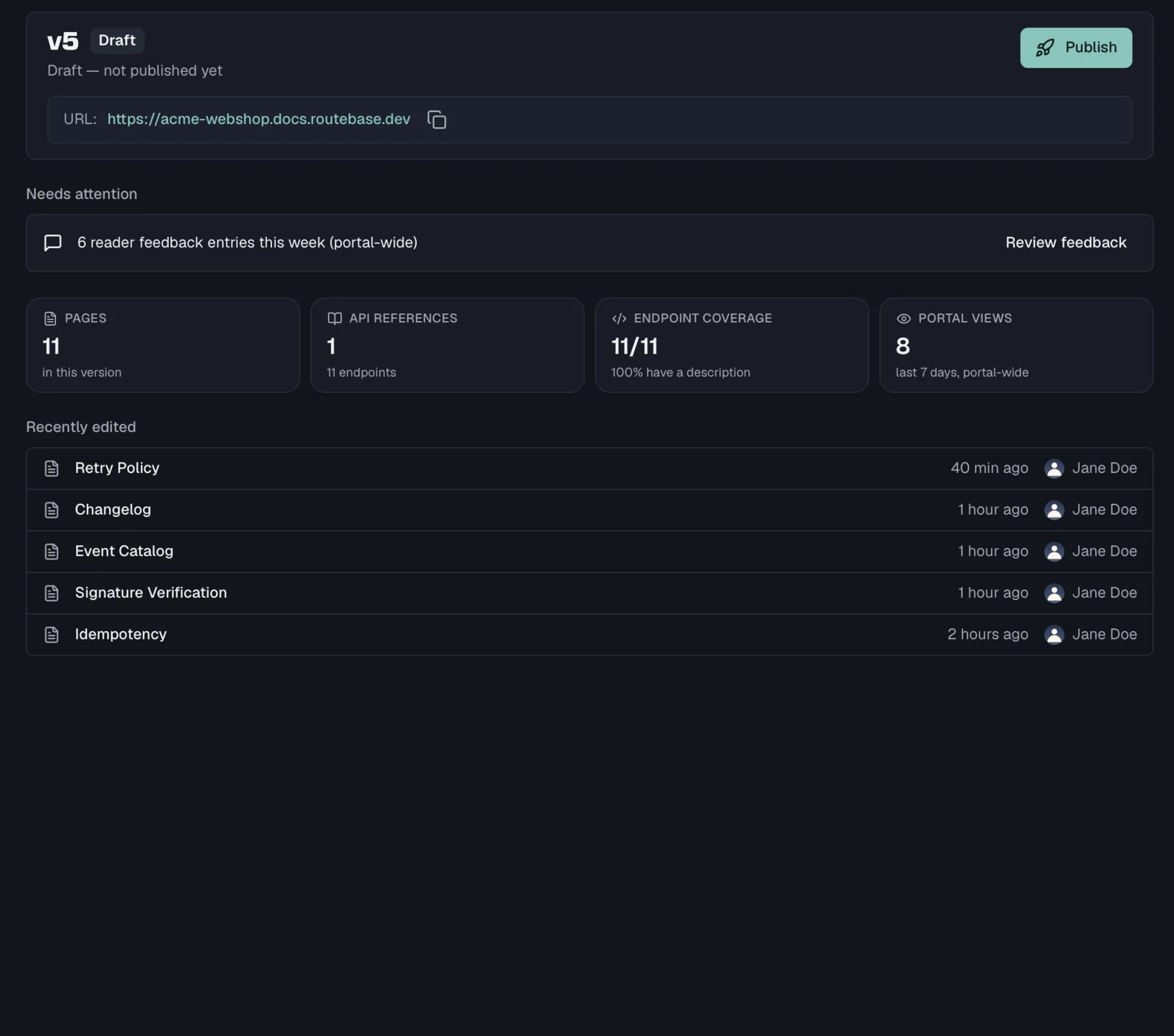
Opening Documentation lands on **Overview**, the first entry above the content tree, and so does every switch to another version. It answers where this version stands without a trip through the settings pages, and you can return to it at any time by clicking that entry.
**Status header.** The header carries the version number with its status badge, the last build as a colored dot reading *Build succeeded / failed / building / queued*, and one line of context. That line reads *Published 3 days ago*, *Draft — not published yet*, *In review — waiting for approval* or *Archived — read-only*. When the portal is enabled, its public URL sits below with a copy button. The action on the right follows the version, so an editable version offers **Publish** while a read-only one offers **Open portal** and **Clone to new version**.
**Needs attention** lists only what is actually pending, and each entry carries the action that resolves it:
| Entry | When it appears | Action |
| --- | --- | --- |
| *"<Spec> has a newer published version (vN)"* | An embedded API reference is behind its spec — one entry per affected reference, only on an editable version | **Review update** opens that reference |
| *"The last portal build for this version failed"* | The newest build of this version failed | **View build log** |
| *"N reader feedback entries this week (portal-wide)"* | Readers left feedback in the last 7 days | **Review feedback** |
Dismissing a spec-update banner in the reference view also removes it here. When nothing is pending, the whole block collapses to a single line reading *"Everything is up to date."*
**Stats** count **Pages** and **API references** in this version, plus **Endpoint coverage**. Coverage says how many embedded endpoints carry a description, shown as `12/40` with the percentage below. **Portal views** covers the last 7 days portal-wide and appears only for readers with **docs:manage-portal**. Everyone else sees three tiles instead of four, and no request is made for data they may not see.
**Recently edited** lists the pages that moved last, each with the person who touched it and when. Clicking a row opens that page.
A version with no content at all shows entry cards instead, which are **Add a page**, **Add an API reference** and **Start from template**. The last one seeds a Getting Started page. On a read-only version the cards are replaced by the note that it must be cloned before it can be edited.
## The version overview
Opening Documentation lands on **Overview**, the first entry above the content tree, and so does every switch to another version. It answers where this version stands without a trip through the settings pages, and you can return to it at any time by clicking that entry.
**Status header.** The header carries the version number with its status badge, the last build as a colored dot reading *Build succeeded / failed / building / queued*, and one line of context. That line reads *Published 3 days ago*, *Draft — not published yet*, *In review — waiting for approval* or *Archived — read-only*. When the portal is enabled, its public URL sits below with a copy button. The action on the right follows the version, so an editable version offers **Publish** while a read-only one offers **Open portal** and **Clone to new version**.
**Needs attention** lists only what is actually pending, and each entry carries the action that resolves it:
| Entry | When it appears | Action |
| --- | --- | --- |
| *"<Spec> has a newer published version (vN)"* | An embedded API reference is behind its spec — one entry per affected reference, only on an editable version | **Review update** opens that reference |
| *"The last portal build for this version failed"* | The newest build of this version failed | **View build log** |
| *"N reader feedback entries this week (portal-wide)"* | Readers left feedback in the last 7 days | **Review feedback** |
Dismissing a spec-update banner in the reference view also removes it here. When nothing is pending, the whole block collapses to a single line reading *"Everything is up to date."*
**Stats** count **Pages** and **API references** in this version, plus **Endpoint coverage**. Coverage says how many embedded endpoints carry a description, shown as `12/40` with the percentage below. **Portal views** covers the last 7 days portal-wide and appears only for readers with **docs:manage-portal**. Everyone else sees three tiles instead of four, and no request is made for data they may not see.
**Recently edited** lists the pages that moved last, each with the person who touched it and when. Clicking a row opens that page.
A version with no content at all shows entry cards instead, which are **Add a page**, **Add an API reference** and **Start from template**. The last one seeds a Getting Started page. On a read-only version the cards are replaced by the note that it must be cloned before it can be edited.
 ## How documentation is structured
| Concept | What it is |
| --- | --- |
| **Documentation** | The container for all docs of a project. It holds versions and the portal configuration. |
| **Version** | An independent snapshot of the whole content tree (v1, v2, …). Drafts are editable; live versions are read-only. See [Versioning](https://docs.routebase.dev/doc-versioning/). |
| **Page** | A single document — either a free-form custom page or a specialized page type (Getting Started, Authentication, …). |
| **Folder** | Groups pages in the tree. Root-level folders can be promoted to **sections**, which become top-level navigation tabs. |
| **API Reference** | An embedded snapshot of a published API specification, rendered as endpoint reference pages. |
## The content tree
The left sidebar shows the content tree for the selected version. At the top of the tree:
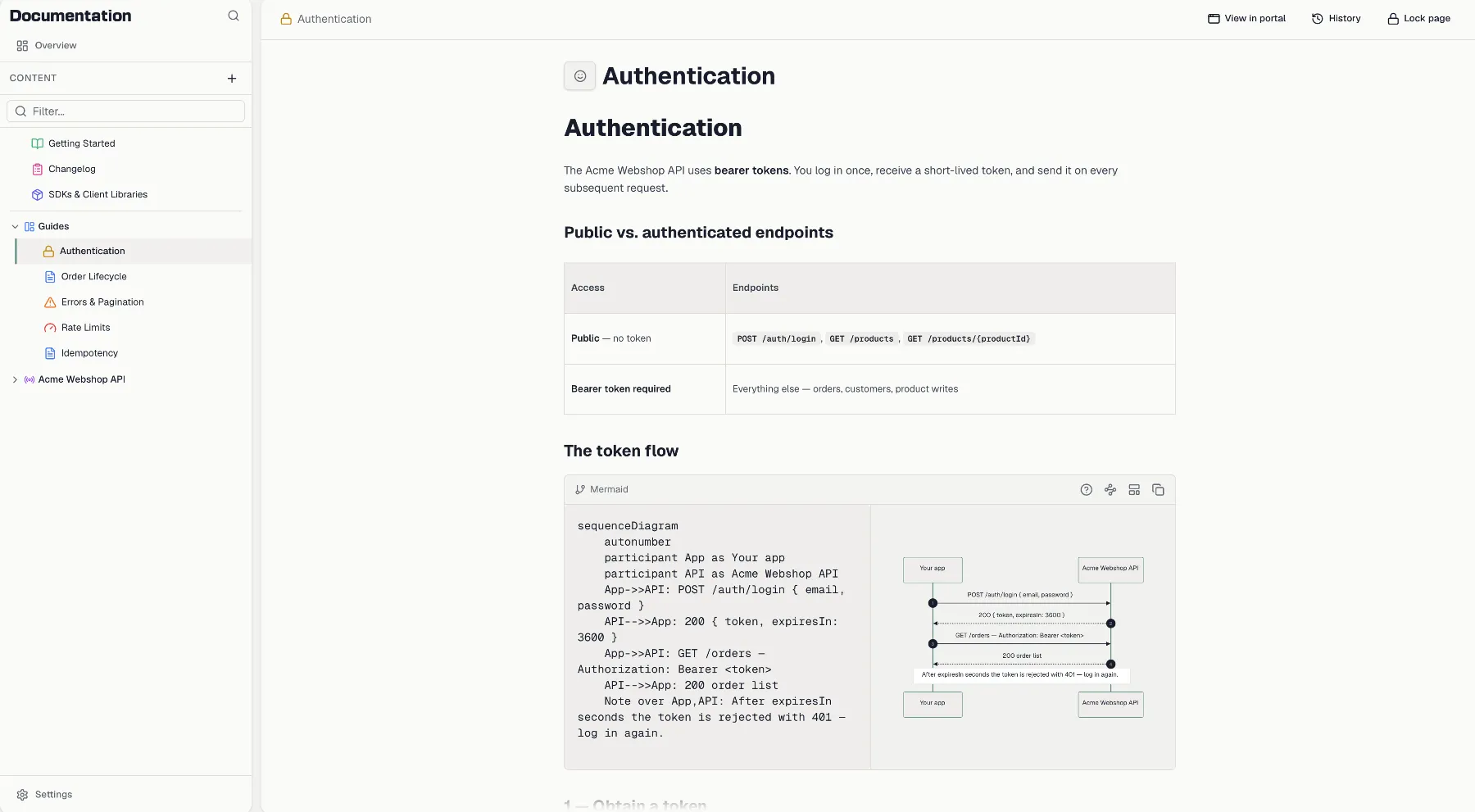
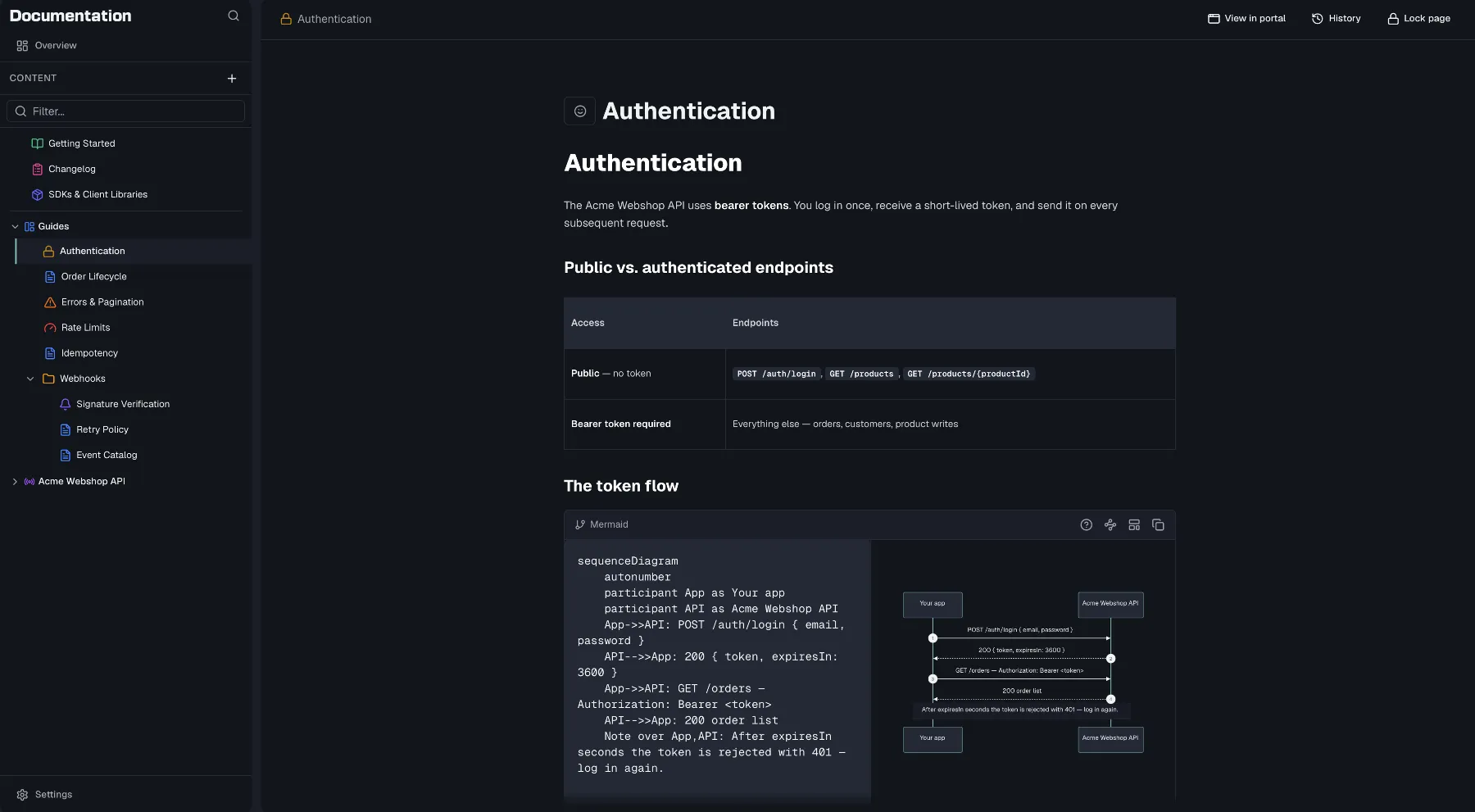
- The **Content** header carries a **+** menu with **New Page**, **New Folder**, **Add API Spec** and **New Section**.
- A **Filter...** box narrows the tree by page title, folder name, spec name, or endpoint path and method. Press Escape to clear it.
The sidebar header has a **Search (⌘K)** button, and a **Settings** button pinned at the foot of the sidebar opens **Documentation Settings**. Generating a portal preview and publishing are handled from the documentation header at the top of the page, which [Publishing](https://docs.routebase.dev/doc-publishing/) covers.
Items without a section render under two group labels, **Pages** and **API Specifications**. When the tree is empty you see *"No content yet — Start building your documentation."* with a **New Page** button.
### Organizing the tree
- **Drag and drop** items to reorder them or move them into folders.
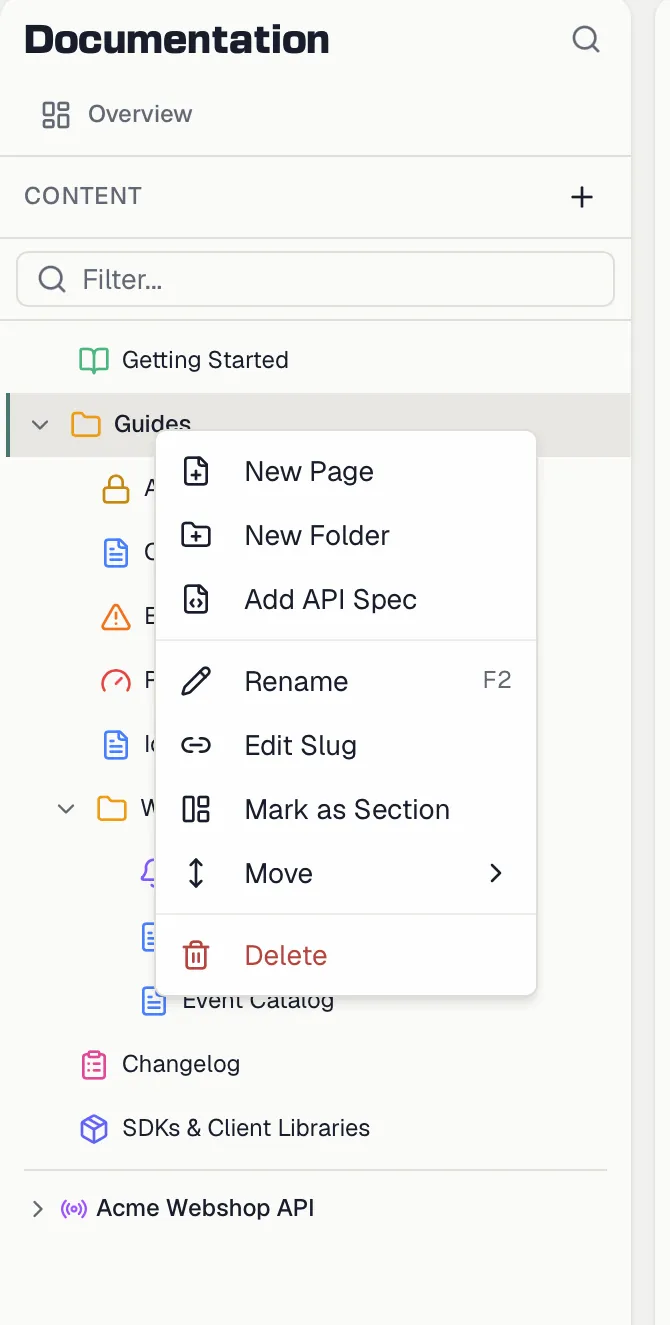
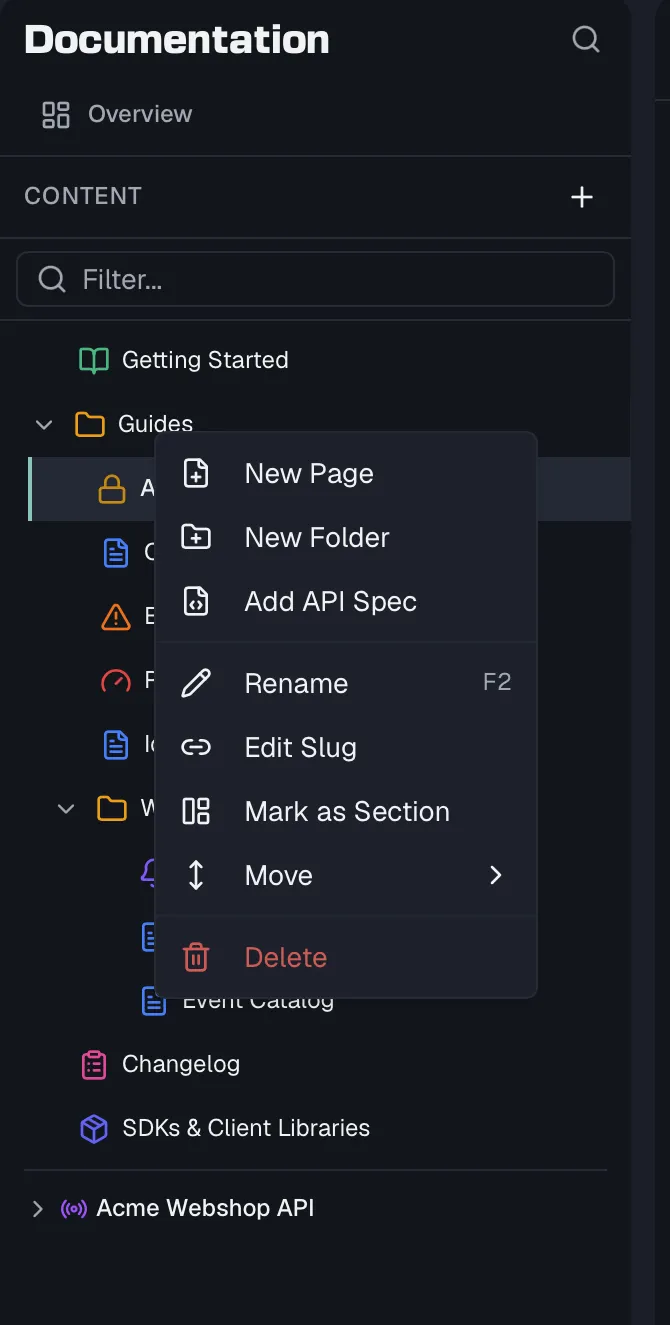
- Right-click any item for the context menu, which holds **New Page**, **New Folder**, **Add API Spec**, **Rename**, **Edit Slug**, **Duplicate**, **Move Up**, **Move Down** and **Delete**. Rename also responds to F2 or a double-click, Duplicate is for pages only, and API specs read **Remove** instead of Delete. Deleting asks for confirmation and cannot be undone.
- Root-level folders offer **Mark as Section** / **Unmark as Section**. Sections render as collapsible groups in the editor tree and as separate navigation areas in the published portal.
## How documentation is structured
| Concept | What it is |
| --- | --- |
| **Documentation** | The container for all docs of a project. It holds versions and the portal configuration. |
| **Version** | An independent snapshot of the whole content tree (v1, v2, …). Drafts are editable; live versions are read-only. See [Versioning](https://docs.routebase.dev/doc-versioning/). |
| **Page** | A single document — either a free-form custom page or a specialized page type (Getting Started, Authentication, …). |
| **Folder** | Groups pages in the tree. Root-level folders can be promoted to **sections**, which become top-level navigation tabs. |
| **API Reference** | An embedded snapshot of a published API specification, rendered as endpoint reference pages. |
## The content tree
The left sidebar shows the content tree for the selected version. At the top of the tree:
- The **Content** header carries a **+** menu with **New Page**, **New Folder**, **Add API Spec** and **New Section**.
- A **Filter...** box narrows the tree by page title, folder name, spec name, or endpoint path and method. Press Escape to clear it.
The sidebar header has a **Search (⌘K)** button, and a **Settings** button pinned at the foot of the sidebar opens **Documentation Settings**. Generating a portal preview and publishing are handled from the documentation header at the top of the page, which [Publishing](https://docs.routebase.dev/doc-publishing/) covers.
Items without a section render under two group labels, **Pages** and **API Specifications**. When the tree is empty you see *"No content yet — Start building your documentation."* with a **New Page** button.
### Organizing the tree
- **Drag and drop** items to reorder them or move them into folders.
- Right-click any item for the context menu, which holds **New Page**, **New Folder**, **Add API Spec**, **Rename**, **Edit Slug**, **Duplicate**, **Move Up**, **Move Down** and **Delete**. Rename also responds to F2 or a double-click, Duplicate is for pages only, and API specs read **Remove** instead of Delete. Deleting asks for confirmation and cannot be undone.
- Root-level folders offer **Mark as Section** / **Unmark as Section**. Sections render as collapsible groups in the editor tree and as separate navigation areas in the published portal.
 ### The folder overview
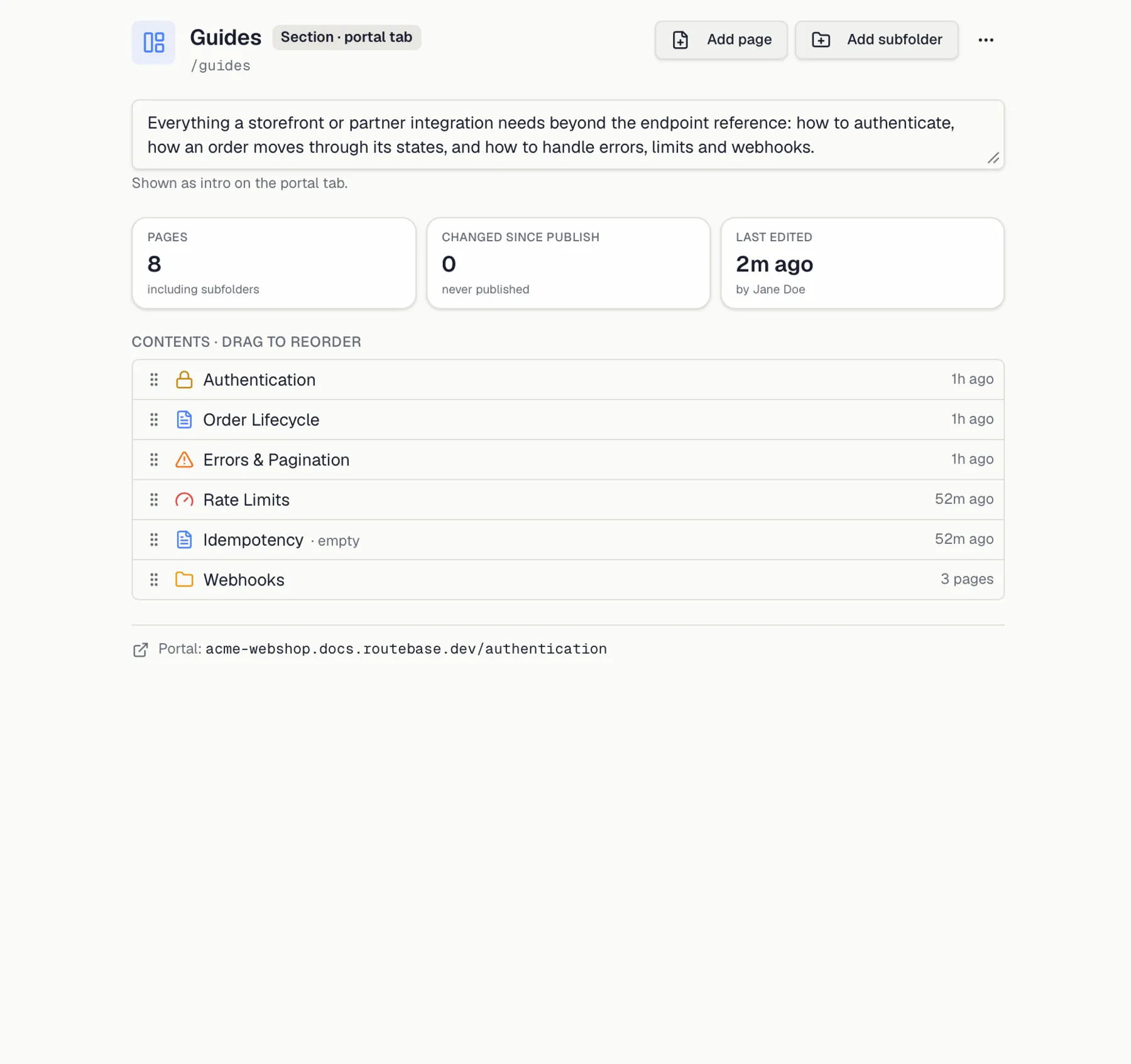
Clicking a folder or section **name** opens its own working surface on the right, while the chevron still expands and collapses. Clicking the name only ever expands, so the surface does not disappear under the click that opened it.
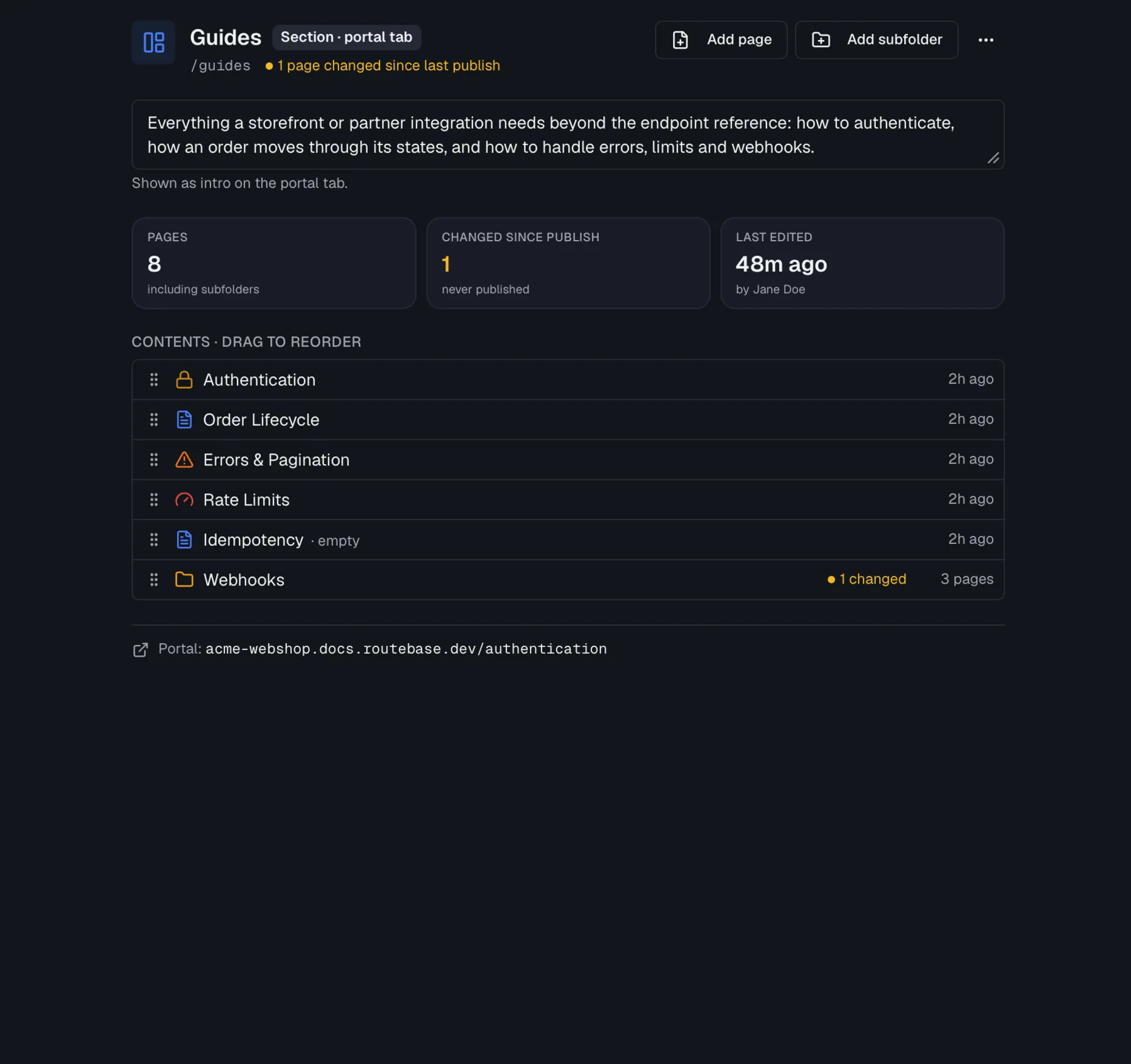
- The **header** carries the folder name, which you double-click to rename, its slug, and a **Section · portal tab** badge for sections. If pages below it changed since the last successful portal build, an amber line says how many. **Add page** and **Add subfolder** sit on the right, with **Rename**, **Edit slug** and **Delete** behind the **⋯** menu.
- The **description** is a text field that saves when you click away. On a section it doubles as the intro of the portal tab, and the hint below says so.
- The **stats** are **Pages** including subfolders, **Changed since publish** with the time of the last build or *never published*, and **Last edited** with the person who did it.
- **Contents** lists the folder's direct children. Drag the handle to reorder, which is the same operation as dragging in the tree, so both show the same order once you let go. Subfolders show the number of changed pages they contain, and a page with no content yet is marked *· empty*. An empty folder says so instead, with an **Add your first page** button.
- **Portal** appears for a section once the portal has an address, and this last row shows where that tab lives and links to it.
**"Changed since publish"** compares each page's last edit against the last **successful** portal build. Before a version has been built once there is nothing to compare against, so the marker falls back to what you have actually edited *in that version*. A version you just created by cloning therefore starts with no page marked, and a page only lights up once someone edits it there. Reordering alone does not count as a change, because the marker follows the pages rather than their order.
Read-only versions show the same surface without the input fields, the drag handles and the actions.
### The folder overview
Clicking a folder or section **name** opens its own working surface on the right, while the chevron still expands and collapses. Clicking the name only ever expands, so the surface does not disappear under the click that opened it.
- The **header** carries the folder name, which you double-click to rename, its slug, and a **Section · portal tab** badge for sections. If pages below it changed since the last successful portal build, an amber line says how many. **Add page** and **Add subfolder** sit on the right, with **Rename**, **Edit slug** and **Delete** behind the **⋯** menu.
- The **description** is a text field that saves when you click away. On a section it doubles as the intro of the portal tab, and the hint below says so.
- The **stats** are **Pages** including subfolders, **Changed since publish** with the time of the last build or *never published*, and **Last edited** with the person who did it.
- **Contents** lists the folder's direct children. Drag the handle to reorder, which is the same operation as dragging in the tree, so both show the same order once you let go. Subfolders show the number of changed pages they contain, and a page with no content yet is marked *· empty*. An empty folder says so instead, with an **Add your first page** button.
- **Portal** appears for a section once the portal has an address, and this last row shows where that tab lives and links to it.
**"Changed since publish"** compares each page's last edit against the last **successful** portal build. Before a version has been built once there is nothing to compare against, so the marker falls back to what you have actually edited *in that version*. A version you just created by cloning therefore starts with no page marked, and a page only lights up once someone edits it there. Reordering alone does not count as a change, because the marker follows the pages rather than their order.
Read-only versions show the same surface without the input fields, the drag handles and the actions.
 ## Pages and page types
Choosing **New Page** opens a type picker. Custom pages are free-form, while the eight specialized types are structured starting points that can each exist **once per version**. When a type is taken, its card is disabled with an *"Already exists in this version"* tooltip and a *"Go to page"* shortcut.
| Page type | Purpose |
| --- | --- |
| **Custom Page** | Free-form content with the rich text editor. |
| **Getting Started** | Prerequisites, installation, and first API call. |
| **Authentication** | Auth methods, configuration, and code examples. |
| **Environments** | Base URLs and environment configuration. |
| **Error Codes** | Error table, categories, and handling examples. |
| **Rate Limits** | Rate limit tiers, headers, and retry strategy. |
| **Webhooks** | Events, payloads, verification, and retry policy. |
| **SDKs & Libraries** | SDK cards, install commands, and quick start. |
| **Changelog** | Version history with categorized entries — see [Changelog](https://docs.routebase.dev/doc-changelog/). |
Every type opens with a template picker, which [Page Templates](https://docs.routebase.dev/doc-templates/) covers. All pages are edited with the same rich text editor, described under [Authoring](https://docs.routebase.dev/doc-authoring/).
On the Free plan, each documentation version can contain up to **3 custom pages**. The count is per version, so a new version starts with a fresh budget. The eight specialized types do not count against it, because they have their own once-per-version rule. Once the budget is used up, the New Page dialog refuses a further custom page and points at an upgrade. Paid plans have no limit.
## API reference pages vs. custom pages
Custom pages are content you write, while API reference pages are generated from your API specs.
1. In the tree's **+** menu, choose **Add API Spec**.
2. Pick a specification from the project. Only specs with a **published version** can be added, and drafts show a *"No Published Version"* badge. Specs already in the tree show *"Already added"*.
3. Optionally check **Enable API Playground** to let readers send live requests from the reference pages.
4. Choose the **Endpoint Structure**, which is either **Folder-based** to group by the spec's folders or tags, or **Flat List**.
5. Click **Add Specification**.
The spec is embedded as a **snapshot pinned to the published version**, so later spec edits do not silently change your docs. When a newer published spec version exists, a banner appears on the reference view reading *"API Reference pinned to vX. Version vY available."* with an **Update** button. You can also switch a spec node between folder and flat view from its context menu, and drag-reorder its endpoints and groups directly in the tree.
Selecting the spec node opens a scrollable reference of every endpoint, with a header card showing the endpoint count and whether the playground is enabled. In editable versions, each endpoint has a collapsible **Notes** field for adding documentation-side annotations without touching the spec itself.
## Slugs
Every page and folder has a URL slug used in the published portal and in navigation. Slugs contain only lowercase letters, numbers and single hyphens.
- Slugs are **generated from the title** when you create a page or folder, but you can override them in the creation dialog.
- Renaming an item later does **not** change its slug. To change it, use **Edit Slug** in the context menu. The dialog notes that existing links to the published page keep using the slug they were published with.
## Searching your documentation
Press **⌘K** or click the search icon to open documentation search. Type at least two characters, then filter results by **All**, **Pages**, **Endpoints** or **Folders**. Selecting a result jumps to it in the tree. Search works in draft versions too, because Routebase builds a local index from the tree until the version is published.
## Documentation settings
The **Settings** button at the foot of the sidebar opens **Documentation Settings** with three tabs:
- **General** holds the version numbering scheme, the approval workflow, **Schema Display**, and the **Code Languages** shown as tabs in code examples. The languages are cURL, HTTPie, JavaScript, Python, C#, Go, Java, Ruby and PHP. Only the languages you select are rendered, in the app and on the published portal, and selecting none shows all of them. See [Versioning](https://docs.routebase.dev/doc-versioning/) for the versioning options.
- **Public Portal** holds everything about hosting and publishing the portal, split into the five tabs **Publish**, **Appearance**, **Features**, **Advanced** and **Insights**. See [Publishing](https://docs.routebase.dev/doc-publishing/).
- **Snippets** holds the reusable content snippets for the selected version.
## Pages and page types
Choosing **New Page** opens a type picker. Custom pages are free-form, while the eight specialized types are structured starting points that can each exist **once per version**. When a type is taken, its card is disabled with an *"Already exists in this version"* tooltip and a *"Go to page"* shortcut.
| Page type | Purpose |
| --- | --- |
| **Custom Page** | Free-form content with the rich text editor. |
| **Getting Started** | Prerequisites, installation, and first API call. |
| **Authentication** | Auth methods, configuration, and code examples. |
| **Environments** | Base URLs and environment configuration. |
| **Error Codes** | Error table, categories, and handling examples. |
| **Rate Limits** | Rate limit tiers, headers, and retry strategy. |
| **Webhooks** | Events, payloads, verification, and retry policy. |
| **SDKs & Libraries** | SDK cards, install commands, and quick start. |
| **Changelog** | Version history with categorized entries — see [Changelog](https://docs.routebase.dev/doc-changelog/). |
Every type opens with a template picker, which [Page Templates](https://docs.routebase.dev/doc-templates/) covers. All pages are edited with the same rich text editor, described under [Authoring](https://docs.routebase.dev/doc-authoring/).
On the Free plan, each documentation version can contain up to **3 custom pages**. The count is per version, so a new version starts with a fresh budget. The eight specialized types do not count against it, because they have their own once-per-version rule. Once the budget is used up, the New Page dialog refuses a further custom page and points at an upgrade. Paid plans have no limit.
## API reference pages vs. custom pages
Custom pages are content you write, while API reference pages are generated from your API specs.
1. In the tree's **+** menu, choose **Add API Spec**.
2. Pick a specification from the project. Only specs with a **published version** can be added, and drafts show a *"No Published Version"* badge. Specs already in the tree show *"Already added"*.
3. Optionally check **Enable API Playground** to let readers send live requests from the reference pages.
4. Choose the **Endpoint Structure**, which is either **Folder-based** to group by the spec's folders or tags, or **Flat List**.
5. Click **Add Specification**.
The spec is embedded as a **snapshot pinned to the published version**, so later spec edits do not silently change your docs. When a newer published spec version exists, a banner appears on the reference view reading *"API Reference pinned to vX. Version vY available."* with an **Update** button. You can also switch a spec node between folder and flat view from its context menu, and drag-reorder its endpoints and groups directly in the tree.
Selecting the spec node opens a scrollable reference of every endpoint, with a header card showing the endpoint count and whether the playground is enabled. In editable versions, each endpoint has a collapsible **Notes** field for adding documentation-side annotations without touching the spec itself.
## Slugs
Every page and folder has a URL slug used in the published portal and in navigation. Slugs contain only lowercase letters, numbers and single hyphens.
- Slugs are **generated from the title** when you create a page or folder, but you can override them in the creation dialog.
- Renaming an item later does **not** change its slug. To change it, use **Edit Slug** in the context menu. The dialog notes that existing links to the published page keep using the slug they were published with.
## Searching your documentation
Press **⌘K** or click the search icon to open documentation search. Type at least two characters, then filter results by **All**, **Pages**, **Endpoints** or **Folders**. Selecting a result jumps to it in the tree. Search works in draft versions too, because Routebase builds a local index from the tree until the version is published.
## Documentation settings
The **Settings** button at the foot of the sidebar opens **Documentation Settings** with three tabs:
- **General** holds the version numbering scheme, the approval workflow, **Schema Display**, and the **Code Languages** shown as tabs in code examples. The languages are cURL, HTTPie, JavaScript, Python, C#, Go, Java, Ruby and PHP. Only the languages you select are rendered, in the app and on the published portal, and selecting none shows all of them. See [Versioning](https://docs.routebase.dev/doc-versioning/) for the versioning options.
- **Public Portal** holds everything about hosting and publishing the portal, split into the five tabs **Publish**, **Appearance**, **Features**, **Advanced** and **Insights**. See [Publishing](https://docs.routebase.dev/doc-publishing/).
- **Snippets** holds the reusable content snippets for the selected version.
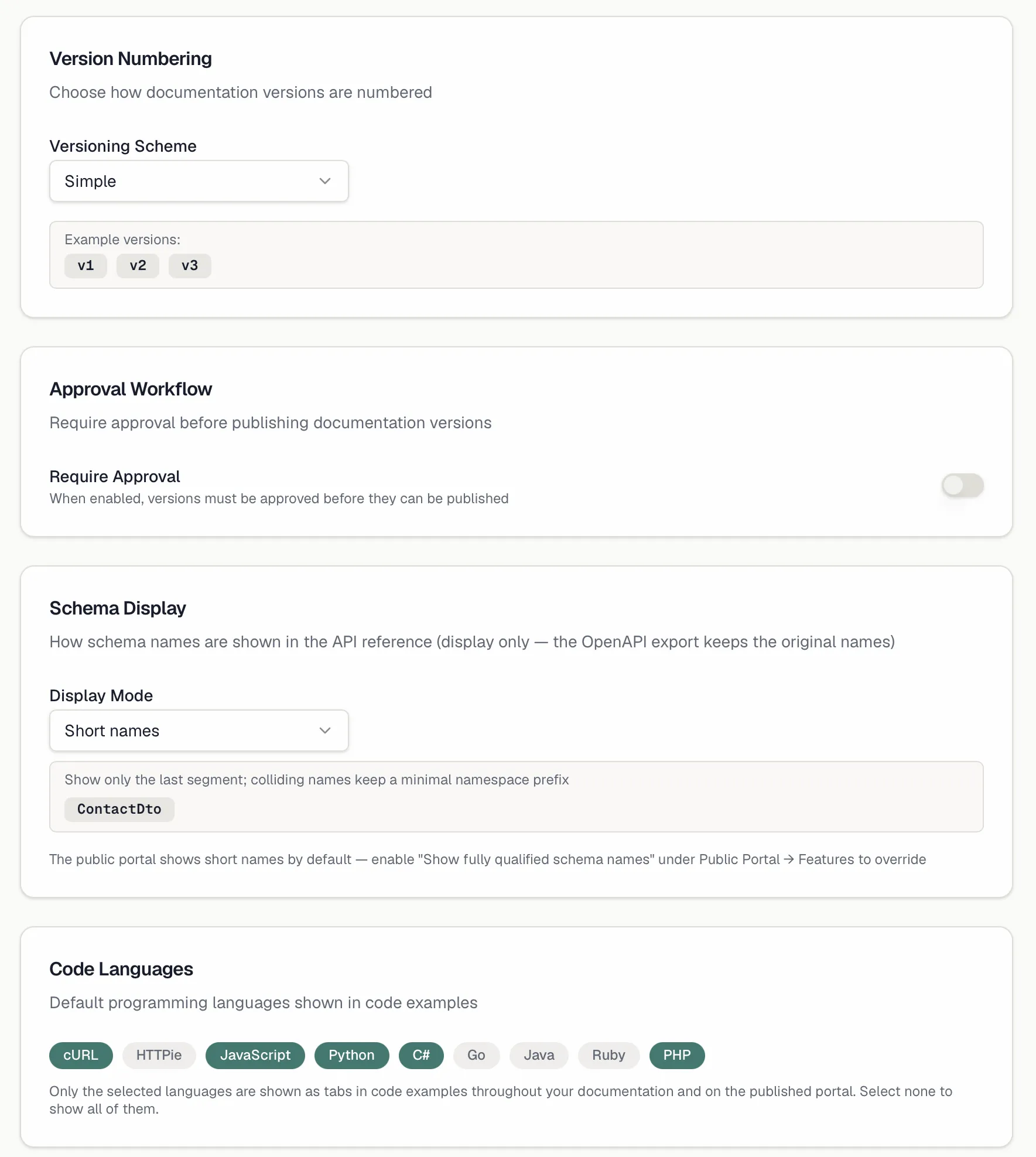
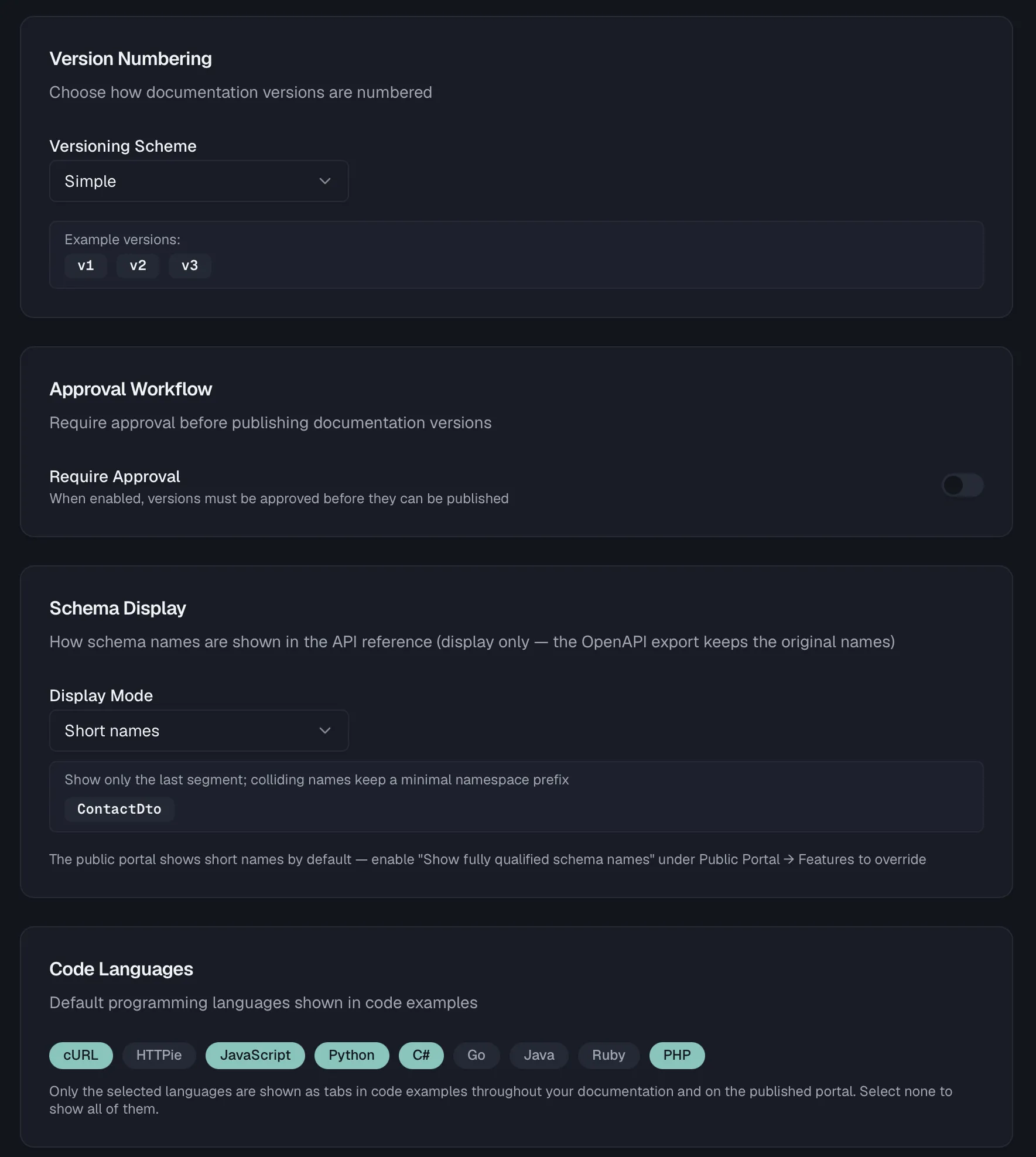 **Schema Display** controls how schema names appear in the API reference. It affects the display only, because the OpenAPI export keeps the original names. Choose a **Display Mode** from three options. **Full names** shows names exactly as imported, **Short names** shows just the last segment and keeps a minimal namespace prefix only where names collide, and **Strip prefix** removes a namespace prefix you specify. The public portal shows short names by default, and the **Show fully qualified schema names** toggle under **Public Portal → Features** overrides that for readers.
## Working on documentation from an AI agent
The documentation module is fully exposed over the [Routebase MCP server](https://docs.routebase.dev/mcp-quickstart/), so an agent can read and write your docs with the same permissions your API key carries. It is not a read-only view of the portal, because the whole authoring loop is there.
Three toolsets cover it. Enable them with `enable_toolset`, and call `set_context` for the project first.
| Toolset | Slug | What it covers |
| --- | --- | --- |
| Documentation | `documentation` | The content tree, pages, folders, versions, spec snapshots and snippets |
| Portal Administration | `portal-admin` | Portal settings, custom domains, builds, deployments, analytics and page feedback |
| Portal Docs Search | `portal-docs` | Two read tools against a **published** portal |
The tools you will reach for most:
- **Read the structure** with `get_doc_tree`, which returns the folders, pages and spec snapshots of a version as a typed hierarchy. `list_documentations` and `get_doc_settings` cover the surrounding configuration.
- **Write content** with `create_doc_page` and `update_doc_page`, which take Markdown directly. Updating a page can also set a new slug, and the old one then redirects on the published portal. Both only work on a **mutable** version, meaning Draft or In Review, because a live version is refused exactly as in the editor.
- **Restructure** with `manage_doc_tree`, `manage_doc_folder` and `manage_doc_page`, which handle moving, renaming and deleting. `manage_spec_snapshot` embeds and refreshes API references, while `manage_doc_version` and `clone_doc_version` handle the version lifecycle.
- **Ship it** with `publish_doc_version`, which takes a version in Review live, and `trigger_portal_build`, which renders and uploads the portal. See [Publishing](https://docs.routebase.dev/doc-publishing/#publishing-from-an-ai-agent).
- **Read a published portal** with `search_portal_docs`, which does keyword search across the latest published version and returns slugs. `get_portal_page` then returns one page with its full Markdown. Both help agents that consume your docs rather than write them.
Permissions map one-to-one onto the ones described above. Reads need `docs:read` and writes need `docs:write`, while `publish_doc_version` needs `docs:publish` and anything touching the portal itself needs `docs:manage-portal`. A key without a scope does not merely fail the call, because the tool is not offered in the first place.
There is also an MCP **resource**, `routebase://docs/{docId}/pages`, which hands an agent every page of the latest published version with its Markdown content in one read.
## Read-only versions
Live and archived versions are immutable. The tree shows a *"This version is read-only"* indicator, pages open in reader mode, and all editing affordances are hidden. To make changes, clone the version into a new draft, as described under [Versioning](https://docs.routebase.dev/doc-versioning/).
## Related
- [Authoring](https://docs.routebase.dev/doc-authoring/) — the rich text editor, blocks, and slash commands
- [Versioning](https://docs.routebase.dev/doc-versioning/) — drafts, review, and going live
- [Publishing](https://docs.routebase.dev/doc-publishing/) — hosting the portal
- [Endpoints](https://docs.routebase.dev/endpoints/) — designing the API specs your references are built from
- [MCP Quickstart](https://docs.routebase.dev/mcp-quickstart/) — connecting an AI agent to this workspace
**Schema Display** controls how schema names appear in the API reference. It affects the display only, because the OpenAPI export keeps the original names. Choose a **Display Mode** from three options. **Full names** shows names exactly as imported, **Short names** shows just the last segment and keeps a minimal namespace prefix only where names collide, and **Strip prefix** removes a namespace prefix you specify. The public portal shows short names by default, and the **Show fully qualified schema names** toggle under **Public Portal → Features** overrides that for readers.
## Working on documentation from an AI agent
The documentation module is fully exposed over the [Routebase MCP server](https://docs.routebase.dev/mcp-quickstart/), so an agent can read and write your docs with the same permissions your API key carries. It is not a read-only view of the portal, because the whole authoring loop is there.
Three toolsets cover it. Enable them with `enable_toolset`, and call `set_context` for the project first.
| Toolset | Slug | What it covers |
| --- | --- | --- |
| Documentation | `documentation` | The content tree, pages, folders, versions, spec snapshots and snippets |
| Portal Administration | `portal-admin` | Portal settings, custom domains, builds, deployments, analytics and page feedback |
| Portal Docs Search | `portal-docs` | Two read tools against a **published** portal |
The tools you will reach for most:
- **Read the structure** with `get_doc_tree`, which returns the folders, pages and spec snapshots of a version as a typed hierarchy. `list_documentations` and `get_doc_settings` cover the surrounding configuration.
- **Write content** with `create_doc_page` and `update_doc_page`, which take Markdown directly. Updating a page can also set a new slug, and the old one then redirects on the published portal. Both only work on a **mutable** version, meaning Draft or In Review, because a live version is refused exactly as in the editor.
- **Restructure** with `manage_doc_tree`, `manage_doc_folder` and `manage_doc_page`, which handle moving, renaming and deleting. `manage_spec_snapshot` embeds and refreshes API references, while `manage_doc_version` and `clone_doc_version` handle the version lifecycle.
- **Ship it** with `publish_doc_version`, which takes a version in Review live, and `trigger_portal_build`, which renders and uploads the portal. See [Publishing](https://docs.routebase.dev/doc-publishing/#publishing-from-an-ai-agent).
- **Read a published portal** with `search_portal_docs`, which does keyword search across the latest published version and returns slugs. `get_portal_page` then returns one page with its full Markdown. Both help agents that consume your docs rather than write them.
Permissions map one-to-one onto the ones described above. Reads need `docs:read` and writes need `docs:write`, while `publish_doc_version` needs `docs:publish` and anything touching the portal itself needs `docs:manage-portal`. A key without a scope does not merely fail the call, because the tool is not offered in the first place.
There is also an MCP **resource**, `routebase://docs/{docId}/pages`, which hands an agent every page of the latest published version with its Markdown content in one read.
## Read-only versions
Live and archived versions are immutable. The tree shows a *"This version is read-only"* indicator, pages open in reader mode, and all editing affordances are hidden. To make changes, clone the version into a new draft, as described under [Versioning](https://docs.routebase.dev/doc-versioning/).
## Related
- [Authoring](https://docs.routebase.dev/doc-authoring/) — the rich text editor, blocks, and slash commands
- [Versioning](https://docs.routebase.dev/doc-versioning/) — drafts, review, and going live
- [Publishing](https://docs.routebase.dev/doc-publishing/) — hosting the portal
- [Endpoints](https://docs.routebase.dev/endpoints/) — designing the API specs your references are built from
- [MCP Quickstart](https://docs.routebase.dev/mcp-quickstart/) — connecting an AI agent to this workspace